Creating TL Pay Virtual Cards

Using and setting up Virtual Cards

Card Types

TL Pay Virtual Cards allow you to pay suppliers by card while maintaining full visibility and reconciliation inside Travel Ledger. There are two types of cards you can issue:

Single-Use Cards

  • Issued for individual bookings at a fixed value - ideal for one off payments

  • Can include tolerance settings and Merchant categorisation to prevent fraud unnecessary declines

Multi-Use Cards

  • Used for repeat payments - ideal for lodging for payments to the same supplier or for a single user such as a homeworker

  • Commonly lodged with suppliers such as Expedia TAAP


Creating a Virtual Card

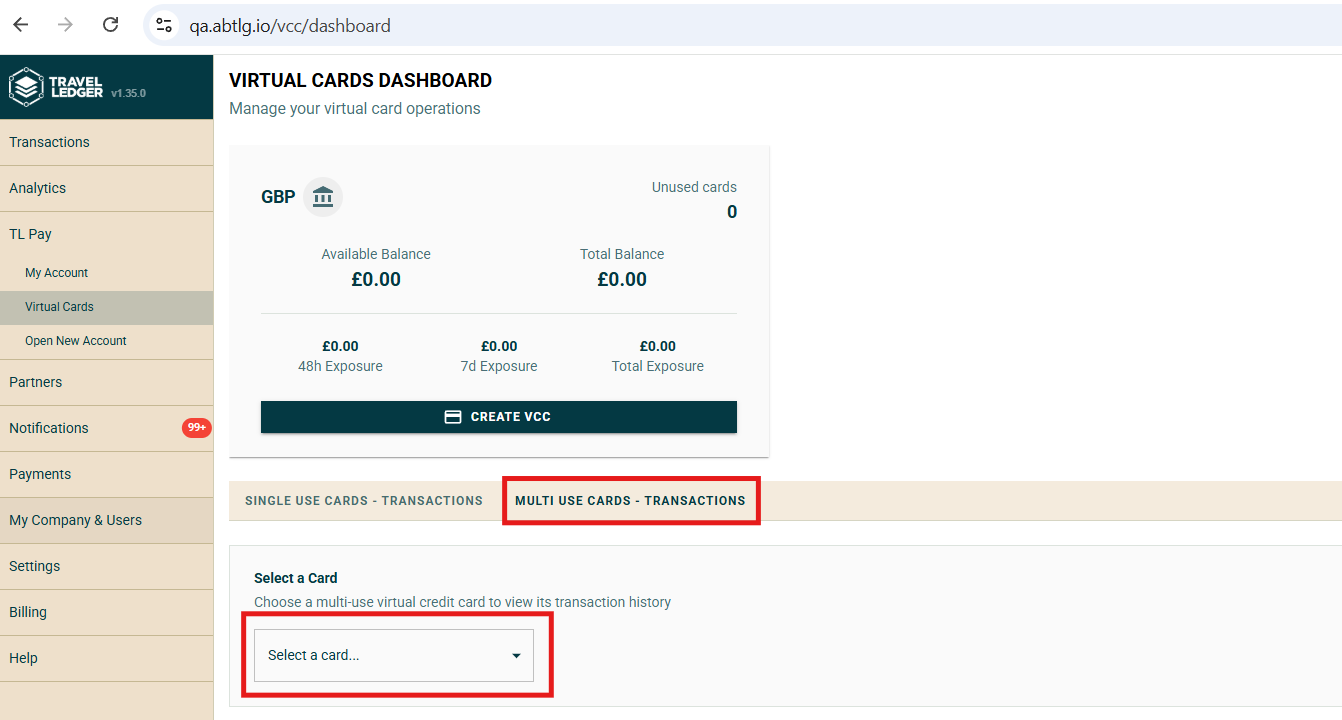
Virtual cards are created directly within Travel Ledger under TL Pay>Virtual Cards.

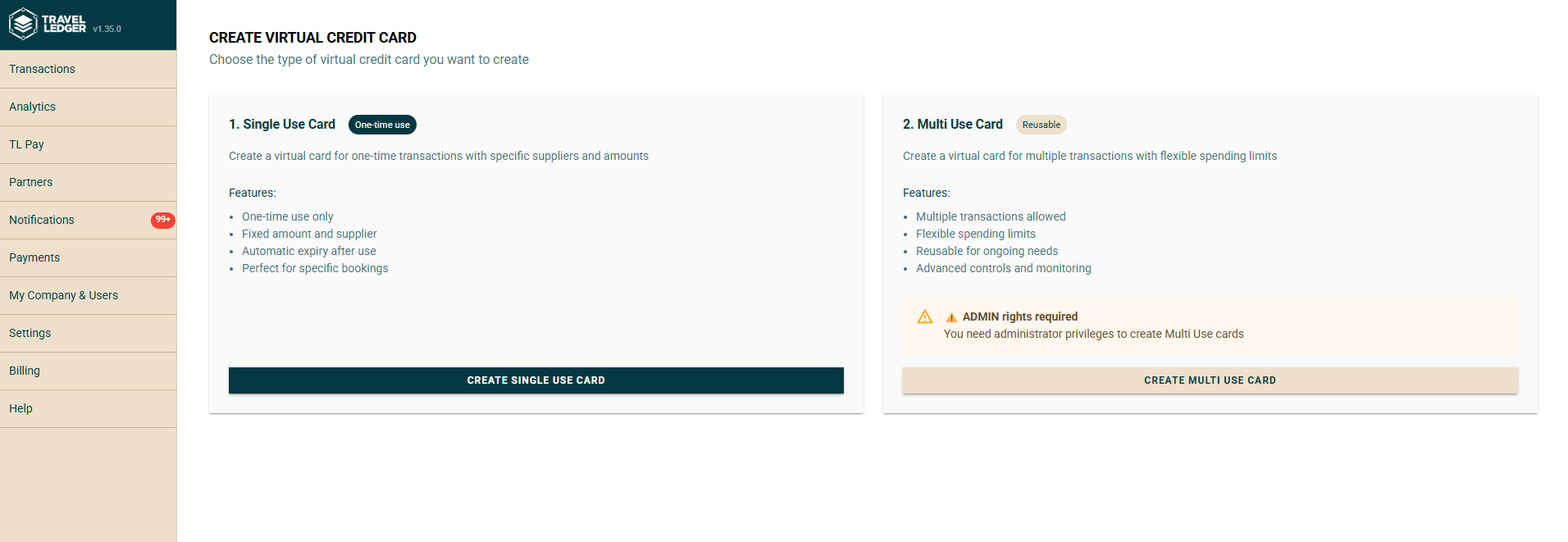
You will need to select if you wish to issue a Single or Multi Use card.

circle-info

🔐 Admin Only. Only users with the correct permissions can create and manage TL Pay Virtual Cards.

chevron-rightIssuing Single-Use Virtual Cardshashtag

Single-Use Virtual Cards

A single-use card is issued for one-three transactions only. Ideal for one-off bookings or specific supplier payments. To issue a single use card:

  1. Log in to Travel Ledger Access Travel Ledger with your usual credentials.

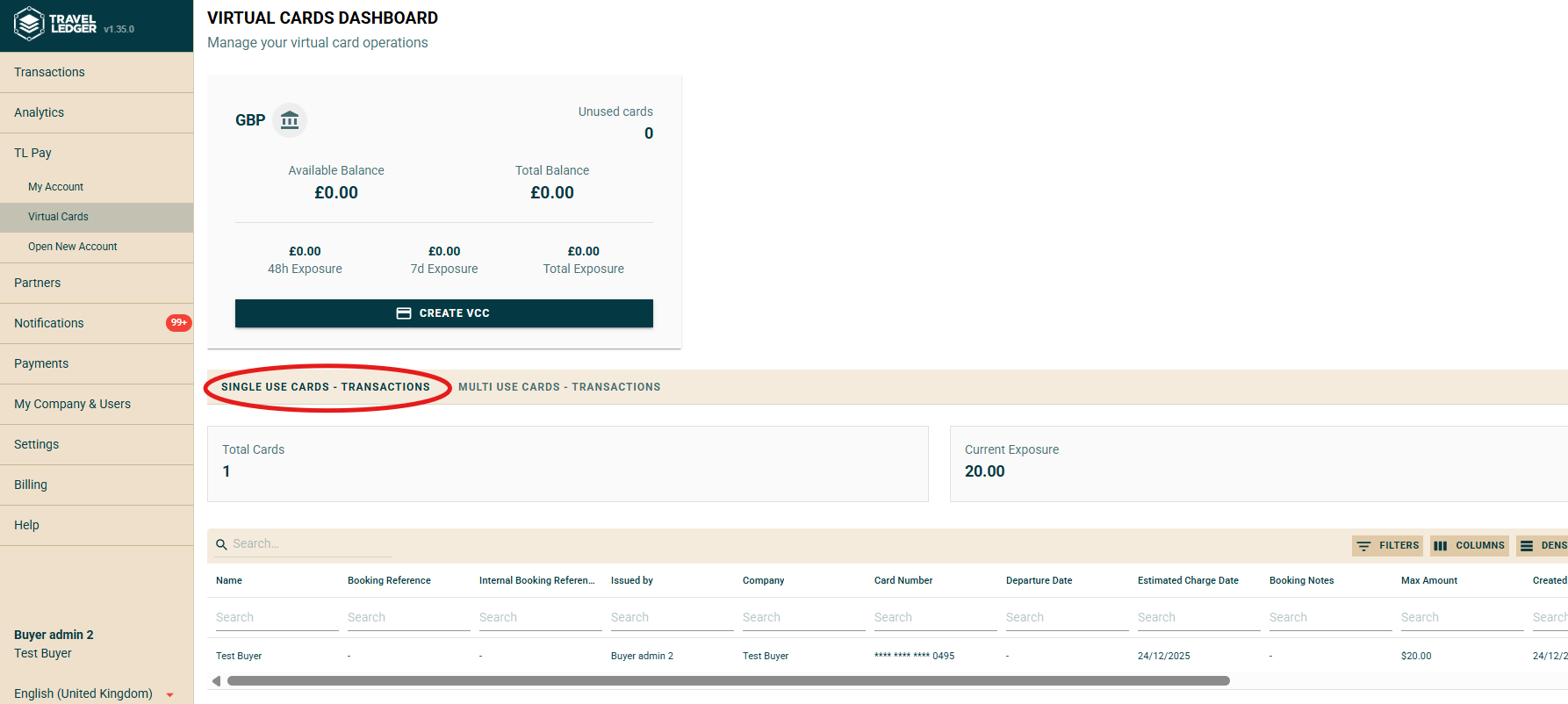
  2. Navigate to TL Pay>Virtual Cards Click Virtual Cards from the menu.

  3. Create New Card Click Create VCC.

  4. Select Card Type Choose Single-Use

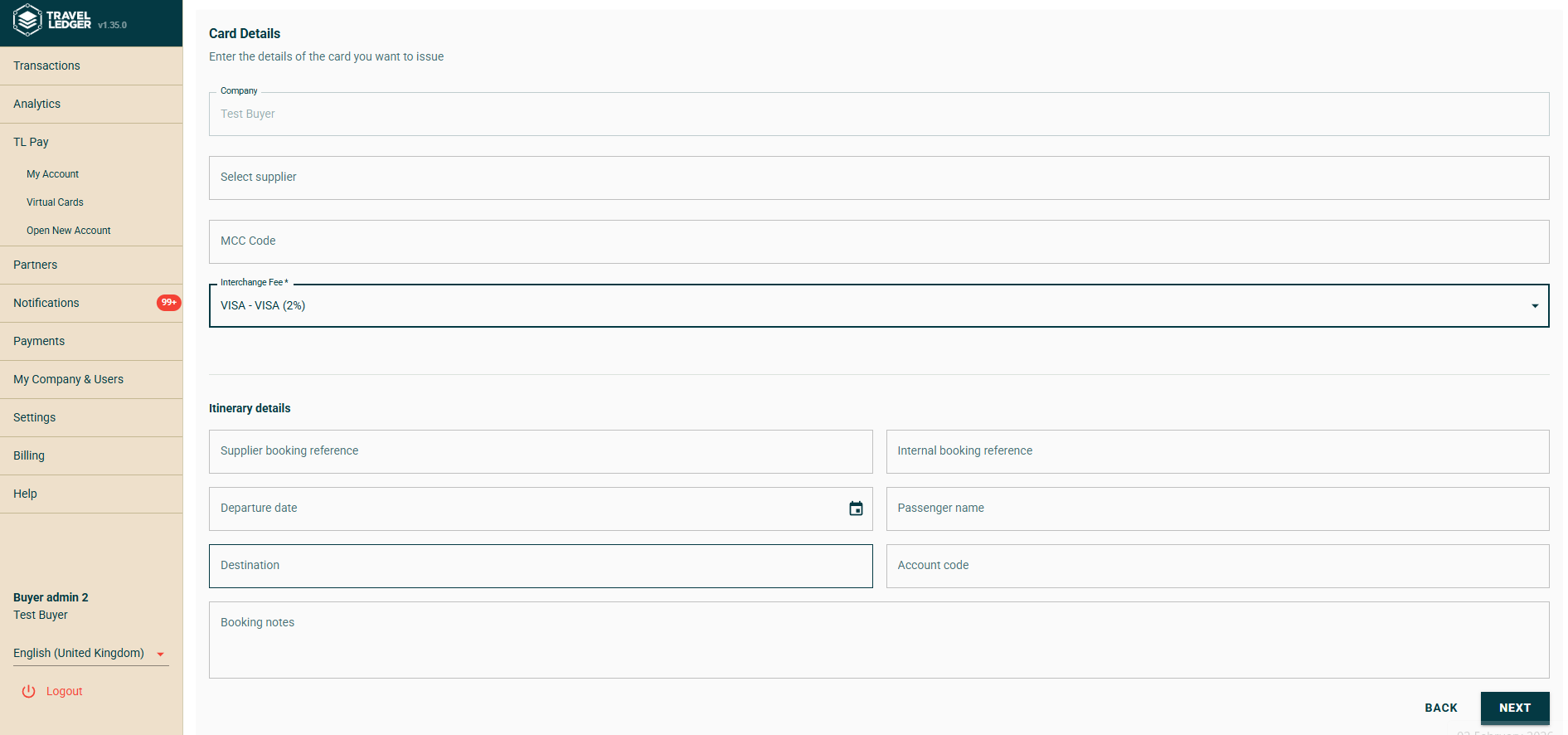
  1. Enter Supplier & Payment Details

  • Supplier Name (optional)

  • MCC Code (optional)

  • Interchange Fee - defaulted to 2%, can be reduced from the pick list for suppliers who do not accept this rate. Please note that reducing the interchange will reduce your cashback, cashback is issued at 50% of the interchange rate.

  • Supplier Booking Reference (optional)

  • Internal Booking Reference (optional)

  • Departure Date (optional)

  • Passenger Name (optional)

  • Destination (optional)

  • Account code (optional)

  • Booking Notes (optional)

  1. Click 'Next'

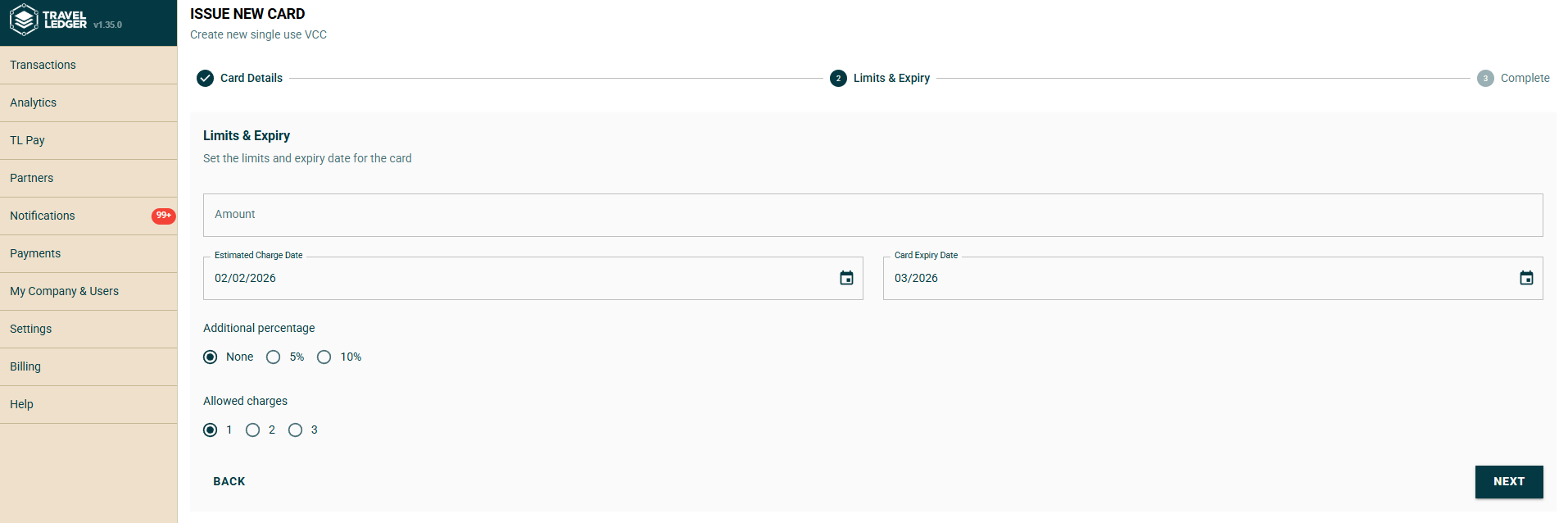
  1. Input the Amount (mandatory)

  2. Estimated Charge Date (mandatory)

  3. Card Expiry Date (mandatory)

  4. Additional Percentage (optional) Include a small percentage buffer if needed, ideal where hotel taxes etc may occur.

  5. Allowed Charges (mandatory) Specify how many times the card is allowed to be charged (minimum one, maximum three)

  6. Generate Card Card details (number, CVV, expiry) will be displayed.

  7. Make Payment Use the displayed card details to pay the supplier.

  8. Reconciliation The card will display under the single use card dashboard, allowing you visibility to whether the card has been charged or not, and displaying the details inputted at time of creation (supplier, reference etc), supporting simple reconciliation.

chevron-rightIssuing Multi-Use Virtual Cardshashtag

Multi-Use Virtual Cards

A multi-use card can be used for multiple transactions or bookings. Ideal for recurring payments or a group of suppliers. To issue a multi-use card:

  1. Log in to Travel Ledger Access Travel Ledger with your usual with your credentials.

  2. Navigate to TL Pay>Virtual Cards. Click Virtual Cards from the menu.

  3. Create New Card Click + Create VCC.

  4. Select Card Type Choose Multi-Use

  1. Define Limits and Permissions

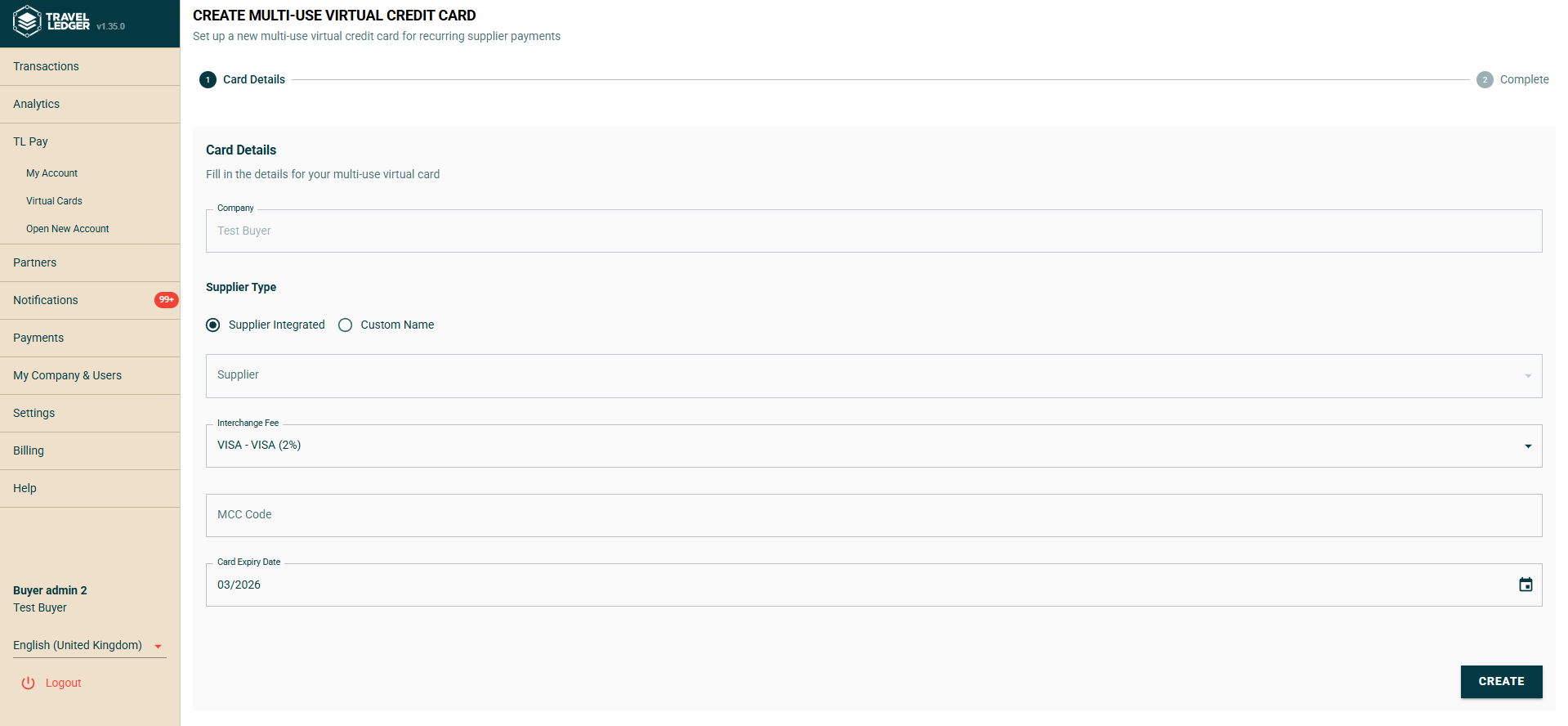
  • Supplier Type - the options are 'Supplier Integrated' or 'Custom Name'. If you are using the card to lodge with an integrated supplier such as Expedia TAAP, choose 'Supplier Integrated'. If you are creating a card to use with a supplier not integrated into the platform choose 'Custom Name' and manually input the Supplier Name below (optional).

  • Interchange Fee - defaulted to 2%, can be reduced from the pick list for suppliers who do not accept this rate. Please note that reducing the interchange will reduce your cashback, cashback is issued at 50% of the interchange rate.

  • MCC Code (optional)

  • Card Expiry Date (mandatory)

  1. Click 'Create'

  2. Make Payment Use the displayed card details to pay the supplier. You can use this as a lodge card with a single supplier or use it across multiple suppliers, assigning a multi-use card to an individual homeworker is a good example. For guidance on how to set up the Expedia TAAP integration, click here.

  3. Reconciliation The card will display under the multi-use card dashboard, allowing you visibility to whether all charges made on the card, and displaying the details inputted at time of creation (supplier, reference etc), supporting simple reconciliation.

Using a Virtual Card

Once created, the card can be used externally with the supplier via:

  • Supplier portals

  • Online booking engines

  • Call centres

  • Over-the-phone payment

circle-info

Bookings do not need to be created in Travel Ledger to use TL Pay Virtual Cards. They are specifically designed for bookings outside of the Travel Ledger platform.

Last updated

Was this helpful?