> This is part 1 of 2 of the full documentation (pages 1–100 of 114).
> The content is paginated: fetch every part to see all of it.
> Next part: https://help.travelledger.org/llms-full.txt/1
> Page index: https://help.travelledger.org/llms.txt

# Welcome to Travel Ledger Help

An overview of Travel ledger and how to navigate our support pages.

### What is Travel Ledger

Travel Ledger is a billing and settlement platform built in partnership with travel trade organisations that highly automates the travel purchasing process along the entire distribution chain while reducing the cost to process payments for all parties.

Travel Ledger streamlines billing, reconciliation and settlement processes to make it fast, easy and inexpensive.

#### <mark style="color:purple;">**Learn more**</mark>**&#x20;about Travel Ledger in the 2-minute video's below:**

{% tabs %}
{% tab title="What is Travel Ledger?" %}
{% embed url="<https://www.youtube.com/watch?v=vTfqotcklV4>" %}
{% endtab %}

{% tab title="How does Travel Ledger work?" %}
{% embed url="<https://www.youtube.com/watch?v=jLMtfbvrKCQ&t=25s>" %}
{% endtab %}
{% endtabs %}

#### Navigating our Help Pages

Find everything you need to succeed with Travel Ledger in this help center. Browse the menu on the left to find the key topics you'd like to understand more and get started.


# Registering on the Platform

Guidance on how to set up access to Travel Ledger for your Company

The following pages are designed to help you get your company set up in Travel ledger, this includes:

{% content-ref url="/pages/-Mg6D43P2ykWZxImMTrf" %}
[Registering as a New Company](/registering-on-the-platform/registering-as-a-new-company)
{% endcontent-ref %}

{% content-ref url="/pages/-Mg6DEKYp-CzNczk4yCJ" %}
[Registering as a User](/registering-on-the-platform/registering-as-a-user)
{% endcontent-ref %}

{% content-ref url="/pages/-MadEJHZ1yODJRzRKCOC" %}
[Two-Factor Authentication (2FA) Setup Guide](/registering-on-the-platform/2-factor-authentication-2fa)
{% endcontent-ref %}

{% content-ref url="/pages/-MdI4ANS5N\_plcN2pw\_u" %}
[Updating User Profile](/registering-on-the-platform/updating-user-profile)
{% endcontent-ref %}


# Registering as a New Company

Welcome to Travel Ledger's company registration process. Follow these steps to get your company up and running on our platform.

<details>

<summary><mark style="color:purple;"><strong>Step 1:</strong></mark><strong> Receive Partner Invite</strong></summary>

To begin, you must first receive a partner invite via email. This invite is your ticket to access our platform.

![](https://3714949765-files.gitbook.io/~/files/v0/b/gitbook-x-prod.appspot.com/o/spaces%2F-MacUE666EkqnejMK9CH%2Fuploads%2FTtdXn5tCNp5p604xR1K3%2Fimage.png?alt=media\&token=c166a6ca-31b9-47c0-b490-8b20f986a458)

</details>

<details>

<summary><mark style="color:purple;"><strong>Step 2:</strong></mark><strong> Click the Email Link</strong></summary>

Once you've received the email invite, click the provided link. This will take you to the platform's registration page.

![](https://3714949765-files.gitbook.io/~/files/v0/b/gitbook-x-prod.appspot.com/o/spaces%2F-MacUE666EkqnejMK9CH%2Fuploads%2FK3FAsCtE7Lp0wEmRCE1C%2Fimage.png?alt=media\&token=898438f6-0ca1-4ba2-a96c-d094baa4af2d)

</details>

<details>

<summary><mark style="color:purple;"><strong>Step 3:</strong></mark><strong> Fill Out Your Company Information</strong></summary>

On the registration page, you'll need to fill out your company's information. Here's what to do:

* **Name and Email**: If you're responsible for the initial setup, ensure that your company name and your email address are correct. You can make necessary changes if needed.
* **Company ID**: If your company ID (ABTA, IATA, TIDS or Email ID) hasn't been pre-filled, please provide it.
* **Address Details**: Enter your company's address, city, and country.
* **Name and Email**: Your email address and name will be auto-filled based on the invite, but you can update them if needed.
* **Create Password**: To secure your account, you'll need to create a password. Enter it twice for verification.
* **Accept Terms**: Review and accept Travel Ledger's terms and conditions. We recommend reading these terms to understand your responsibilities and benefits.

![](https://3714949765-files.gitbook.io/~/files/v0/b/gitbook-x-prod.appspot.com/o/spaces%2F-MacUE666EkqnejMK9CH%2Fuploads%2F0P3jb88fKjDiY2IMJLPY%2Fimage.png?alt=media\&token=aad88b15-73dd-43ae-a4cd-57e2205fb746)

</details>

<details>

<summary><mark style="color:purple;"><strong>Step 4:</strong></mark><strong> Complete Registration</strong></summary>

Once you've entered all the required information and accepted the terms, click the '**register**' button to complete the registration process.

</details>

<details>

<summary><mark style="color:purple;"><strong>Step 5:</strong></mark><strong> First-Time Login</strong></summary>

After successful registration, log in for the first time. The login page will appear, where you enter your registered email and the new password you've just created.

**NOTE: On your first login attempt, you will be prompted to set up** [**two-factor authentication (2FA)**](/registering-on-the-platform/2-factor-authentication-2fa)**. After that, 2FA will be required for all future logins.**

</details>

## FAQs

<details>

<summary><strong>What if I've forgotten my password after registration?</strong></summary>

If you've forgotten your password, simply utilise the '**Forgot Password**' link located on the login page. This action triggers an email containing instructions for generating a new password. This email will be sent directly to your registered email address, enabling you to establish a fresh password.

</details>

<details>

<summary><strong>Can I forward the registration invite to a colleague if I'm not responsible for initial setup?</strong></summary>

Absolutely! If you're not in charge of setup, you can forward the invite to a colleague who can complete the registration. They just need to update the name and email address on the registration page.

</details>

<details>

<summary><strong>Do branches of a Head Office need to individually accept T&#x26;C's when signing up for Travel Ledger?</strong></summary>

No, branches of a Head Office do not need to individually accept terms and conditions during the registration process. This is handled by the Head Office during the initial registration.

</details>


# Two-Factor Authentication (2FA) Setup Guide

Two-Factor Authentication (2FA) adds an extra layer of security to your Travel Ledger account. It's simple to set up and provides enhanced protection.

## Step-by-Step Set Up Guide

Follow these steps to set up 2FA for your Travel Ledger account (this only needs to be set up once):

<details>

<summary><mark style="color:purple;">Step One:</mark> <strong>Get an Authentication App</strong></summary>

Begin by installing an authentication app from your mobile app store.

* **Iphone Users:** We recommend Microsoft Authenticator, available on the App Store.
* **Android Users:** We recommend Google Authenticator, available on the Google Play Store.

**Can't find it?** simply scan the appropriate QR code below, and it will directly link you to the store for app download.

![](https://3714949765-files.gitbook.io/~/files/v0/b/gitbook-x-prod.appspot.com/o/spaces%2F-MacUE666EkqnejMK9CH%2Fuploads%2F2c4id10MsQ4eaCxo4dQu%2Fimage.png?alt=media\&token=041984d1-8c08-4047-93f7-ab2036131d61)

</details>

<details>

<summary><mark style="color:purple;">Step Two:</mark> Configuring Google and Microsoft Authenticator Apps on your Smartphone</summary>

**Microsoft Authenticator:**

![](https://3714949765-files.gitbook.io/~/files/v0/b/gitbook-x-prod.appspot.com/o/spaces%2F-MacUE666EkqnejMK9CH%2Fuploads%2F5QhQ2UyqEZ2MmxHhGzqw%2Fimage.png?alt=media\&token=17915d84-4467-45bc-8e3c-470f14372898)

**Google Authenticator:**

![](https://3714949765-files.gitbook.io/~/files/v0/b/gitbook-x-prod.appspot.com/o/spaces%2F-MacUE666EkqnejMK9CH%2Fuploads%2FdYj1pja1xUSm7y1MXWA9%2Fimage.png?alt=media\&token=94e13b7e-aae0-4178-8d71-4367c607cb7c)

</details>

<details>

<summary><mark style="color:purple;">Step Three:</mark> First-Time Login</summary>

Now that you've installed an authenticator app, the first time you log in to your Travel Ledger account, you'll be guided through the necessary steps to set up 2FA. This crucial step significantly enhances the security of your account.

To get started click 'Next'.

![](https://3714949765-files.gitbook.io/~/files/v0/b/gitbook-x-prod.appspot.com/o/spaces%2F-MacUE666EkqnejMK9CH%2Fuploads%2Fwxv7HCK8THSqdXDpHe0W%2Fimage.png?alt=media\&token=6a4776bf-123d-4253-be18-c7787a68382c)

</details>

<details>

<summary><mark style="color:purple;">Step Four:</mark> Scan or Enter the Code</summary>

During setup, you'll see a QR code on your screen. Use your authentication app on your phone to scan it or manually enter the provided code. This links your app to your Travel Ledger account.&#x20;

Once complete, click 'Next'.

![](https://3714949765-files.gitbook.io/~/files/v0/b/gitbook-x-prod.appspot.com/o/spaces%2F-MacUE666EkqnejMK9CH%2Fuploads%2FJzXMTqfvEro2wNN3t4dR%2Fimage.png?alt=media\&token=4424903f-5fc0-42f5-b492-b926d169d60c)

</details>

<details>

<summary><mark style="color:purple;">Step Five:</mark> Save Your Recovery Code</summary>

After scanning or entering the code, you'll receive a recovery code. Keep it secure in case of emergencies. We recommend storing it where you can easily access it if needed. It's your lifeline if you lose access to your authentication app.

Once complete, click 'Next'.

![](https://3714949765-files.gitbook.io/~/files/v0/b/gitbook-x-prod.appspot.com/o/spaces%2F-MacUE666EkqnejMK9CH%2Fuploads%2FK4vlp1d7facElQwi1YpI%2Fimage.png?alt=media\&token=10baa768-0014-4d45-b122-2c4f11e02253)

</details>

<details>

<summary><mark style="color:purple;">Step Six:</mark> Confirm Setup</summary>

To finish setting up 2FA, enter the 6-digit code generated by your authentication app. This step ensures your app is correctly configured and synchronized with your Travel Ledger account.

Once complete, click 'Confirm'.

![](https://3714949765-files.gitbook.io/~/files/v0/b/gitbook-x-prod.appspot.com/o/spaces%2F-MacUE666EkqnejMK9CH%2Fuploads%2FKJcahbhczUKqFzdqphE8%2Fimage.png?alt=media\&token=ed51e3d6-c06d-4646-8b04-ef374e5e20c3)

</details>

<details>

<summary><mark style="color:purple;">Step Seven:</mark> Accessing Your Account</summary>

Once 2FA is set up, accessing your Travel Ledger account is easy. Log in with your usual username and password. You'll then be prompted to enter the 6-digit code generated by your authentication app.&#x20;

</details>

## FAQs

<details>

<summary><strong>Do I need to authenticate every time I log in?</strong></summary>

Yes, 2FA adds an extra layer of security, and you'll be prompted for the 6-digit code each time you log in. The code displayed in your app is valid for 30 seconds, so please enter it promptly.

</details>

<details>

<summary><strong>What do I do if I lose my phone or can't access my authentication app?</strong></summary>

If, at any point, you lose access to your authentication app, change your device, or encounter any issues related to 2FA, you can utilise your previously saved recovery code to reset 2FA. Alternatively, reach out to your Company Administrator or contact our support desk at <support@travelledger.org> for guidance and assistance.&#x20;

</details>

.&#x20;


# Registering as a User

How to register on the platform as an individual user.

To gain access to the Travel Ledger platform for the first time, you'll need an invitation from an administrator. If you are an administrator seeking to create a new user, please refer to the [<mark style="color:purple;">**User Creation**</mark>](/companies-and-users/user-creation) page.

<details>

<summary><mark style="color:purple;">Step One:</mark> Email Registration Request</summary>

Once an admin generates your invitation, you will receive a registration request via email. If you don't find it in your main inbox, please check your junk or spam folder.

</details>

<details>

<summary><mark style="color:purple;">Step Two:</mark> Platform Registration</summary>

Follow the provided link in the email to start your registration on the platform. During this process, you will be asked to set a secure password. Once your password is confirmed, you'll gain access to the platform.

</details>

<details>

<summary><mark style="color:purple;">Step Three:</mark> Two-Factor Authentication (2FA)</summary>

Travel Ledger requires the use of Two-Factor Authentication (2FA) for added security when accessing the platform. For detailed instructions on completing the 2FA setup, please proceed to page, [<mark style="color:purple;">**'Two-Factor Authentication(2FA) Setup Guide'**</mark>](/registering-on-the-platform/2-factor-authentication-2fa).

</details>


# Updating User Profile

{% tabs %}
{% tab title="How to update my user profile?" %}

<figure><img src="https://3714949765-files.gitbook.io/~/files/v0/b/gitbook-x-prod.appspot.com/o/spaces%2F-MacUE666EkqnejMK9CH%2Fuploads%2F9y3jwWFKCd8p2QarCgYo%2Fimage.png?alt=media&amp;token=f1003be0-3a99-4097-b508-a969545e4dcd" alt=""><figcaption></figcaption></figure>

To update your user profile you will need to go to <mark style="color:purple;">**Settings > My Companies and Users > Manage Users.**</mark> Here you can update your name and password.
{% endtab %}

{% tab title="How to update my role or email address?" %}
To update your role (from **normal** to **admin** or vice versa) or **email address**, please contact your administrator. If you are an administrator, you can find instructions on how to do this in [<mark style="color:purple;">**User Management**</mark>](/companies-and-users/user-management).

<figure><img src="https://3714949765-files.gitbook.io/~/files/v0/b/gitbook-x-prod.appspot.com/o/spaces%2F-MacUE666EkqnejMK9CH%2Fuploads%2FYaiSmXKSgQITHjFnazTK%2Fimage.png?alt=media&amp;token=42e6467e-b721-4efa-85af-39c6543572c9" alt=""><figcaption></figcaption></figure>
{% endtab %}
{% endtabs %}


# Managing Transactions

Understanding and using the transactions area.

The transactions area of Travel ledger is the central and most utilised area of the platform. It is where bookings can be uploaded, as well as reviewed and managed.

In this section, you can find guidance on all aspects of the Transactions area for both Buyers and Sellers.

Both Buyers and Sellers will find this page useful for managing the layout and columns displayed:

{% content-ref url="/pages/-Mad87xPAl6qFAXXv9zb" %}
[Bookings Organisation and Management](/managing-transactions/managing-the-display-and-grid-functionality)
{% endcontent-ref %}

For Sellers (and Buyers using automated reconciliation) looking for help on the different options for uploading their data to Travel Ledger, the following two pages provide support on the upload methods and file formats available:

{% content-ref url="/pages/-MahhhqP66CiVtxLPn0n" %}
[Uploading Bookings](/managing-transactions/uploading-transactions)
{% endcontent-ref %}

{% content-ref url="/pages/gjWGbYeMGCCIh20Y1Mmj" %}
[File Formats for Upload](/managing-transactions/file-formats-for-upload)
{% endcontent-ref %}

For Buyers looking for guidance on how to accept, amend and reject bookings, please see the following page:

{% content-ref url="/pages/-Mad9DWqpt1imO-d1wG0" %}
[Updating Booking (Accept/Reject) Manually](/managing-transactions/updating-bookings-accept-reject/updating-booking-status)
{% endcontent-ref %}


# Bookings Organisation and Management

How to manage the display and grid.

## Grid overview&#x20;

All bookings and remittances can be viewed in the **Transactions>Bookings** section of Travel Ledger. This applies to both Sellers looking to review any submitted transactions, and Buyers needing to review and update.

## **Quick Views**&#x20;

Quick views are designed to pinpoint key sets of data for both Buyers and Sellers. Below is a definition of the six 'Quick Views' available to you in the drop down lis&#x74;**:**

{% hint style="warning" %}
**Unless you are acting as both a Buyer and a Seller in the platform, one set of the 'Quick Views' will always return no data.**
{% endhint %}

**Buyer - Current Week** = All upcoming transactions submitted to you as a Buyer, with a 'Review End' date that requires review this week (Today's date and time up until midnight on Sunday)

**Buyer - All Due** = All upcoming transactions submitted to you as a Buyer, that require review (Todays date and time, onwards), this will display any current (this week) and all future settlements, in instances where a Seller has loaded early for example

**Buyer - Past** = All transactions submitted to you as a Buyer, from the last 'review end/collection submission' to take place and 30 days prior to this. In essence, historical/past dated transactions.

**Seller - Current Week** = All upcoming transactions submitted by you as a Seller, with a 'Review End' date that requires review this week (Today's date and time up until midnight on Sunday)

**Seller - All Due** = All upcoming transactions submitted by you as a Seller, that require review (Todays date and time, onwards), this will display any current (this week) and all future settlements, in instances where a Seller has loaded early for example

**Seller - Past** = All transactions submitted by you as a Seller, from the last 'review end/collection submission' to take place and 30 days prior to this. In essence, historical/past dated transactions.

You will notice that date range applied to the  'Collection' field is limited to 30 days, this to avoid returning vast amounts of data. If you wish to review an earlier range of dates you can tailor these in the calendar or select a specific 'Collection' date from the list to the right of the calendar.

{% hint style="info" %}
**In the 'Bookings' tab you will notice that the Quick View is defaulted to 'Buyer - Current Week' initially.  A seller will need to switch this view to one of the Seller Quick views to view transactions they have sent to buyers. After first login, the default will always be your last viewed Quick View.**
{% endhint %}

### **Additional** Filters **and Columns**

As mentioned above, there are date filters applied throughout the Quick Views to tailor the data. If you wish to look outside of these prescribed sets of data it is possible to amend the 'Review End' filter to widen the scope. You can also apply filters to other columns to narrow you results, including looking for a specific booking reference, Buyer or Seller ID etc.

**Quick views do not display all columns available to you in Travel ledger, they are there for a simple display of data. Below is an overview of the Bookings grid, with each column header, and a description of the content.**&#x20;

{% hint style="warning" %}
**Columns marked with an Asterix \* are specific to the** [**extended file format**](/managing-transactions/file-formats-for-upload/extended-file-format-full-version) **and may or may not be utilised by Sellers.**
{% endhint %}

| Tags                      | Warnings identifying duplicate booking references, bookings without live commercial links, etc.                                                                                                                                                                                                                                                                                                                                                                                                                                                                                                                                                                                                                                                                                                                                                                                                                                                                                                                                                                                                                                                                                                                                                                                                                                                                                                                                                           |
| ------------------------- | --------------------------------------------------------------------------------------------------------------------------------------------------------------------------------------------------------------------------------------------------------------------------------------------------------------------------------------------------------------------------------------------------------------------------------------------------------------------------------------------------------------------------------------------------------------------------------------------------------------------------------------------------------------------------------------------------------------------------------------------------------------------------------------------------------------------------------------------------------------------------------------------------------------------------------------------------------------------------------------------------------------------------------------------------------------------------------------------------------------------------------------------------------------------------------------------------------------------------------------------------------------------------------------------------------------------------------------------------------------------------------------------------------------------------------------------------------- |
| Seller                    | Name of the Seller (supplier)                                                                                                                                                                                                                                                                                                                                                                                                                                                                                                                                                                                                                                                                                                                                                                                                                                                                                                                                                                                                                                                                                                                                                                                                                                                                                                                                                                                                                             |
| Seller ID Type            | Type of ID used by the Seller as an identifiers (ABTA, IATA, TIDS)                                                                                                                                                                                                                                                                                                                                                                                                                                                                                                                                                                                                                                                                                                                                                                                                                                                                                                                                                                                                                                                                                                                                                                                                                                                                                                                                                                                        |
| Seller ID                 | ID of the Seller (supplier)                                                                                                                                                                                                                                                                                                                                                                                                                                                                                                                                                                                                                                                                                                                                                                                                                                                                                                                                                                                                                                                                                                                                                                                                                                                                                                                                                                                                                               |
| Buyer                     | Name of the Buyer (agent)                                                                                                                                                                                                                                                                                                                                                                                                                                                                                                                                                                                                                                                                                                                                                                                                                                                                                                                                                                                                                                                                                                                                                                                                                                                                                                                                                                                                                                 |
| Buyer ID Type             | Type of ID used by the Buyer as an identifiers (ABTA, IATA, TIDS)                                                                                                                                                                                                                                                                                                                                                                                                                                                                                                                                                                                                                                                                                                                                                                                                                                                                                                                                                                                                                                                                                                                                                                                                                                                                                                                                                                                         |
| Buyer ID                  | ID of the Buyer (agent)                                                                                                                                                                                                                                                                                                                                                                                                                                                                                                                                                                                                                                                                                                                                                                                                                                                                                                                                                                                                                                                                                                                                                                                                                                                                                                                                                                                                                                   |
| Processing Entity         | The Processing Entity (PE) that the transaction is linked to. This can be a specific scheme or it may read 'Direct' for partner to partner direct CLs with no PE involved                                                                                                                                                                                                                                                                                                                                                                                                                                                                                                                                                                                                                                                                                                                                                                                                                                                                                                                                                                                                                                                                                                                                                                                                                                                                                 |
| Booking Ref               | Booking Reference of the transaction                                                                                                                                                                                                                                                                                                                                                                                                                                                                                                                                                                                                                                                                                                                                                                                                                                                                                                                                                                                                                                                                                                                                                                                                                                                                                                                                                                                                                      |
| Pax                       | Lead passenger name                                                                                                                                                                                                                                                                                                                                                                                                                                                                                                                                                                                                                                                                                                                                                                                                                                                                                                                                                                                                                                                                                                                                                                                                                                                                                                                                                                                                                                       |
| Settlement Status         | <p>Identifies the stage of settlement applied to a transaction. Transactions that are waiting for review are labelled as 'Due', this is the default filter applied. The full list of settlement statuses that apply and there meanings are below:</p><p><em><strong>Due</strong> - The transaction has been loaded by the seller and is awaiting entering in to a collection. A Buyer can review a transaction while it is in this status</em></p><p><em><strong>Collection pending</strong> - A transaction has entered in to a settlement, It cam no longer be reviewed by a Buyer as the submission for collection has been made</em></p><p><em><strong>Collection complete</strong> - A collection has been successfully made from the bank</em></p><p><em><strong>Collection failed</strong> - A collection has failed to complete and has not been taken from the bank</em></p><p><em><strong>Payment pending</strong> - A payment disbursement has been submitted</em></p><p><em><strong>Payment failed</strong> -</em> <em>A payment disbursement has not been successful, no funds have been paid into the bank</em></p><p><em><strong>Complete</strong> - A payment has been successfully made and it has reached the bank</em></p><p><em><strong>No collection required</strong> - a collection is not needed. This may be because a Buyer has rejected a booking or they have not reviewed a booking within the Buyer review window.</em></p> |
| Review End                | The date of collection submission/end of Buyer Review                                                                                                                                                                                                                                                                                                                                                                                                                                                                                                                                                                                                                                                                                                                                                                                                                                                                                                                                                                                                                                                                                                                                                                                                                                                                                                                                                                                                     |
| Collection                | The bank collection date                                                                                                                                                                                                                                                                                                                                                                                                                                                                                                                                                                                                                                                                                                                                                                                                                                                                                                                                                                                                                                                                                                                                                                                                                                                                                                                                                                                                                                  |
| Payment Submission        | The date payment is submitted                                                                                                                                                                                                                                                                                                                                                                                                                                                                                                                                                                                                                                                                                                                                                                                                                                                                                                                                                                                                                                                                                                                                                                                                                                                                                                                                                                                                                             |
| Payment                   | The bank payment date                                                                                                                                                                                                                                                                                                                                                                                                                                                                                                                                                                                                                                                                                                                                                                                                                                                                                                                                                                                                                                                                                                                                                                                                                                                                                                                                                                                                                                     |
| Dep                       | Departure date of the booking                                                                                                                                                                                                                                                                                                                                                                                                                                                                                                                                                                                                                                                                                                                                                                                                                                                                                                                                                                                                                                                                                                                                                                                                                                                                                                                                                                                                                             |
| Due                       | Payment due date of the transaction                                                                                                                                                                                                                                                                                                                                                                                                                                                                                                                                                                                                                                                                                                                                                                                                                                                                                                                                                                                                                                                                                                                                                                                                                                                                                                                                                                                                                       |
| Original Amount           | Amount requested for the transaction by the Seller (non-editable)                                                                                                                                                                                                                                                                                                                                                                                                                                                                                                                                                                                                                                                                                                                                                                                                                                                                                                                                                                                                                                                                                                                                                                                                                                                                                                                                                                                         |
| Current Amount            | Amount for the transaction claimed by the Buyer (editable) – when the buyer disagrees with the Original Amount requested by the Seller, they add the amount they trust to be correct in this field.                                                                                                                                                                                                                                                                                                                                                                                                                                                                                                                                                                                                                                                                                                                                                                                                                                                                                                                                                                                                                                                                                                                                                                                                                                                       |
| TX Status                 | <p>The transaction status, this is updated by th<strong>e</strong> Buyer on review. </p><p> <strong>(blank/matched)</strong> = the transaction has been uploaded by a Seller and has not been reviewed;</p><p><strong>Accepted</strong> = the transaction has been reviewed by the Buyer and its details have been accepted;</p><p><strong>Rejected</strong> = the transaction has been reviewed by the Buyer and they have rejected it due to disagreement with any of its details; When the status is changed to Rejected it is mandatory to select a reason code.</p><p><strong>Amended</strong> = the Buyer has reviewed the transaction and has amended its original amount by adding a Current Amount.</p><p><strong>Voided</strong> = the transaction has not been processed before the settlement cycle has begun/the commercial link is set to pending status</p>                                                                                                                                                                                                                                                                                                                                                                                                                                                                                                                                                                                |
| Reason Code               | <p>The Reason Code is only applicable for rejected or amended transactions</p><p>A – Not yet due</p><p>B – Already Paid</p><p>C – Incorrect ABTA number</p><p>D - Agent not enabled</p><p>E – Cancelled Booking</p><p>F – Additional Requirements</p><p>G – Duplicate Transaction</p><p>H – Invalid Commission Calculated</p><p>I – Part Payment</p><p>J – Non-payment by client</p><p>K - Wrongly Assigned</p><p>L – Awaiting amendment invoices</p><p>M - Re-instatement </p><p>S - Amended by System (transaction not actioned by the Buyer; System generated) </p><p>X - Failed BACS submission (System generated)</p>                                                                                                                                                                                                                                                                                                                                                                                                                                                                                                                                                                                                                                                                                                                                                                                                                                |
| CL Description            | Identifier of the commercial link, between the Buyer and the Seller                                                                                                                                                                                                                                                                                                                                                                                                                                                                                                                                                                                                                                                                                                                                                                                                                                                                                                                                                                                                                                                                                                                                                                                                                                                                                                                                                                                       |
| Updated by                | The user name of the last user to update the transaction                                                                                                                                                                                                                                                                                                                                                                                                                                                                                                                                                                                                                                                                                                                                                                                                                                                                                                                                                                                                                                                                                                                                                                                                                                                                                                                                                                                                  |
| Updated at                | The time and date the booking was last updated                                                                                                                                                                                                                                                                                                                                                                                                                                                                                                                                                                                                                                                                                                                                                                                                                                                                                                                                                                                                                                                                                                                                                                                                                                                                                                                                                                                                            |
| TL ID                     | Travel Ledger ID                                                                                                                                                                                                                                                                                                                                                                                                                                                                                                                                                                                                                                                                                                                                                                                                                                                                                                                                                                                                                                                                                                                                                                                                                                                                                                                                                                                                                                          |
| Transaction Type\*        | Balance (B) or Deposit (D)                                                                                                                                                                                                                                                                                                                                                                                                                                                                                                                                                                                                                                                                                                                                                                                                                                                                                                                                                                                                                                                                                                                                                                                                                                                                                                                                                                                                                                |
| Nett Amount\*             | Option to include the nett value of the booking                                                                                                                                                                                                                                                                                                                                                                                                                                                                                                                                                                                                                                                                                                                                                                                                                                                                                                                                                                                                                                                                                                                                                                                                                                                                                                                                                                                                           |
| Comm Amount\*             | Option to include the commission value of the booking                                                                                                                                                                                                                                                                                                                                                                                                                                                                                                                                                                                                                                                                                                                                                                                                                                                                                                                                                                                                                                                                                                                                                                                                                                                                                                                                                                                                     |
| Sell Amount\*             | The gross sale amount of the booking                                                                                                                                                                                                                                                                                                                                                                                                                                                                                                                                                                                                                                                                                                                                                                                                                                                                                                                                                                                                                                                                                                                                                                                                                                                                                                                                                                                                                      |
| Nett Tax Amount\*         | The nett amount of tax applicable to the booking                                                                                                                                                                                                                                                                                                                                                                                                                                                                                                                                                                                                                                                                                                                                                                                                                                                                                                                                                                                                                                                                                                                                                                                                                                                                                                                                                                                                          |
| Comm Tax Amount\*         | The commission tax applicable to the booking                                                                                                                                                                                                                                                                                                                                                                                                                                                                                                                                                                                                                                                                                                                                                                                                                                                                                                                                                                                                                                                                                                                                                                                                                                                                                                                                                                                                              |
| Sell Tax Amount\*         | The gross tax amount applicable to the booking                                                                                                                                                                                                                                                                                                                                                                                                                                                                                                                                                                                                                                                                                                                                                                                                                                                                                                                                                                                                                                                                                                                                                                                                                                                                                                                                                                                                            |
| Voucher Number\*          | Option to include the voucher number relative to the product booking                                                                                                                                                                                                                                                                                                                                                                                                                                                                                                                                                                                                                                                                                                                                                                                                                                                                                                                                                                                                                                                                                                                                                                                                                                                                                                                                                                                      |
| Conf Number\*             | Option to include the confirmation number                                                                                                                                                                                                                                                                                                                                                                                                                                                                                                                                                                                                                                                                                                                                                                                                                                                                                                                                                                                                                                                                                                                                                                                                                                                                                                                                                                                                                 |
| Pax No\*                  | Number of passengers assigned to the booking                                                                                                                                                                                                                                                                                                                                                                                                                                                                                                                                                                                                                                                                                                                                                                                                                                                                                                                                                                                                                                                                                                                                                                                                                                                                                                                                                                                                              |
| Product Type\*            | Option to include the product type of the booking                                                                                                                                                                                                                                                                                                                                                                                                                                                                                                                                                                                                                                                                                                                                                                                                                                                                                                                                                                                                                                                                                                                                                                                                                                                                                                                                                                                                         |
| Destination\*             | Destination, city  or city code can be applied as free text                                                                                                                                                                                                                                                                                                                                                                                                                                                                                                                                                                                                                                                                                                                                                                                                                                                                                                                                                                                                                                                                                                                                                                                                                                                                                                                                                                                               |
| Dest Country\*            | Destination country                                                                                                                                                                                                                                                                                                                                                                                                                                                                                                                                                                                                                                                                                                                                                                                                                                                                                                                                                                                                                                                                                                                                                                                                                                                                                                                                                                                                                                       |
| Seller Notes\*            | Optional notes field for the Seller to provide an additional message to the Buyer                                                                                                                                                                                                                                                                                                                                                                                                                                                                                                                                                                                                                                                                                                                                                                                                                                                                                                                                                                                                                                                                                                                                                                                                                                                                                                                                                                         |
| Seller Invoice Number\*   | Seller invoice number if applicable                                                                                                                                                                                                                                                                                                                                                                                                                                                                                                                                                                                                                                                                                                                                                                                                                                                                                                                                                                                                                                                                                                                                                                                                                                                                                                                                                                                                                       |
| Buyer Booking Reference\* | Buyer booking reference if applicable                                                                                                                                                                                                                                                                                                                                                                                                                                                                                                                                                                                                                                                                                                                                                                                                                                                                                                                                                                                                                                                                                                                                                                                                                                                                                                                                                                                                                     |
| Optional 1\*              | additional optional field to be used as agreed with partner                                                                                                                                                                                                                                                                                                                                                                                                                                                                                                                                                                                                                                                                                                                                                                                                                                                                                                                                                                                                                                                                                                                                                                                                                                                                                                                                                                                               |
| Optional 2\*              | additional optional field to be used as agreed with partner                                                                                                                                                                                                                                                                                                                                                                                                                                                                                                                                                                                                                                                                                                                                                                                                                                                                                                                                                                                                                                                                                                                                                                                                                                                                                                                                                                                               |
| Optional 3\*              | additional optional field to be used as agreed with partner                                                                                                                                                                                                                                                                                                                                                                                                                                                                                                                                                                                                                                                                                                                                                                                                                                                                                                                                                                                                                                                                                                                                                                                                                                                                                                                                                                                               |

{% hint style="warning" %}
**It is important to note that the full list of columns are not all displayed in the Quick Views as these are tailored for a simple approach. You can always add additional columns that you wish to view in, click on the 'Columns' button and select the relevant columns to do so.**
{% endhint %}

![](https://3714949765-files.gitbook.io/~/files/v0/b/gitbook-x-prod.appspot.com/o/spaces%2F-MacUE666EkqnejMK9CH%2Fuploads%2FGIpAdwz90zGD3RkDTqE6%2Fimage.png?alt=media\&token=1a39dead-55ff-438c-bcbc-bba2fc2bfd33)

### Customisation of the grid

There are various customisation options to change the way Bookings are viewed. &#x20;

{% hint style="info" %}
**It is important to remember that any customisation you make to the grid display is specific to the computer the changes are made on. If a user logs on using a different computer, the grid display will be returned to the default.**
{% endhint %}

The number of records displayed per page can be adjusted by amending the rows displayed in the drop down on the bottom right of your display, to navigate between pages use the left and right arrows.

When each user logs onto Travel Ledger for the first time all of the columns will be displayed. Users may find that they do not need all of the columns displayed, any non-applicable columns can be hidden, by clicking on the 'Columns' icon and deselecting the columns you do not wish to see. The columns can easily be re added by re selecting them in the list.&#x20;

The width of each column can also be amended, by hovering over the edge of a column header the slider can be dragged with your mouse to either make the column width larger or smaller.

If you wish to change the order of the columns, you can 'grab' the column heading with your mouse and drag them to the position you would prefer them to be in. &#x20;

The content of the grid can be exported in a csv formatted file by clicking the Export icon.  The data exported is based on the filters/columns applied at the time, if specific rows are highlighted then these will be the only rows eligible for export. You can either export all data or by ticking next to individual bookings, export only the selected.

To clear all filter data click on reset filters.

{% hint style="warning" %}
**Resetting filters does not reset the column amendments you make. Columns are managed through the column button and by resizing on a column by column basis.**
{% endhint %}


# Updating Bookings (Accept/Reject)

Options for Updating Booking Statuses

### Where to Update Bookings

The main focus of a Buyer in Travel Ledger is **reviewing bookings** to submit payment to Sellers in a timely fashion, within the terms of contract. Once the Buyer review period opens (or before if you are feeling organised), a Buyer will log in to the TL platform and view the **Transactions>Bookings page** to manage the bookings submitted for the next, and potentially future, settlements.

### **Reason Codes for Rejecting/Amending Bookings**

When rejecting, or amending bookings, Buyers can use the following reason codes to effectively communicate essential details about booking status, payments, and any specific requirements.

A: Not yet due

B: Already Paid

C: Incorrect ABTA number

D: Agent not enabled

E: Cancelled Booking

F: Additional Requirements

G: Duplicate Transaction

H: Invalid Commission Calculation

I: Part Payment

J: Non-payment by client

K: Wrongly Assigned

L: Awaiting amendment invoices

M: Re-instatement

### Ways to Update Bookings

There are two methods for accepting/rejecting/amending bookings.&#x20;

Most commonly used is the manual option:

{% content-ref url="/pages/-Mad9DWqpt1imO-d1wG0" %}
[Updating Booking (Accept/Reject) Manually](/managing-transactions/updating-bookings-accept-reject/updating-booking-status)
{% endcontent-ref %}

For those Buyers managing large amounts of bookings (200 plus) per settlement, you may want to consider using a file to download your bookings, manage them in your mid/back office and upload them back into Travel ledger:

{% content-ref url="/pages/eQtelvBEaYq72L6GKsus" %}
[Updating Booking (Accept/Reject) through Buyer Download & Upload File](/managing-transactions/updating-bookings-accept-reject/updating-booking-accept-reject-through-buyer-download-and-upload-file)
{% endcontent-ref %}

The last page in this section provides guidance on reviewing bookings once the review window has closed. The bookings will now be locked but can still be seen and exported:

{% content-ref url="/pages/-Mad6BvB7Emu6C2mOCxi" %}
[Reviewing Completed Settlements and Remittance Advice](/managing-transactions/updating-bookings-accept-reject/reviewing-completed-settlements-and-remittance-advice)
{% endcontent-ref %}

{% hint style="danger" %}
**Please note, bookings must be accepted by the buyer for them to enter a settlement in Travel Ledger, this is not an automatic process.**
{% endhint %}

{% hint style="info" %}
**As a Buyer you will spend most of your time in the 'Transactions' area of the platform. For guidance on how to manage the view and set up of this of this area, take a look at the** [**Bookings Organisation and Management**](/managing-transactions/managing-the-display-and-grid-functionality) **page.**
{% endhint %}


# Updating Booking (Accept/Reject) Manually

How to review bookings.

Transactions will appear in the received **Bookings** list once the Seller has uploaded them into Travel Ledger and committed them to the platform. They are now ready for the buyers to review.

{% hint style="warning" %}
&#x20;**If expected bookings are missing, please contact the relevant seller.**&#x20;
{% endhint %}

![](https://3714949765-files.gitbook.io/~/files/v0/b/gitbook-x-prod.appspot.com/o/spaces%2F-MacUE666EkqnejMK9CH%2Fuploads%2F5U49clczVDgNmUAePBHG%2Fimage.png?alt=media\&token=b319c60c-bad3-44dd-8de1-7806f310fd4a)

Each transaction will need to have a status set either during or prior to the buyer review period, this can  be done manually by Reviewing Bookings Line by Line or by Updating Multiple Bookings.

Once the Buyer review period is closed, the bookings are locked, and the status is no longer editable. At this point the Buyer is fully committed to the status they have chosen, and the agreed amount will be paid to the seller during the settlement. Any changes needed after this point would have to be loaded as additional amounts or as a refund in the next booking file committed by the Seller.

### Updating Individual Bookings

When the transactions are displayed the status will be blank until it has been updated by the Buyer.  To update a single transaction a Buyer will need to look at the 'Transaction Status' column and select one of the following Status values: **Accepted, Rejected or Amended.**

![](https://3714949765-files.gitbook.io/~/files/v0/b/gitbook-legacy-files/o/assets%2F-MacUE666EkqnejMK9CH%2F-MadCac9nhhcAL4D5FQn%2F-MaeEgDCiNGcfhNCidEz%2Fupdating%20indv%201.png?alt=media\&token=75672546-fa0d-42d9-b30a-251d686a1796)

#### **Accepted**

{% hint style="success" %}
**Accepted**:  if the Buyer agrees with the amount committed by the Seller and they are happy to go ahead and make payment.
{% endhint %}

![](https://3714949765-files.gitbook.io/~/files/v0/b/gitbook-legacy-files/o/assets%2F-MacUE666EkqnejMK9CH%2F-MadCac9nhhcAL4D5FQn%2F-MaeElzt9FgdPOfh2xmu%2Fupdating%20indv%202.png?alt=media\&token=c04aeeb6-089e-4215-adbf-8442fb48e287)

#### Rejected

{% hint style="danger" %}
**Rejected**: if they Buyer believes that the transaction submitted by the Seller is invalid, they can reject the booking and remove it from the next settlement (an example would be if the buyer has already paid for a booking is part of a previous settlement and the new request is therefore a duplicate).

When you change the status to Rejected the value changes to “0” in the Current Amount field. When selecting Rejected you must also select a Reason Code.
{% endhint %}

![](https://3714949765-files.gitbook.io/~/files/v0/b/gitbook-legacy-files/o/assets%2F-MacUE666EkqnejMK9CH%2F-MadCac9nhhcAL4D5FQn%2F-MaeEqBQzKp7jTvuZI96%2Fupdating%20indv%203.png?alt=media\&token=9244ad34-9570-4f99-8637-b01f3e2af140)

#### Amended

{% hint style="warning" %}
**Amended**: if the Buyer agrees that a transaction is valid, but the amount is incorrect and needs to be changed before they go ahead and make payment (a good example is if the Buyer has already paid a deposit amount which should have been deducted off the total). The amended the amount you believe is correct should be added to the “Current Amount” field.  When selecting Amended you must also select a Reason Code.
{% endhint %}

![](https://3714949765-files.gitbook.io/~/files/v0/b/gitbook-legacy-files/o/assets%2F-MacUE666EkqnejMK9CH%2F-MadCac9nhhcAL4D5FQn%2F-MaeEx4mq-Qr19dy5u46%2Fupdating%20indv%204.png?alt=media\&token=62d48d9a-8feb-4655-855d-2593f0c5cf35)

{% hint style="info" %}
**The 'Hide Actioned' button allows you to hide all transactions that you have already assigned a status to, giving you the opportunity to exclusively focus on transactions that have not yet been actioned.**
{% endhint %}

{% hint style="info" %}
**Dependent on the** [**Business Terms**](/managing-your-partners/commercial-link-creation/payments-overview/untitled) **set, any bookings that do not have a status applied to them during the Buyer review window may be void and payment may not be made to the seller. If a Buyer misses the window to manage their bookings, they may need to ask the seller to reload and commit the bookings for them to review.**
{% endhint %}

### Updating Multiple Bookings

It is possible to update multiple transactions in one go, rather than having to update transactions line by line.

{% hint style="warning" %}
**Please note, only 'Acceptance' can be done in bulk, to 'amend' or 'reject' please see  Updating Individual Bookings (above).**
{% endhint %}

There are two ways to do this, you can either click the check box to the left of each applicable row, when all desired lines are selected click on 'Accept Selected'.

Alternatively, if you wish to accept all bookings on the page, you can click the small 'select all' square at the top left of the view and then click on 'Accept Selected'.

![](https://3714949765-files.gitbook.io/~/files/v0/b/gitbook-x-prod.appspot.com/o/spaces%2F-MacUE666EkqnejMK9CH%2Fuploads%2FUYnow9lThs7ce2SDnLxG%2Fimage.png?alt=media\&token=17e7d22a-e866-4b3d-b23c-e6a0576f349d)

It is also possible (as long as the review window is open) to update transactions that have previously been changed to 'Amended' or 'Rejected' status. The platform will issue a warning which you need to accept when doing this in bulk. This method of 'managing by exception' is very effective when you are accepting the vast majority of bookings. Simply select all and 'accept selected' before managing any small volumes rejections or amendments on an individual basis.

![](https://3714949765-files.gitbook.io/~/files/v0/b/gitbook-x-prod.appspot.com/o/spaces%2F-MacUE666EkqnejMK9CH%2Fuploads%2FTAPwCUTn4llw1N2AafaK%2Fimage.png?alt=media\&token=2cf27a32-36df-4c96-a223-8fef6bc27ecf)

{% hint style="info" %}
**The 'Hide Actioned' button allows you to hide all transactions that you have already assigned a status to, giving you the opportunity to exclusively focus on transactions that have not yet been actioned.**
{% endhint %}

{% hint style="info" %}
**Note: transactions from previous settlement cycles will be available to view but they will be greyed out and no longer amendable.**
{% endhint %}

{% hint style="warning" %}
**Dependent on the** [**Business Terms**](/managing-your-partners/commercial-link-creation/payments-overview/untitled) **set, any bookings that do not have a status applied to them during the Buyer review window may be void and payment may not be made to the seller. If a Buyer misses the window to manage their bookings, they may need to ask the seller to reload and commit the bookings for them to review.**
{% endhint %}


# Updating Booking (Accept/Reject) through Buyer Download & Upload File

An overview of managing booking acceptance through file download and upload

The Buyer Download and subsequent Upload functions gives Buyers the option to manage their transactions outside of the platform. By exporting their data from the Transactions>Bookings grid or through a Scheduled task the Buyer can evaluate the transactions, either manually or through their back office, and assign accept/amend/reject against them before uploading back into Travel Ledger in the format detailed below.&#x20;

Using the Buyer Upload File replaces (optionally) manual acceptance/amendment/rejection. This file is generated by the Buyer and uploaded into Travel Ledger, initially this will need to be done manually on the platform, but in the future we plan to support upload via email or SFTP.&#x20;

The file contains a record of all transactions in the specified period that the Buyer is accepting, amending, or rejecting (with a mandatory reason code if amending or rejecting). This file would generally be uploaded after a Buyer has received and reconciled a Buyer Reconciliation download file in their Back-office system, but it can be generated independently as long as the required data is present.&#x20;

A transaction can still be updated as many times as necessary before the end of the Buyer review period, either in the platform manually or through the upload file.

{% hint style="warning" %}
**The file import works on the principle that ‘everything must be right’ or ‘nothing is right’. The entire file will be rejected if there are data/validation/matching issues anywhere in the file.** &#x20;
{% endhint %}

### Exporting the Rec File (Buyer Download)

The Buyer is able to download their data to reconcile offline in their own back office. This will require some configuration with your IT team and/or back office supplier.

It is possible to set up an export in Settings>Task Scheduler.

The task name is 'Buyer Rec', this is a CSV format file and can be configured with your preferred settings including:

* Date format: DDMMMYY, DD-MM-YY or DD/MM/YY
* Decimal Separator Character: None, Full stop/Period or Comma
* Encapsulation: None or Double speech marks

Delivery can be set up to email or sFTP (set up instructions can be found in [Upload by Data Delivery Methods](/managing-transactions/uploading-transactions/transaction-upload-data-delivery)) and the time and date schedule can also be set.

Below is a screenshot of the set up of the report:

<figure><img src="https://3714949765-files.gitbook.io/~/files/v0/b/gitbook-x-prod.appspot.com/o/spaces%2F-MacUE666EkqnejMK9CH%2Fuploads%2FRX30lEmTCX0DFjeTXUPZ%2Fimage.png?alt=media&amp;token=c6df37ba-aed0-4ed2-a13d-053140dcb4e4" alt=""><figcaption></figcaption></figure>

### Buyer Upload File Requirements

Once the download file has been reconciled in your back office a Buyer Upload is required to update Travel Ledger.

Below is a summary of the file requirements.

**General conditions/assumptions**&#x20;

Firstly, there are a number of general conditions and assumptions that should be followed:

{% hint style="warning" %}
**IMPORTANT NOTE:-&#x20;*****The presence of a blank column name or column name that is not TL-defined will cause the entire file to be rejected***&#x20;
{% endhint %}

* Comma separated file&#x20;
* File Name: The filename must have a prefix of “REC” . The remainder of the filename can be any length and consist of any standard characters (although we recommend that it is consistently named each time, and includes a date stamp, user initials etc).  The file name suffix must be one of:- “.CSV”, “.TXT”, “.TRA”, or “.DAT”&#x20;
* Empty optional fields should not contain any data or spaces, rather they will just be ‘empty’ with a comma each side, representing the comma separator from the preceding and proceeding field. By way of example:- if there were 5 fields and fields 3 and 4 didn’t contain any data, it would be /represented thus:-  \
  &#x20;\
  “Field 1,Field 2,,,Field 5” \
  &#x20;
* The file must not contain a Header record&#x20;
* The file must not contain a Trailer record&#x20;
* The first row of the file must contain column names &#x20;
* TL- defined column names must be used for all mandatory columns and any optional columns to be imported into the platform&#x20;
* All Mandatory TL defined columns must be present, else the entire file will be rejected&#x20;
* Any Optional TL defined columns may be present. Their presence or not will not cause the file to be rejected.&#x20;
* Columns with TL defined column names can be in any position in the file&#x20;
* A single file must only contain records of the same type&#x20;
* Unless specified differently, all Char fields are alphanumeric&#x20;
* Alpha characters can be in upper, lower, or mixed case&#x20;
* Use of ‘Special’ characters within char fields, including tabs, Carriage Returns \[CR] and Line feeds \[LF], is not permitted&#x20;
* Integer fields must contain only digits, no decimals

#### Numeric fields &#x20;

* May only contain digits 0-9, an optional decimal point character and a minus sign. The presence of any other characters will cause the entire file to be rejected \
  &#x20;

**Date Formats**

Dates must be supplied in one of the following formats:- &#x20;

* DDMMMYY, no separators&#x20;
* DD-MM-YY&#x20;
* DD/MM/YY&#x20;
*
* End of line indicator should be Carriage return \[CR], Line Feed \[LF], or \[CR]\[LF]&#x20;

&#x20;

{% hint style="warning" %}
**IMPORTANT NOTE:- The final record in the file must not have an EoL indicator**
{% endhint %}

### &#x20;File/**F**ield Definitions

Attached below is a PDF containing all of the fields available in the Buyer Upload:

{% file src="/files/AykWAw6wxWyE5raBj2IN" %}

### Examples of Upload Files

Below are 2 examples of files that are suitable for Buyers to submit.

1\). All column names example:

{% file src="/files/am1rk7iKQB2UCI4WHgkm" %}

2\). Mandatory only column names example

{% file src="/files/hzvrxCPZUx0MhpIrtcSn" %}


# Reviewing Completed Settlements and Remittance Advice

**Once a 'Review End' date is met, what’s next?**&#x20;

At this stage, the bookings are processed, locked from any further changes and over the coming days, the settlement is completed and the sellers are paid.&#x20;

Now the Buyer may wish to view bookings that are in progress or that have completed in a settlement already, in order to check the status of the booking and/or the remittance advice attached to bookings.

You will notice that the default 'Quick View' applied to Buyers is 'Buyer - Current Week'. The platform will then always store you last displayed 'Quick View' as your default the next time you log in.

![](https://3714949765-files.gitbook.io/~/files/v0/b/gitbook-x-prod.appspot.com/o/spaces%2F-MacUE666EkqnejMK9CH%2Fuploads%2F0B6QQAJHcarVn9VhmATp%2Fimage.png?alt=media\&token=1fc59f06-c9d7-49e4-9bc7-05d5dbc89a99)

Below is a definition of the six 'Quick Views' available to you in the drop down lis&#x74;**:**

{% hint style="warning" %}
**Unless you are acting as both a Buyer and a Seller in the platform, the Seller 'Quick Views' will always return no data**
{% endhint %}

**Buyer - Current Week** = All upcoming transactions submitted to you as a Buyer, with a 'Review End' date that requires review this week (Today's date and time up until midnight on Sunday)

**Buyer - All Due** = All upcoming transactions submitted to you as a Buyer, that require review (Todays date and time, onwards), this will display any current (this week) and all future settlements, in instances where a Seller has loaded early for example

**Buyer - Past** = All transactions submitted to you as a Buyer, from the last 'review end/collection submission' to take place and 30 days prior to this. In essence, historical/past dated transactions.

**Seller - Current Week** = All upcoming transactions submitted by you as a Seller, with a 'Review End' date that requires review this week (Today's date and time up until midnight on Sunday)

**Seller - All Due** = All upcoming transactions submitted by you as a Seller, that require review (Todays date and time, onwards), this will display any current (this week) and all future settlements, in instances where a Seller has loaded early for example

**Seller - Past** = All transactions submitted by you as a Seller, from the last 'review end/collection submission' to take place and 30 days prior to this. In essence, historical/past dated transactions.

You will notice that date range applied to the  'Review End' field is limited to 30 days, this to avoid returning vast amounts of data. If you wish to review an earlier range of dates you can tailor these in the calendar or select a specific 'Review End' date from the list to the right of the calendar.

{% hint style="info" %}
**For further guidance on reviewing remittances, visit the** [**Reviewing Remittances**](/managing-transactions/reviewing-remittances) **page.**
{% endhint %}

{% hint style="info" %}
F**or guidance on amending your grid display, visit the** [Bookings Organisation and Management](/managing-transactions/managing-the-display-and-grid-functionality) **page**
{% endhint %}


# Duplication Checks

Travel Ledger supports the flagging of potential duplicate transactions in the Transactions>Bookings grid, prompting you to check if transactions are valid for payment.&#x20;

Transactions will be flagged and highlighted in orange for partial matches and red where it looks to be a full match for a previously loaded transaction. Details as below:

* When more than one transactions exists anywhere on the platform for the same combination of Booking Ref, Buyer, Seller, Trans type, currency code and Original Amount, TL will underline the transaction in Red
* When more than one transactions exists anywhere on the platform for the same combination of Booking Ref, Buyer, Seller, Trans type and currency code, but with a different Original Amount, TL will underline the transaction in Orange

To validate the highlighted items, hover over text on red/orange underlined items will read:&#x20;

Red = 'Duplicate(s) invoices with same Booking Ref/Amount exist(s)

Orange = 'Duplicate(s) invoices with same Booking Ref but different Amount exist(s)'

If a transaction has been previously rejected or ignored (voided) by a Buyer, it will not be flagged as a duplicate when reloaded by the Seller as no previous payment has been lodged against the previous iteration of the booking. However, if a booking is loaded in duplicate in the same cycle (review window) and the Buyer has rejected it, the duplicate versions will still be flagged to ensure the Buyer is aware of the potential conflict.

{% hint style="warning" %}
**If there is any concern that the underline is in fact a duplicate, users should undertake further investigation with the Seller.**
{% endhint %}


# Reviewing Remittances

How to review remittances in the platform.

### The Remittance Tab

Remittance advice can be viewed from the **Remittances tab** within the **Transactions area** of Travel Ledge&#x72;**:**&#x20;

<figure><img src="https://3714949765-files.gitbook.io/~/files/v0/b/gitbook-x-prod.appspot.com/o/spaces%2F-MacUE666EkqnejMK9CH%2Fuploads%2FEJdygOnYPPGaBcQoszuB%2Fimage.png?alt=media&amp;token=d49122df-d87b-4b0d-945d-d0d4c8bb71c3" alt=""><figcaption></figcaption></figure>

Remittance advice can be opened with the downward arrow to expand the view and display the bookings associated to the wider remittance:

<figure><img src="https://3714949765-files.gitbook.io/~/files/v0/b/gitbook-x-prod.appspot.com/o/spaces%2F-MacUE666EkqnejMK9CH%2Fuploads%2FbgkE6AFoAVjy9Ixm9Stj%2Fimage.png?alt=media&amp;token=1ee1db2d-db16-4eb1-928b-f5106bc88712" alt=""><figcaption></figcaption></figure>

{% hint style="warning" %}
**A maximum of 10 transactions are displayed in the transactions sub-grid of each remittance, regardless of how many transactions are included in the remittance. The full list of transactions included in a remittance can be downloaded using the Export button in the sub-grid.**&#x20;
{% endhint %}

You can use 'Export' in the top right to download all remittances displayed, or, if you have expanded a remittance to view the associated bookings, you can scroll right and use the additional export booking within the sub grid to esportbookings included in this remittance:

<figure><img src="https://3714949765-files.gitbook.io/~/files/v0/b/gitbook-x-prod.appspot.com/o/spaces%2F-MacUE666EkqnejMK9CH%2Fuploads%2Fa7NXoD9edUo2hoQ2Y7dz%2Fimage.png?alt=media&amp;token=d7382d29-930c-467b-8ba6-773100701c57" alt=""><figcaption></figcaption></figure>

Below is an overview of the Remittance grid, with each column header, and a description of the content:

| Column                   | Description                                                                                                                           |
| ------------------------ | ------------------------------------------------------------------------------------------------------------------------------------- |
| Payer                    | The company paying                                                                                                                    |
| Payer ID Type            | Type of ID used by the Payer as an identifiers (ABTA, IATA, TIDS)                                                                     |
| Payer ID                 | The ID of the Payer                                                                                                                   |
| Payee                    | The company being paid                                                                                                                |
| Payee ID Type            | Type of ID used by thePayee as an identifiers (ABTA, IATA, TIDS)                                                                      |
| Payee ID                 | The ID of the Payee                                                                                                                   |
| Processing Entity        | transaction is linked to. This can be a specific scheme or it may read 'Direct' for partner to partner direct CLs with no PE involved |
| Amount Paid              | Transaction amount                                                                                                                    |
| Payment Ref              | Reference from payment provider                                                                                                       |
| Collection Submission    | The date of collection submission/end of Buyer Review                                                                                 |
| Collection               | The bank collection date                                                                                                              |
| Payment Submission       | The date payment is submitted                                                                                                         |
| Payment                  | The ban payment date                                                                                                                  |
| Biz terms                | The Business Terms Applied to the Commercial Link                                                                                     |
| Settlement schedule name | The name of the settlement schedule used in Travel Ledger                                                                             |
| Mandate ID               | The mandate reference used in Travel Ledger                                                                                           |
| Status                   | The status of the remittances collection/payment. May be equal to Submitted, Rejected, Completed or Clearing                          |
| Payment Profile          | <p>Name of payment profile used in Travel Ledger</p><p>                                                                               |

</p>                                                                          |
| CL Description           | The identifying description of the commercial link used in Travel Ledger, between the Buyer and Seller                                |

### **Reviewing Remittance Advice from the Bookings Grid**

Alternatively, you can view a remittance against a specific booking by reviewing bookings from a previous cycle under the 'Bookings' tab. By expanding a booking in this view you will see the wider remittance the individual booking is associated with:

<figure><img src="https://3714949765-files.gitbook.io/~/files/v0/b/gitbook-x-prod.appspot.com/o/spaces%2F-MacUE666EkqnejMK9CH%2Fuploads%2FiHJHo5aQPmhJ3P6xCiSu%2Fimage.png?alt=media&amp;token=f3b38eb3-5109-4ac8-a227-0c991d1b24f3" alt=""><figcaption></figcaption></figure>


# Payment History Page

A guide to the Payment History tab in the Transactions area

The **Payment History Tab** offers a simplified view of all funds flowing through Travel Ledger, including both credits and debits, making reconciliation easier than ever.

#### **Key Features:**

* **Flexible Sorting:** Organize credits and debits by either review end date or bank payment date for easy comparison of settlement and banking dates.
* **Detailed Drill-Down:** Dive deeper into the data by exploring the associated remittances or transactions, and easily export the information you need.

You can find the **Payment History Tab** under the **Transactions** page for quick access to your financial insights.

<figure><img src="https://3714949765-files.gitbook.io/~/files/v0/b/gitbook-x-prod.appspot.com/o/spaces%2F-MacUE666EkqnejMK9CH%2Fuploads%2FIbOPamHIdnAuyP0vxikE%2FPayment%20History.png?alt=media&amp;token=10e6842f-46ee-4a6b-b378-af31a1e42371" alt=""><figcaption></figcaption></figure>

The following columns can be found in the Payments History tab, all of which are sortable by and searchable:

* **Payment Method** - This indicates the type of payment related to the transaction, either Direct Debit or TL Pay Wallet
* **Company** - This is your Company, necessary in the case the payment is specific to a branch/associated company rather than the main Head Office&#x20;
* **Submission** - This is the same as the Review End date displayed in the Transactions>Bookings tab, indicating the date when the collection submission took place
* **Bank Date** - This is the same as the Payment date as displayed in the Transactions>Bookings tab, indicating the date when the funds are either credited or debited from your Bank account
* **Counterparty** - The Counterparty is the recipient or sender of the funds, where a Commercial Link is direct this will be the Buyer/Seller partner, or where a Processing Entity (PE) manages the relationship, this may be the name of the PE, for example 'Advantage'
* **Net Amount** - If an amount is/has been collected from you, it will display as a negative amount. column If an amount is/has been paid to you, it will display as a positive amount.
* **Status** - The status may be 'Completed' where a payment has either been confirmed as collected from or paid to you. Alternatively, where a status shows as 'Estimated' it indicates that a payment is expected to happen but is currently an estimated amount, subject to failures and changes of amount, prior to being updated to 'Completed'.
* **Type** - This column highlights if a transaction is either a 'scheduled' transaction or a one off 'instant' payment.

#### Expanding the Detail of Individual Credit and Debits

It is possible to breakdown the wider credit and debits to display the individual associated remittance advice between you and your trade partner.&#x20;

To the left of each credit or debit is a small, downward arrow. By clicking on the arrow you can populate a list of the linked remittances.

<figure><img src="https://3714949765-files.gitbook.io/~/files/v0/b/gitbook-x-prod.appspot.com/o/spaces%2F-MacUE666EkqnejMK9CH%2Fuploads%2FAsvbZ1JS43dPwmlNErSz%2Fimage.png?alt=media&amp;token=7b05ce95-fc2c-4fb8-8a3f-c992e117c530" alt=""><figcaption></figcaption></figure>

**Exports**

The Payment History tab also offers the option to export either the remittance or individual transactional data that each credit or debit is made up of.

To export the data, you need to select the 'Export' button on the right of each credit or debit amount. You will then be presented with the option of 'remittances' or 'transactions'. Once you have made a selection the chosen file will be downloaded to your device as an excel file for your review.

<figure><img src="https://3714949765-files.gitbook.io/~/files/v0/b/gitbook-x-prod.appspot.com/o/spaces%2F-MacUE666EkqnejMK9CH%2Fuploads%2Fvr8RN0bnUF3FfGjudbqb%2Fimage.png?alt=media&amp;token=0421ccca-e841-4630-b262-c72916ee1417" alt=""><figcaption></figcaption></figure>

{% hint style="info" %}
**Note: It is not possible to view full historical data in the Payment History tab, only the transactions created since the release of this feature will be available.**
{% endhint %}


# Uploading Bookings

Options for uploading booking files into Travel Ledger.

Seller transactions due for Buyer review and payment can be uploaded in two different ways, either [manually](/managing-transactions/uploading-transactions/manual-upload) or through [data delivery ](/managing-transactions/uploading-transactions/transaction-upload-data-delivery)methods.

### Manual Uploads

Manual uploads are managed in the 'Import File' section of the **Transactions** area in Travel Ledger. **Files can be manually uploaded by pulling the file into Travel Ledger**, the file can be 'dropped' into the box or you can select the upload from computer option.

![](https://3714949765-files.gitbook.io/~/files/v0/b/gitbook-x-prod.appspot.com/o/spaces%2F-MacUE666EkqnejMK9CH%2Fuploads%2FLkl4HvOqwhPC6HU5cfd9%2FScreenshot%202022-04-26%20150458.png?alt=media\&token=7dd167a4-e524-4df1-b9c2-0ad46c26e604)

See the page below for full guidance:

{% content-ref url="/pages/-Mahi0iSotEnotK7cOue" %}
[Upload Manually](/managing-transactions/uploading-transactions/manual-upload)
{% endcontent-ref %}

### &#x20;Upload by Data Delivery Methods

Alternatively, transactions can be upload to automatically upload via sFTP or email:

{% content-ref url="/pages/-Mai5v\_2Izw\_\_AFMCunn" %}
[Upload by Data Delivery Methods](/managing-transactions/uploading-transactions/transaction-upload-data-delivery)
{% endcontent-ref %}

{% hint style="info" %}
**See** [**File Format for Upload**](broken://pages/-MahhQRGUNM0QMfNeu5y) **to review the required format options for uploads**
{% endhint %}


# Upload Manually

How to upload files manually.

### Locating the File Upload Area

Files can be uploaded manually by navigating to Transactions>File Uploads and clicking on 'Upload File'. You can then drag and drop the file into the box area, or click inside it to select and upload from your computer:

![](https://3714949765-files.gitbook.io/~/files/v0/b/gitbook-x-prod.appspot.com/o/spaces%2F-MacUE666EkqnejMK9CH%2Fuploads%2FLkl4HvOqwhPC6HU5cfd9%2FScreenshot%202022-04-26%20150458.png?alt=media\&token=7dd167a4-e524-4df1-b9c2-0ad46c26e604)

![](https://3714949765-files.gitbook.io/~/files/v0/b/gitbook-x-prod.appspot.com/o/spaces%2F-MacUE666EkqnejMK9CH%2Fuploads%2F7HBjFTv3gRcEyndBBBax%2FScreenshot%202022-04-27%20111504.png?alt=media\&token=e0735a7f-b52c-4ee8-bd8d-96795e472f15)

### Auto Commiting Files

There is an option to **Auto commit uploaded invoices**, by selecting this toggle  in advance of loading a file, the bookings will be automatically submitted to the Buyer for review, provided there is no error in the file:

<figure><img src="https://3714949765-files.gitbook.io/~/files/v0/b/gitbook-x-prod.appspot.com/o/spaces%2F-MacUE666EkqnejMK9CH%2Fuploads%2FUnfhV5OaFsgzH6imDxux%2Fimage.png?alt=media&amp;token=a88cb1ba-37e4-4e03-af69-c6db2ea3f561" alt=""><figcaption></figcaption></figure>

Once you select 'upload' you will receive an on screen notification that your file upload is in progress. For smaller files, you may find that once you close the notification box that your transactions are ready to review. For larger files, you can view the progress of your file submission immediately in [Settings>Data Delivery](/managing-transactions/uploading-transactions/reviewing-data-delivery). An email notification summarising the upload is sent upon completion of the load. These are configurable under the [Notifications Settings](/notifications/configuring-notifications) page.

<figure><img src="https://3714949765-files.gitbook.io/~/files/v0/b/gitbook-x-prod.appspot.com/o/spaces%2F-MacUE666EkqnejMK9CH%2Fuploads%2FeQftnWmu7kCtMag0Rqfg%2Fimage.png?alt=media&amp;token=57402954-25ba-402c-acec-785e23b01cfc" alt=""><figcaption></figcaption></figure>

### Manual Submission of Bookings

If Auto commit uploaded invoices has not been selected, once the transactions upload is complete they are displayed in the grid on the upload page. You can commit them to the Buyer by using the 'select all function' and then clicking the commit button on the bottom left:

<figure><img src="https://3714949765-files.gitbook.io/~/files/v0/b/gitbook-x-prod.appspot.com/o/spaces%2F-MacUE666EkqnejMK9CH%2Fuploads%2FlxL2T573CS1ssUezbXlh%2Fimage.png?alt=media&amp;token=8060fe95-6dfa-4388-a14c-270f8dedaa29" alt=""><figcaption></figcaption></figure>

Once you have selected 'commit' the transactions are then available in the bookings grid for review by both the Buyer and Seller.

### Validating Errors

Transactions may be flagged in the Upload grid, requiring action before they can be committed. This is a validation step in which any missing or incorrect fields such as Partner name or Commercial link name can be manually updated before the transactions are submitted to the buyer.&#x20;

The status column will show whether transactions match, or not.  If there is no match then details of the issue will be shown in the Description column and the fields with missing data will be underlined in red.  A warning exclamation mark and underlining will be used to highlight a possible [duplicate booking](/managing-transactions/duplication-checks).

You can apply a filter to view the transactions with warnings only.

![](https://3714949765-files.gitbook.io/~/files/v0/b/gitbook-legacy-files/o/assets%2F-MacUE666EkqnejMK9CH%2F-MahU0IKq40SDw6n9xBZ%2F-MahbonDm1nIV4_qm6db%2Fgrid%20warnings%201.png?alt=media\&token=c8941b3b-53f7-4995-909a-7d20ddf5e166)

#### Transactions with a 'Pending' Commercial Link Status

If a file is uploaded with records that have Commercial Links on 'pending' status, the Seller will be notified with a yellow warning tag with a hover over message detailing the CL status. The CL description field will also be highlighted. It is important to note that these records can be committed to the Buyer for review, however unless the CL is changed to 'Live' status by the CL owner prior to the end of the Buyer review period the transaction will be voided at cycle start. Sellers using automated file submission (FTP and email delivery methods) will receive email notification of the CL status.

### **Columns Available in the Upload Grid**

Below is an overview of the Upload grid, with each column header, and a description of the content. As with other grids, you can use the 'columns' button to add and remove columns you find useful or not.

| Column            | Description                                                                                                                                                                                |
| ----------------- | ------------------------------------------------------------------------------------------------------------------------------------------------------------------------------------------ |
| Checkbox selector | Gives the ability to select single or multiple records. Note - when the status is 'not Matched' the checkbox selector can be ticked, however a=items with this status cannot be committed. |
| Partner name      | Buyer Name – pulled from Seller Invoice File through the ABTA number. Can be empty and edited by the user                                                                                  |
| Partner ID Type   | The ID Type associated with the Buyer (ABTA, IATA, TIDS)                                                                                                                                   |
| Partner ID        | The ID associated with the Buyer                                                                                                                                                           |
| Booking Ref       | Transaction Reference – pulled from the Seller Invoice file – non-editable                                                                                                                 |
| Lead Name         | Lead passenger name – pulled from the Seller Invoice file – non-editable                                                                                                                   |
| Dep date          | Booking departure date – pulled from the Seller Invoice file – non-editable                                                                                                                |
| Due               | Transaction payment due date – matches the transaction upload date.                                                                                                                        |
| Amount            | Amount due for the transaction – pulled from the transaction amount field of the Seller Invoice file - non-editable                                                                        |
| CL Description    | This will be the commercial link between the seller and the buyer, based on ABTA IDs in the file                                                                                           |
| Status            | <p>Transaction status.                                                                                                                                                                     |

</p><p><strong>Matched</strong> – Partner Name and CL Description matching values in the database. </p><p><strong>Not Matched</strong> (see Description column for details)</p> |
| Description       | Error description when the status is not matched.                                                                                                                                                         |


# Upload by Data Delivery Methods

How to upload files through data delivery.

### **Data Delivery Methods**

Instead of manually uploading files into Travel Ledger files can be uploaded via **FTP or email delivery**.&#x20;

The data delivery configuration and the log of past deliveries (both manual and via automated data delivery methods) can be found in Settings > Data Delivery.

![](https://3714949765-files.gitbook.io/~/files/v0/b/gitbook-legacy-files/o/assets%2F-MacUE666EkqnejMK9CH%2F-MeafAq4JcIRMLA_e0LT%2F-MeafdZiiTi_IM-AYwso%2Fimage.png?alt=media\&token=0c3aacb2-687d-4537-9d44-b8349d1b301c)

{% hint style="info" %}
**Note: The data delivery file upload uses the same file format as the manual upload. It is suitable for both the standard and extended file formats.**
{% endhint %}

### Configuring Data Delivery Methods

The following settings are available when you configure your data delivery options:

**Only commit fully matched files** – This checkbox controls both FTP and email delivery, it is selected as default. When it is selected, and a fully matching file has been submitted to Travel Ledger the file will be processed.

When it is selected, and a non-matching file has been submitted to Travel Ledger the file will not be processed, a record for unsuccessful upload will be added to the Data Delivery log table and a notification email will be sent advising of the failure.

When the checkbox is not selected only the matching records from the upload will be processed by Travel Ledger and the user will receive a message with the non-matching records and the status of the upload record will be displayed as Partially Submitted.

{% hint style="info" %}
**Note: any failed transactions can be manually reviewed within the manual import area of the platform, Transactions > import file.**
{% endhint %}

### **Enabling Secure FTP**

**Enable secure FTP** – when this option is enabled the Travel Ledger platform will be set up to process file uploads through the FTP connection defined in the settings.&#x20;

When setting up an automated sFTP delivery task please use the credentials in Settings => Data Delivery => Connection details, and point the delivery to the data/delivery folder on the sFTP server.&#x20;

{% hint style="info" %}
**Support for setting up FTP can be found in the next page:**[ **FTP Setup Guide**](/managing-transactions/uploading-transactions/transaction-upload-data-delivery/ftp-setup-guide)
{% endhint %}

### Enabling Email Delivery

**Enable email delivery** – when this option is enabled the platform will be set up to process file deliveries for the account to the listed data delivery email address.&#x20;

{% hint style="warning" %}
**Note: Only emails received from email addresses associated with Admin users of the submitting company, or email addresses registered via the email submission section of the page will be processed.**&#x20;
{% endhint %}

{% hint style="info" %}
**The Data delivery log  is displayed at the bottom of the Data Delivery page, for more information on reviewing data delivery take a look at** [**Reviewing Data Delivery**](/managing-transactions/uploading-transactions/reviewing-data-delivery)**.**
{% endhint %}


# FTP setup guide

FTP functionalities on the Travel Ledger platform

## 1.    Summary

Travel Ledger has built-in technology allowing files uploading and downloading to an FTP server. Each company registered on the platform can connect to the server using its unique credentials provided on the Data Delivery page.

The FTP functionality is controlled by the “Enable Secure FTP” toggle in Settings => Data Delivery.

Once enabled the company connection details are displayed underneath.

A unique User ID and password is created for each account.  Please use these details to authenticate (see Section 2).

&#x20;

![](https://3714949765-files.gitbook.io/~/files/v0/b/gitbook-x-prod.appspot.com/o/spaces%2F-MacUE666EkqnejMK9CH%2Fuploads%2FvDOAIznVHlfPIytR8nOB%2Fimage.png?alt=media\&token=985a9a35-bc67-4190-bc17-ab2174ba182d)

The below folders are available on the server for each user, and each of them has different functionality:

![](https://3714949765-files.gitbook.io/~/files/v0/b/gitbook-x-prod.appspot.com/o/spaces%2F-MacUE666EkqnejMK9CH%2Fuploads%2FO6TCmwb2nmSsHP6wlKOA%2Fimage.png?alt=media\&token=2f96074b-d2a7-4c23-a2dc-05712a01fc92)

·       Delivery – the SFTP transaction file upload tasks should point to this directory. Once a transaction file has been delivered there the system validates its format and contents and automatically transfers it to one of the other folders, based on its validation status.

·       Error – there is an error in the received transaction file internal formatting (i.e. incorrect header, transaction or trailer record(s) OR the file is a duplicate OR the file does not fully match and the “Only commit fully matched files” setting is enabled.

·       Export – contains reports you have scheduled for upload

·       Invalid – the received transaction file is in a non-supported file extension format.

·       Processed – the received transaction file is correctly formatted and has been processed = the transactions from it have been committed.

**\*** Based on the “Only commit fully matched files” setting any partially matching files sent to Delivery will either be:

\- Rejected and sent to Error if the setting is enabled.

\- If the setting is disabled the file will be partially processed and allocated to Processed with the non-matching transactions being available for manual review in the [Import file area](https://help.travelledger.org/seller-overview/manual-upload) on the Travel Ledger platform. In-platform and e-mail delivery notifications are being sent out.

Whilst the above folders are used in the transaction file delivery process the Export file stores any scheduled exports set up with SFTP delivery method.

·       Export – contains the files produced as a result of scheduled data export tasks ([see Scheduling Reports](https://help.travelledger.org/notifications/scheduling-reports)). You need to use this directory for SFTP download tasks. Travel Ledger does not create files deletion rules for this directory. If you want the files to be deleted after you have downloaded them please include deletion function in your download task.

## 2.    Data delivery via SFTP – transaction file upload <a href="#ole_link3" id="ole_link3"></a>

Companies acting on the platform as Sellers can automate their transaction file delivery by setting up scheduled SFTP upload tasks.

Alternatively, they can upload the files manually via FTP using an FTP client.

### a.      Automated upload tasks

Requirements:

·       Ensure Enable Secure FTP in Data Delivery on Travel Ledger has been enabled

·       The tasks need to be scheduled to use the company connection details listed in Data Delivery

·       The automated SFTP delivery task should use the Delivery folder as a delivery directory (example: sftp\://ftp-production-1.abtlg.io /data/delivery)

·       Ensure the connection is configured as SFTP protocol on Port 22 as per the instructions provided in Connection details

&#x20;![](https://3714949765-files.gitbook.io/~/files/v0/b/gitbook-x-prod.appspot.com/o/spaces%2F-MacUE666EkqnejMK9CH%2Fuploads%2FFPUYmgAC0BKp2tlu0cI1%2Fimage.png?alt=media\&token=3cda8554-5f7f-4cf6-8c18-59df8ddad1e5)

![](https://3714949765-files.gitbook.io/~/files/v0/b/gitbook-x-prod.appspot.com/o/spaces%2F-MacUE666EkqnejMK9CH%2Fuploads%2FRSsEV5M8D14eliof6WHz%2Fimage.png?alt=media\&token=11f67f26-5146-46dd-a7ba-21871ea0694e)

### b.      Upload transaction files using FTP client <a href="#ole_link6" id="ole_link6"></a>

If you prefer to do your manual file uploads using the FTP functionality you can do so by using an FTP client program.

Requirements:

·       Download an FTP client program (FileZilla, CyberDuck etc.) and install it on your computer

·       Ensure Enable Secure FTP in Data Delivery on Travel Ledger has been enabled

·       Connect to the SFTP server using the Connection Details in Data Delivery

·       Ensure the connection is configured as SFTP protocol with Port 22 as per the instructions provided in Connection details

·       Upload the transaction file to the Delivery folder from where it will be picked up by an automated routine.

\* You can view to which folder the file has been moved by the automated routine based on the rules outlined in Summary and you will also receive e-mail and platform notifications on the delivery status. &#x20;

## 3.    Data download via SFTP – data export files download (Reports)

### a.      Automated download tasks

All companies can automate the download of data export files generated using the Task Scheduler functionality by setting up scheduled SFTP download tasks.

When a data export task is scheduled with Secure FTP as a delivery method, the generated data export files are delivered to the Export folder on the SFTP server, and you can schedule automated download of the files by setting up a SFTP download task.

[See setting up scheduled reports](https://help.travelledger.org/notifications/scheduling-reports)

&#x20;

![](https://3714949765-files.gitbook.io/~/files/v0/b/gitbook-x-prod.appspot.com/o/spaces%2F-MacUE666EkqnejMK9CH%2Fuploads%2FbOjnA1P3ZviCExTe9Wjp%2Fimage.png?alt=media\&token=2fa7a97b-90a0-45c0-ae28-162122da16d4)

Requirements:

·       Ensure Enable Secure FTP in Data Delivery on Travel Ledger has been enabled

·       The tasks need to be scheduled to use the company connection details listed in Data Delivery

·       The automated SFTP delivery task should use the Export folder as a download directory (example: sftp\://ftp-production-1.abtlg.io /data/export)

·       Ensure the connection is configured as SFTP protocol on Port 22 as per the instructions provided in Connection details

&#x20;![](https://3714949765-files.gitbook.io/~/files/v0/b/gitbook-x-prod.appspot.com/o/spaces%2F-MacUE666EkqnejMK9CH%2Fuploads%2Fl5S5tlbHjufOOaeVxWtw%2Fimage.png?alt=media\&token=64169565-508a-4eba-b6f1-87fe9006bdc2)

![](https://3714949765-files.gitbook.io/~/files/v0/b/gitbook-x-prod.appspot.com/o/spaces%2F-MacUE666EkqnejMK9CH%2Fuploads%2Fy0QAh47cTYNH2i8Y5VHf%2Fimage.png?alt=media\&token=107ac77c-a080-47b9-a858-adbbf44c15b5)

&#x20;

\* If you want to delete the downloaded files you can set up a download and deletion task. Travel Ledger does not execute file deletion tasks of customer data.

&#x20;

### b.      Download files using FTP client

If you prefer to do your manual file uploads using the FTP functionality you can do so by using an FTP client program.

Requirements:

·       Download an FTP client program (FileZilla, CyberDuck etc.) and install it on your computer

·       Ensure Enable Secure FTP in Data Delivery on Travel Ledger has been enabled

·       Connect to the SFTP server using the Connection Details in Data Delivery

·       Ensure the connection is configured as SFTP protocol with Port 22 as per the instructions provided in Connection details

·       Navigate to the Exports folder and download the required files to your computer.

\* Once you have downloaded the required files, you can delete them from the Exports folder if this is your preference.

&#x20;

## 4.    File naming conventions

### a.      File submission/upload

·       File name must be a minimum of 5 characters in length

·       There is no specific mandatory naming convention

·       The naming convention is static i.e. it does not facilitate dynamic naming parameters

### b.      Returns file (SPS format)

·       File name must be a minimum of 5 characters in length

·       There is no specific mandatory naming convention

·       The naming convention is dynamic and will automatically append a prefix and suffix to the file name.

·       The base returns file name set in the task scheduler

Format example

| Part                               | Format                                          | Example                       |
| ---------------------------------- | ----------------------------------------------- | ----------------------------- |
| File name entered in the scheduler | Minimum 5 characters                            | “Confirmation”                |
| Prefix appended                    | 5-digit ABTA ID followed by “-“                 | “S0001-“                      |
| Suffix appended                    | Date and time in zulu format preceded by a “-“  | “-yyyy-mm-ddThh\_mm\_ss.000Z” |
| Output example                     | “S0001-confirmation-2021-11-17T17\_49\_09.386Z” |                               |

&#x20;

## 5.    File formats

Please refer to <https://help.travelledger.org/seller-overview/file-format-for-upload>

&#x20;

&#x20;


# Reviewing Data Delivery

The  log of past deliveries (both manual and via automated data delivery methods) can be found in **Settings > Data Delivery.** Data delivery also supports the review of uploading files in progress. While your file uploads you are able to visualise the percentage progress of the file.

![](https://3714949765-files.gitbook.io/~/files/v0/b/gitbook-x-prod.appspot.com/o/spaces%2F-MacUE666EkqnejMK9CH%2Fuploads%2F0eDFk4UNnG1CfS8Ehu4w%2Fimage.png?alt=media\&token=c651a315-055d-4921-b6ca-99379d0a574a)

The log provides Sellers with the opportunity to review:

* How files have been loaded
* When files have been loaded
* The file name
* Who has loaded files
* The number of records loaded
* The total value of the records in the file
* The file status (loaded or rejected)

Users can also download the files they have uploaded by selecting 'Download' from the end of the respective file they wish to view.

{% hint style="warning" %}
**The number of records and total value indicate the values in the file, they do not reflect what a user has actually committed to the platform.**
{% endhint %}


# File Formats for Upload

Overview of the file formats supported for Upload by Sellers

Travel Ledger currently supports  a standard file format in that has a minimum amount of mandatory information.  This can be extended as with as much information as your back office can provide which enables smoother reconciliation and payments

Guidance on the file formatting can be found in the subsequent pages:

{% content-ref url="/pages/Tnrut8SG9wgvATM1hmXQ" %}
[Extended File Format (Full Version)](/managing-transactions/file-formats-for-upload/extended-file-format-full-version)
{% endcontent-ref %}

{% content-ref url="/pages/vuYmviEuicmlGm8bV2mT" %}
[Extend File Format (Lite Version)](/managing-transactions/file-formats-for-upload/extend-file-format-lite-version)
{% endcontent-ref %}

{% hint style="info" %}
**If you are a Buyer looking for guidance on the automated Buyer reconciliation (upload and download,** [**please click here.**](/managing-transactions/updating-bookings-accept-reject/updating-booking-accept-reject-through-buyer-download-and-upload-file)
{% endhint %}


# Extended File Format (Full Version)

Guide to formatting the extended format booking file.

We now have an extended file format for Sellers committing transactions to their Buyers that supports significantly richer data to facilitate easier reconciliation, loading future dated statement and filing in multi currencies.

The extended file format gives Sellers the opportunity to submit additional data to their Buyers, such as:

<table><thead><tr><th width="253.33333333333331"></th><th></th><th></th></tr></thead><tbody><tr><td>Sell Amount</td><td>Nett amount</td><td>Commission</td></tr><tr><td>Tax / VAT</td><td>Due Date</td><td>Currency</td></tr><tr><td>Deposit/Balance Indicator</td><td>Voucher/Ticket number</td><td>Notes fields</td></tr></tbody></table>

### **File Requirements**

Below is a summary of the general conditions needed:

* File name must start with 'TRA' e.g. 'TRA Supplier Name 11 Aug 2023'
* File suffix must be either '.CSV', '.TXT' or '.DAT'
* The first row must only contain the column names.
* There is no trailer record (with total values etc)
* Fields must be delimited with either a comma, semicolon or tab character
* All columns present must be named according to the specification (see example file below)
* All mandatory columns must be present and contain data or the file will error.
* Any/all/none of the optional columns may be present&#x20;
* To avoid complications with comma characters being present in text fields, use of the semicolon or tab delimiter is recommended &#x20;
* Amounts must be loaded as whole currency values e.g. 1234.55. Can also be loaded without decimal place e.g. 1234 = £1,234.00
* If amount fields use a comma as a decimal place they need to be encapsulated with double speech marks e.g. "1234,55". &#x20;
* Use of ‘Special’ characters within char fields, including Carriage Returns \[CR] and Line feeds \[LF], is not permitted&#x20;

### File/**F**ield Definitions

Attached below is a PDF containing all of the fields available in the Buyer Upload:

{% file src="/files/sHoxicbu4l4hLfjrrrqc" %}

### Examples Files

#### 1. All Fields CSV Example:

{% file src="/files/FLUbHdYzao434bD0ZIXv" %}

#### 2. All Fields with Encapsulated Example:

{% file src="/files/uMfEwkvGNLmUHpMrT83I" %}

### <mark style="color:red;">Troubleshooting</mark>

<details>

<summary>File loaded - nothing displayed</summary>

Check the data delivery section to see history of files uploaded.&#x20;

![](https://3714949765-files.gitbook.io/~/files/v0/b/gitbook-x-prod.appspot.com/o/spaces%2F-MacUE666EkqnejMK9CH%2Fuploads%2FtlQqtvRMYUxkdoR7zBjh%2Fimage.png?alt=media\&token=623751e5-2269-44f0-a819-23fd747c84d8)

&#x20;If there is a warning / failed upload then check notifications for specific details

![](https://3714949765-files.gitbook.io/~/files/v0/b/gitbook-x-prod.appspot.com/o/spaces%2F-MacUE666EkqnejMK9CH%2Fuploads%2FSuoM9uPPukHaVhV3dUjD%2Fimage.png?alt=media\&token=fca35643-01fe-4544-b946-345829439d6b)

</details>

<details>

<summary>File upload failure reasons</summary>

* Check the file name starts with TRA  e.g. "TRA Week 2.CSV"
* Missing Mandatory column names. First row must included all mandatory column names.  Check the [notifications](https://app.travelledger.org/notifications) page for specific details&#x20;
* Ensure there are no unexpected commas in the data (if you are using this as your delimiter) e.g. if the name field has a first and last name separated by a comma, this will knock the data sequence out
* Ensure there isn't a spare comma at the end of your file header or transaction rows
* Ensure you are using the correct Seller ID associated with your company.

</details>


# Extend File Format (Lite Version)

A practical guide for converting from old SPS to the new extended file format.

This guide outlines the process of transitioning from the old SPS to the new extended file format with the minimal mandatory adjustments (there is also a [fuller extended file](/managing-transactions/file-formats-for-upload/extended-file-format-full-version) option which we recommend to assist smoother reconciliation with your trade partners). Please refer to the example files at the end of this page for further clarity.

### Instructions

* File name must start with 'TRA' e.g. 'TRA Supplier Name 11 Aug 2023'
* File suffix must be either '.CSV', '.TXT' or '.DAT'
* The first row must only contain the column names.
* There is no trailer record (with total values etc)&#x20;
* Fields can be delimited with either a comma, semicolon or tab character
* All columns present must be named according to the specification (see example file below)
* All mandatory columns must be present and contain data or the file will error.
* Any/all/none of the optional columns may be present (see [fuller extended file](/managing-transactions/file-formats-for-upload/extended-file-format-full-version) for optional columns)
* To avoid complications with comma characters being present in text fields, use of the semicolon or tab delimiter is recommended
* Amounts must be loaded as whole currency values e.g. 1234.55. Can also be loaded without decimal place e.g. 1234 = £1,234.00&#x20;
* If amount fields use a comma as a decimal place they need to be encapsulated with double speech marks e.g. "1234,55". &#x20;
* Use of ‘Special’ characters within char fields, including Carriage Returns \[CR] and Line feeds \[LF], is not permitted&#x20;

### File format details

{% file src="/files/ezieuCd7C6m6kPpI16Sy" %}

### File format example

{% file src="/files/M0eDdqCTf3bMvpUMwMg8" %}

### <mark style="color:red;">Troubleshooting</mark>

<details>

<summary>File loaded - nothing displayed</summary>

Check the data delivery section to see history of files uploaded.&#x20;

![](https://3714949765-files.gitbook.io/~/files/v0/b/gitbook-x-prod.appspot.com/o/spaces%2F-MacUE666EkqnejMK9CH%2Fuploads%2FfnsxD8jrLwAST2bhN7rV%2Fimage.png?alt=media\&token=17d9559f-0e2e-4f06-b23c-4391450769e4)

&#x20;If there is a warning / failed upload then check the notification page for specific details

![](https://3714949765-files.gitbook.io/~/files/v0/b/gitbook-x-prod.appspot.com/o/spaces%2F-MacUE666EkqnejMK9CH%2Fuploads%2FOAwLADKURx9QX58fsHNJ%2Fimage.png?alt=media\&token=d8642614-1f82-4388-b33f-6dd393eba090)

</details>

<details>

<summary>File upload failure reasons</summary>

* Check the file name starts with TRA  e.g. "TRA Week 2.CSV"
* Missing Mandatory column names. First row must included all mandatory column names.  Check the [notifications](https://app.travelledger.org/notifications) page for specific details&#x20;
* Ensure there are no unexpected commas in the data (if you are using this as your delimiter) e.g. if the name field has a first and last name separated by a comma, this will knock the data sequence out
* Ensure there isn't a spare comma at the end of your file header or transaction rows
* Ensure you are using the correct Seller ID associated with your company.

</details>


# Seller returns file (Rec)

Seller reconciliation

For your weekly payment cycles, please setup a scheduled task to automatically send a report

This report will contain updated statuses (e.g. accepted or rejected)  for each transaction submitted. Please use this to update your back office.

<details>

<summary>How to setup the report</summary>

To setup the report, please use the <mark style="color:red;">Transactions</mark> template. Instructions on how to setup a report can be found here [Scheduling Reports in Task Scheduler](/exporting-data/scheduling-reports)

Click picture to enlarge example

<img src="https://3714949765-files.gitbook.io/~/files/v0/b/gitbook-x-prod.appspot.com/o/spaces%2F-MacUE666EkqnejMK9CH%2Fuploads%2Fc4OAMXvL9G6sHJJvry3I%2Fimage.png?alt=media&amp;token=a228c41d-ba51-4515-a860-ffb9549302a4" alt="" data-size="original">

</details>

#### File specification (what's included)

{% file src="/files/2l0620YepTOus7qzLrZe" %}


# Scheduling payments

Managing statement customers

Explore Travel Ledger's Monthly Statements—a flexible solution for Sellers looking to submit transactions for a future payment date.

Our advanced [Extended File Format](/managing-transactions/file-formats-for-upload/extended-file-format-full-version), unlike the traditional SPS text format, supports future due dates, allowing you to submit transactions that will be processed in a subsequent cycle. This ensures that funds are transferred to your Seller account either on or near the specified due date.

Transactions also remain visible and reviewable for the Buyer until the review period for that cycle ends.

<details>

<summary>What is best practice for monthly statement submission </summary>

&#x20;**Example: A Trade Partner paying 30 days from statement**&#x20;

* At the start of the month, file the statement transactions into Travel Ledger (they can be loaded on any day)
* Ensure the transactions have a due date set to the end of the month in question
* Inform your Trade Partner they have been filed into Travel Ledger
* To see the future dated transactions, please  ask your Trade Partner to change their Booking Tab quick view to "Buyer - All due"

<img src="https://3714949765-files.gitbook.io/~/files/v0/b/gitbook-x-prod.appspot.com/o/spaces%2F-MacUE666EkqnejMK9CH%2Fuploads%2FKfIuio6HotY8sTzqtz64%2Fimage.png?alt=media&amp;token=1a54f9e9-f6de-422a-a225-02c74eac595f" alt="" data-size="original">

* If they don't change their view, the transactions will automatically display in the week they are due for collection/payment.

To specify the due date, simply enter it in the 'Due date' field of the [Extended File Format.](/managing-transactions/file-formats-for-upload/extended-file-format-full-version)

</details>

<details>

<summary>Why do I need to use the Extended File Format?</summary>

The [Extended File Format](/managing-transactions/file-formats-for-upload/extended-file-format-full-version) now includes a due date field.&#x20;

This advanced format not only allows for the submission of future due dates but also unlocks a plethora of other data-rich fields that you can effortlessly submit to your Buyers.

<mark style="color:purple;">**What does this mean?**</mark>

It translates to empowered Buyers, expediting reconciliation and settlement processes for a win-win scenario for both parties.&#x20;

<mark style="color:purple;">**Is this file format easy to use?**</mark>

Absolutely! Tailored to your specific needs, we provide both Lite and Full Versions, both equipped with the essential 'Due Date' field crucial for monthly statements.&#x20;

To explore comprehensive guides on utilising this format and the full list of available fields, please visit the following pages:

[Extend File Format (Lite Version)](/managing-transactions/file-formats-for-upload/extend-file-format-lite-version)

[Extended File Format (Full Version)](/managing-transactions/file-formats-for-upload/extended-file-format-full-version)

</details>

<details>

<summary>How does the due date align with the commercial agreements in place with my buyer?</summary>

Future due-dated transactions will be processed in the cycle closest to their respective due dates, and payment for these funds will follow the agreed-upon settlement schedule with your Buyer. This varies depending on your scheme (TL Pay, ABTA, or Advantage).

* If you're part of the [<mark style="color:purple;">**TL Pay scheme**</mark>](/tl-pay-account), you can customise your settlement schedules to match the intervals agreed upon with your Buyer—be it monthly, weekly, daily, or any other preferred time frame!
* If you're part of the <mark style="color:purple;">**ABTA**</mark> or <mark style="color:purple;">**Advantage**</mark> Scheme, your payment terms will be clearly defined within the framework of their agreed settlement schedule.

</details>

{% hint style="info" %}
We're always here to help! Feel free to contact us at <support@travelledger.org> for any questions or concerns.   &#x20;
{% endhint %}


# Exporting Data & Reconciliation

An overview of data exports and reconciliation practices offered

This section is designed to support you in implementing best reconciliation practices:

{% content-ref url="/pages/kDOyl5CYzDbeSRpZLwcm" %}
[Reconciliation Best Practice](/exporting-data/reconciliation-best-practice)
{% endcontent-ref %}

To help you achieve this as easily as possible, Travel Ledger supports the export of data in two key areas.

Firstly, Travel Ledger offers exports straight from grid views, for example in the bookings grid. More information can be found on the following page:

{% content-ref url="/pages/-Mad6Fuuwxa666U4DHt2" %}
[Exporting Data from Grid Displays](/exporting-data/exporting-data)
{% endcontent-ref %}

&#x20;Secondly, we have a dedicated Task Scheduler, this area allows you to set up exports to be delivered to you with a regular frequency, or saved and stored here for your adhoc use:

{% content-ref url="/pages/-MeWQ2XGXM2XsVYi-UH4" %}
[Scheduling Reports in Task Scheduler](/exporting-data/scheduling-reports)
{% endcontent-ref %}


# Reconciliation Best Practice

A guide to reconciliation in the Travel Ledger Platform

The Travel Ledger platform provides support for reconciliation. By using our Task Scheduler (settings>Task Scheduler), you can set up reports to be delivered to you on a regular basis as per your reconciliation schedule.

Two key reports used for reconciliation are the 'Standard Seller Rec Report' (due to be sunset on 31/12/2023 alongside the standard seller upload) which is a txt format file, and the Transactions Report which is the most up to date report and is in CSV format.

### Reconciling Direct Debits

<figure><img src="https://3714949765-files.gitbook.io/~/files/v0/b/gitbook-x-prod.appspot.com/o/spaces%2F-MacUE666EkqnejMK9CH%2Fuploads%2F4ZItb9sQl8ERN9n5g76K%2Fimage.png?alt=media&amp;token=3659aaa9-a616-46f4-b778-b30c112e630f" alt=""><figcaption><p>Click on slide to expand</p></figcaption></figure>

For direct debit transactions on PE schemes, we recommend a two part reconciliation. Firstly, reconciling against what the Buyer has accepted and then secondly, when the actual payment has reached your bank. The transactions report can support in both these instances as it updates the transaction and settlement status throughout a cycle.

We suggest to complete final reconciliation on bank as this avoids problems with failed payments.&#x20;

Reloading transactions may be two tier, you may find at first reconciliation you have Buyers that have either ignored or incorrectly rejected transactions which need to be reloaded for the following week, and then if you have any failed payments at time of bank payment then you would again need to reload any associated transactions.&#x20;

### Reconciling TL Pay

With the fast payment using TL Pay, you will find that a single reconciliation will suffice as the funds will hit your wallet very quickly without a Processing Entity handling and disbursing them in the middle. Again, the Transactions report will support this.

### Parameters for Transactions Report

When setting up your Transactions report for reconciliation ( see [Scheduling Reports in Task Scheduler](/exporting-data/scheduling-reports)) you are able to tailor the report date parameters by 'Last Collection' which is very useful to configure to run on a regular basis after the collection is submitted. Last collection can be selected on the basis of the commit date or the collection start date.&#x20;

{% hint style="info" %}
**For guidance on configuring your reconciliation reports, please see** [**Scheduling Reports in Task Scheduler**](/exporting-data/scheduling-reports)**.**
{% endhint %}


# Exporting Data from Grid Displays

**Data Exports** can be undertaken in the **Transactions** area of the Travel Ledger platform.

The  'Export' button can be found in the top right of the **Bookings, Remittances** and **Import File** tabs:

![](https://3714949765-files.gitbook.io/~/files/v0/b/gitbook-x-prod.appspot.com/o/spaces%2F-MacUE666EkqnejMK9CH%2Fuploads%2FAnVjJpgwfqpD7QMew6wX%2Fimage.png?alt=media\&token=94f8df7c-8535-4a90-ab27-065e9afd162c)

{% hint style="info" %}
**You can either select all data or export data that you have selected using the check box next to each individual booking/remittance/import. By all data, this consists of everything in your view on the page. To export multiple pages you would need to do so on a page by page basis or use the** [**Scheduling Reports**](/exporting-data/scheduling-reports) **page for guidance on task scheduling.**
{% endhint %}

The data will export in csv format allowing you to work with the data offline.

{% hint style="info" %}
**If you need to print your data, you will need to complete a data export and print the file created.**
{% endhint %}


# Scheduling Reports in Task Scheduler

Although [Exporting Data](/exporting-data/exporting-data) is possible in the transactions area of the platform, it is limited to exporting your current data set. By using the Task Scheduler area, it is possible to export a wider range of data. Below is a slide breaking down the key areas to consider:

<figure><img src="https://3714949765-files.gitbook.io/~/files/v0/b/gitbook-x-prod.appspot.com/o/spaces%2F-MacUE666EkqnejMK9CH%2Fuploads%2FK4t1aiwXeDpGFPwfBO4D%2Fimage.png?alt=media&amp;token=b74c6a7b-ab01-4a80-8940-f7e12a93b3ef" alt=""><figcaption></figcaption></figure>

To access the Task Scheduler, you will need to look under Settings > Task Scheduler.

![](https://3714949765-files.gitbook.io/~/files/v0/b/gitbook-x-prod.appspot.com/o/spaces%2F-MacUE666EkqnejMK9CH%2Fuploads%2FbTYvzO3aLDxrwhej6Xki%2Fimage.png?alt=media\&token=2f6633b9-1d43-4cc0-b185-f22df78f242d)

In the image above, you can see the top half of the page displays the Task Scheduler template which you will need to complete and save to create a new scheduled report. The bottom half  of the page contains a list of all the reports that have already been created as scheduled tasks.

To schedule a new task, you will need to complete the template:

![](https://3714949765-files.gitbook.io/~/files/v0/b/gitbook-legacy-files/o/assets%2F-MacUE666EkqnejMK9CH%2F-MgAS3BZT3kiA7UIqklb%2F-MgAgpEpODLFL64I6zS_%2Fimage.png?alt=media\&token=e5f47ed5-d661-412a-b3c8-32d6df78017b)

The image above displays a mock-up of a completed template. You will need to:

* Name the task - make this obvious in it's purpose
* Select a template type for your report from the list of options: Seller Rec - Standard, Seller Rec - 8 Digit TRA, Seller Rec Failures - Standard, Seller rec failures 8 Digit TRA, Transactions Remittance, Companies
* Output file name - this is the name of the document itself, again you should make this obvious in its purpose
* Output file format - the format you wish the file to be delivered in, for example csv
* Period -  you need to select the period the data includes, this ranges from a day up to all data. The Seller Rec and Transaction reports also give you the option to run reports specific to the last collection which can be set by collection start or commit date of the transactions
* Anonymise data -  additional security for data protection purposes if required (automatically applied for PEs, even if they do not select this box)
* Delivery Method - either email (in which case you will need to add any additional email addresses to where you would like the task delivered, admins of the company are automatically included) or sFTP (visit [Upload by Data Delivery Methods](/managing-transactions/uploading-transactions/transaction-upload-data-delivery) for more information on configuring this). If you wish to schedule a task without a delivery method, you can leave this blank and run the task with a download to your machine on an adhoc basis (see details at the bottom of the page). Reports with sFTP delivery get delivered to the Data=> Exports folder on the sFTP server.&#x20;
* Task Run Time - when do you want the task to start running and end. If you would like the task to run continuously without an end date, leave the end date blank
* Time of Day - set the time of the day to you wish to receive your task data
* Weekly or Monthly - set the frequency
* Recurs every week on - set the days of the week you wish to receive the task data on, you can select as many days as you wish
* Save -you must ensure you save your completed template to schedule the task

Once you have completed and saved your template, the scheduled task will appear in the grid at the bottom of the page:

![](https://3714949765-files.gitbook.io/~/files/v0/b/gitbook-legacy-files/o/assets%2F-MacUE666EkqnejMK9CH%2F-MkqVqoq6tP1WDiOEiWI%2F-MkqWGVXrbM0_wrtboZO%2Fimage.png?alt=media\&token=cbca8ee6-1f5c-4425-b22f-7161872e0f98)

In the grid area you can manage the columns displayed through the column button and also export a list of scheduled tasks.&#x20;

In the first column,  you can see 4 actions available to the user:

* You can run a one off task with immediacy using the play icon, this will deliver to your chosen method (email or FTP)
* You can download a copy of the report to your machine with immediacy using the download icon
* Edit the task template by selecting the pencil icon
* Delete the scheduled task using the bin icon.

{% hint style="info" %}
**If you need to print your data, you will need to print the file delivered to you through the scheduled task.**
{% endhint %}


# Notifications

Notifications and reports are a handy way to help organise and support your day to day usage of the Travel ledger platform. Notifications can alert you to important events and actions required, whereas reports can deliver key information to you on a regular basis.

In this section you can find guidance on the configuration and display of notifications:

{% content-ref url="/pages/-MeWQ3-qCh2HskvyMiY0" %}
[Notifications Overview](/notifications/notifications-1)
{% endcontent-ref %}

{% content-ref url="/pages/-MeWQ3J-YLnPvik6QYo0" %}
[Configuring Notifications](/notifications/configuring-notifications)
{% endcontent-ref %}


# Notifications Overview

There are 3 different types of notifications delivered by the Travel Ledger platform:

* **Warning** - information about a process/task that has run successfully but failed to produce the expected result and you might need to look into it. For example, an empty data export file; the export ran successfully but there was no data, it could be the correct outcome because there was no data available but the user may want to check.
* **Alert** - information about failing processes that requires action. For example, failed collections/disbursements, transaction file processing failures or payment method validation failure
* **Message**  - delivers information that doesn't require user action. For example, confirmations of file imports and exports, successful collections and disbursements.

{% hint style="info" %}
**A full list of the notifications that are presented in the platform are available to view under the** [**Glossary of Notifications**](/help-and-support-1/glossary-of-notifications)**.**&#x20;
{% endhint %}

Notifications are provided to the PE (where relevant), Buyers and Sellers throughout the booking loading, buyer review period and settlement cycle. Below are some examples of the categories of notifications sent and who might receive them:

| Notification Category           | Who might receive these notification types? |
| ------------------------------- | ------------------------------------------- |
| Transactions loaded by Sellers  | Sellers                                     |
| Buyer Review Period             | Buyers/Sellers/PE                           |
| Collection – PTX failures       | Buyers/Sellers/PE                           |
| Funds cleared into PE’s account | PE                                          |
| Disbursement of Funds           | Sellers/PE                                  |

{% hint style="info" %}
**Notifications can be delivered through the platform and/or by email, see the** [**Configuring Notifications**](/notifications/configuring-notifications) **page for more information on how to configure delivery methods.**
{% endhint %}

{% hint style="info" %}
**By default, notifications are configured across all modules so you will receive 'Alerts' by email and in the platform. To review or amend the default settings, see the** [**Configuring Notifications**](/notifications/configuring-notifications) **page.**
{% endhint %}

When new notifications have been generated in the system, an information icon with the number of new messages is displayed in the top right corner of the screen. By clicking on the bell icon or **'Notifications'** in the main menu, you will be directed to the notifications page:

![](https://3714949765-files.gitbook.io/~/files/v0/b/gitbook-legacy-files/o/assets%2F-MacUE666EkqnejMK9CH%2F-MeWQdSmTGM7FeaIcN3_%2F-MeWb0nWH8IVP7dnwRhP%2Fimage.png?alt=media\&token=32704789-8c83-41f1-bb0e-41d4c1f71619)

**Users are able to filter, read and dismiss their messages.**

**Filters** can be applied by date, type, the relevant module and the message subject. Additionally, users can sort the columns by clicking on the column header, adjust the column width to better suit their display and amend the number of rows visible per page.

![Highlighted fields for reading and dismissing messages.](https://3714949765-files.gitbook.io/~/files/v0/b/gitbook-legacy-files/o/assets%2F-MacUE666EkqnejMK9CH%2F-MeWcS5cg6r3OAqT4PKC%2F-MeWe0LjQhYSPQmd9T1C%2Fimage.png?alt=media\&token=20c2185e-9988-4402-a2a0-a78f85a56fbd)

To **read messages**, you will need to expand the width of the Message column as this is where the full message is displayed. Alternatively, users can elect the 'Export' button to extract either selected or all items to an Excel spreadsheet.

To **dismiss messages** once they have been read or if a user deems the irrelevant, you will need to either select messages individually by clicking in to the tick boxes or you can select all by clicking into the top tick box next to the column headers. Once your chosen messages to dismiss are selected, click on the 'Dismiss Selected Notifications' button at the bottom of the page.


# Configuring Notifications

Users can configure how they receive different types of notifications under **'Notifications Configuration'**:

![](https://3714949765-files.gitbook.io/~/files/v0/b/gitbook-x-prod.appspot.com/o/spaces%2F-MacUE666EkqnejMK9CH%2Fuploads%2FAzzvLdKmm1BVzYFMs8Ez%2Fimage.png?alt=media\&token=feb440db-3221-456a-98c0-b3cf05bb1edf)

In this view you are able to select whether you receive notifications by email and/or in the platform. This can be set on a module by module basis, for all notification types or different methods of receiving for different types of notification.

Notification types are defined as below:

* **Warning** - information about a process/task that has run successfully but failed to produce the expected result and you might need to look into it. For example, an empty data export file; the export ran successfully but there was no data, it could be the correct outcome because there was no data available but the user may want to check.
* **Alert** - information about failing processes that requires action. For example, failed collections/disbursements, transaction file processing failures or payment method validation failure
* **Message**  - delivers information that doesn't require user action. For example, confirmations of file imports and exports, successful collections and disbursements.

To check and amend the configuration you need to expand each module and use the tick boxes to select or deselect the notification types and delivery methods you wish to apply.

{% hint style="info" %}
**Note: by default the platform is configured to display all alert type notifications in the platform and also send them by email.**
{% endhint %}

You can add Warning and Message notification types to each module.

![](https://3714949765-files.gitbook.io/~/files/v0/b/gitbook-x-prod.appspot.com/o/spaces%2F-MacUE666EkqnejMK9CH%2Fuploads%2FMr4pWJwzenZ7gMJyvlej%2Fimage.png?alt=media\&token=a2c3e6ea-7844-49a4-a1ce-a3b9ad8bdcb0)


# Managing your Partners

An overview of setting up to work effectively with your partners.

Within Travel ledger there are different levels of exploring and interacting with your partners.

On the surface, you can use the Company List page to view all companies on the platform, see what type of Business they operate and check their status:

{% content-ref url="/pages/Ik2HEAhQWO5RlXc7gUJh" %}
[Company List](/managing-your-partners/company-list)
{% endcontent-ref %}

You can also invite partners to join you on the platform:

{% content-ref url="/pages/-MbIeoK2kFcXx5U-G2PW" %}
[Invite Partners to the Platform](/managing-your-partners/sending-company-invites)
{% endcontent-ref %}

Once you have invited partners and they have signed up, you will need to set up Commercial Links to enable trade:

{% content-ref url="/pages/-MbIS3IjBMf\_yfbp6Zxi" %}
[Commercial Link Creation](/managing-your-partners/commercial-link-creation)
{% endcontent-ref %}

You can also view and manage existing Commercial links in the platform:

{% content-ref url="/pages/B1EIx3PnTpt9sDcptLS8" %}
[Managing Commercial Links](/managing-your-partners/managing-commercial-links)
{% endcontent-ref %}


# Company List

The  'Company List' page sits under the 'Partners' area of the platform:

![](https://3714949765-files.gitbook.io/~/files/v0/b/gitbook-x-prod.appspot.com/o/spaces%2F-MacUE666EkqnejMK9CH%2Fuploads%2FB84mt5QWJxDnH6u3vnn3%2Fimage.png?alt=media\&token=27e94a6e-f14a-47e5-87de-7cc091c56be9)

&#x20;It offers users to ability to search all companies on the Travel Ledger platform and to check your partnership with them as well as some aspects of their general set up, including:

* Company name
* ID (ABTA, TIDs & IATA)
* Country
* Head Office (is the company a head office or does it belong to one?)
* Seller (do they act as one?)
* Buyer (do they act as one?)
* Seller Commercial Link (indicates the presence of a CL (acting as a Seller) with the company who is searching)
* Buyer Commercial Link (indicates the presence of a CL (acting as a Buyer) with the company who is searching)
* Subscription Status (does the company have an active Travel ledger subscription)

{% hint style="warning" %}
**When a user accesses the 'Company List' page, the grid will display as blank, this is to avoid a vast amount of results displaying. The user will need to either search for a Company by typing into one of the filters, or they can alternatively search by selecting a filter in the Buyer, Seller or Commercial Link type fields. Once a search or filter criteria has been applied, the user will be presented with the matching results.**&#x20;
{% endhint %}

&#x20;If you can't find a partner on the platform through the Company List page, you can look to [Invite Partners to the Platform](/managing-your-partners/sending-company-invites)


# Invite Partners to the Platform

To onboard new partners, you will need to invite a dedicated admin user from each company to access the TL platform and take ownership of their own User ID. &#x20;

**The company invites are sent from the Partners area > Invite Partners:**

![](https://3714949765-files.gitbook.io/~/files/v0/b/gitbook-x-prod.appspot.com/o/spaces%2F-MacUE666EkqnejMK9CH%2Fuploads%2F9jq8L6hqDj3DvVe0uAGY%2Fimage.png?alt=media\&token=3e694bf1-a0bd-4832-910c-60b9fbcfd4d2)

You can either invite partners to the platform individually or in bulk, follow the links below if you would like detailed guidance on each:

{% content-ref url="/pages/-Mae-phjiUBb3SljaOIR" %}
[Sending Individual Partner Invites](/managing-your-partners/sending-company-invites/sending-individual-invites)
{% endcontent-ref %}

{% content-ref url="/pages/-Mae0-6nlqeAurYBZAwr" %}
[Sending Bulk Partner Invites](/managing-your-partners/sending-company-invites/sending-bulk-company-invites)
{% endcontent-ref %}


# Sending Individual Partner Invites

To onboard new partners, you will need to invite a dedicated Admin user from each company to access the TL platform and take ownership of their own User ID. &#x20;

**The company invites are sent from the Partners area > Invite Partners:**

![](https://3714949765-files.gitbook.io/~/files/v0/b/gitbook-x-prod.appspot.com/o/spaces%2F-MacUE666EkqnejMK9CH%2Fuploads%2Fa9wXHaguX6NaeuSMVPHN%2Fimage.png?alt=media\&token=e582bdbb-117b-45c1-819e-e2cd583673a9)

To invite individual companies to the platform, the PE needs to complete the fields presented on screen and select the 'Send Invites' button.

For every invite sent, the invitee will receive an email as below:&#x20;

![Click on image to expand](https://3714949765-files.gitbook.io/~/files/v0/b/gitbook-legacy-files/o/assets%2F-MacUE666EkqnejMK9CH%2F-MeaZ4uXK6Foy1KeOqi0%2F-MeacLHK4bPsV8waY4VB%2Fimage.png?alt=media\&token=14e43410-df19-46a0-ae8a-125adc1644f5)

{% hint style="warning" %}
**When a company has its first user sign up to the platform, they will be responsible for reviewing and accepting the Travel Ledger terms and conditions. If the person who receives the initial invite is not responsible for this task they can forward their invite on to a suitable stakeholder to complete the initial registration process. Once registered, this stakeholder can then invite the original invitee to the platform.**
{% endhint %}

{% hint style="info" %}
**Click through for guidance on** [**Sending Bulk Company Invites**](/managing-your-partners/sending-company-invites/sending-bulk-company-invites)
{% endhint %}


# Sending Bulk Partner Invites

To onboard new partners to the Travel ledger platform, you will need to invite a dedicated Admin user from each company to access the TL platform and take ownership of their own User ID. &#x20;

**The company invites are sent from the Partners area > Invite Partners:**

![](https://3714949765-files.gitbook.io/~/files/v0/b/gitbook-x-prod.appspot.com/o/spaces%2F-MacUE666EkqnejMK9CH%2Fuploads%2FJ3TVANYoxS9v9rUrRa3O%2Fimage.png?alt=media\&token=3bb830f0-e7a3-414f-a6ce-f32a742f5d95)

**To send a simple invite and have the user create their own company profile:**

You will need to prepare a CSV file with the users they want to invite to the platform. These points should be considered while preparing a CSV file:&#x20;

* One user per line&#x20;
* Email is required in the second column, and the email must be valid.&#x20;

![](https://firebasestorage.googleapis.com/v0/b/gitbook-x-prod.appspot.com/o/spaces%2F-MacUE666EkqnejMK9CH%2Fuploads%2FPmsQalYfbbgJMbmLxJiZ%2Ffile.png?alt=media)

The .csv file can be created in a spreadsheet and should look like the image below:&#x20;

![](https://firebasestorage.googleapis.com/v0/b/gitbook-x-prod.appspot.com/o/spaces%2F-MacUE666EkqnejMK9CH%2Fuploads%2FUBH6BkIBlznRi55rGfQR%2Ffile.png?alt=media)

You should then upload the  .csv file. Go to Invite Partners page and upload the CSV file by dragging and dropping the file in the drop box (image below) or by clicking on it to initiate the file selection from your computer.&#x20;

![](https://firebasestorage.googleapis.com/v0/b/gitbook-x-prod.appspot.com/o/spaces%2F-MacUE666EkqnejMK9CH%2Fuploads%2FGDLVbQujeNK7LpGJ6BNV%2Ffile.png?alt=media)

When the file has been selected there is a validation step giving information that you are about to send the invites to the email addresses from the csv file. Click the Send Invites button at the bottom of the page. &#x20;

If there are invalid fields in the file a warning message will be displayed in the validation section.&#x20;

![](https://firebasestorage.googleapis.com/v0/b/gitbook-x-prod.appspot.com/o/spaces%2F-MacUE666EkqnejMK9CH%2Fuploads%2FjtxVwExWZHjqKqol4jYG%2Ffile.png?alt=media)

**Checking Bulk Invite Progress** &#x20;

You can visit **Settings > Users**  to see a list of the invites that were successfully sent:

![](https://3714949765-files.gitbook.io/~/files/v0/b/gitbook-legacy-files/o/assets%2F-MacUE666EkqnejMK9CH%2F-MbHVk1TRwFyc2gRjYNe%2F-MbHWwOaDqRIymfY9U0V%2FIP3.png?alt=media\&token=1a0c0ec1-5487-40e8-9de8-ea3bce06612d)

For every invite sent, the invitee will receive an email as below:&#x20;

![](https://3714949765-files.gitbook.io/~/files/v0/b/gitbook-legacy-files/o/assets%2F-MacUE666EkqnejMK9CH%2F-MeaZ4uXK6Foy1KeOqi0%2F-MeacbNF7mnl35-3x1TM%2Fimage.png?alt=media\&token=90e73d4d-ad29-4ab3-97ec-d653e1d3abcc)

{% hint style="warning" %}
**When a company has its first user sign up to the platform, they will be responsible for reviewing and accepting the Travel Ledger terms and conditions. If the person who receives the initial invite is not responsible for this task they can forward their invite on to a suitable stakeholder to complete the initial registration process. Once registered, this stakeholder can then invite the original invitee to the platform.**
{% endhint %}

{% hint style="info" %}
**Click through to view information on** [**Registering on the Platform**](broken://pages/-MaePtBW75x6vt1q5z-m) **which may be useful to share with your invitees.**
{% endhint %}


# Commercial Link Creation

A **Commercial Link (CL)** is a configuration (set of rules) defining the commercial relationship between partners registered on the Travel Ledger platform. It is a mandatory prerequisite for all subsequent platform interactions. The combined elements of a CL define the participants, time frames and payment methods used for the transaction settlement between the partners linked in the CL.&#x20;

To create a Commercial Link, all parties need to already exist on the TL platform (see [**Invite Partners to the Platform**](/managing-your-partners/sending-company-invites)) and the following elements must already be in place:

{% content-ref url="/pages/-MbDI4pzni-AexEiTG-3" %}
[Payment Profiles](/managing-your-partners/commercial-link-creation/payments-overview/payment-profiles)
{% endcontent-ref %}

{% content-ref url="/pages/-Mai7TgybHqey3S6LMEJ" %}
[Business Terms](/managing-your-partners/commercial-link-creation/payments-overview/untitled)
{% endcontent-ref %}

{% content-ref url="/pages/-MbDIPdfhn9xrkNvMF8I" %}
[Settlement Schedules](/managing-your-partners/commercial-link-creation/payments-overview/settlement-schedules)
{% endcontent-ref %}

Commercial links can be found under **Partners > Commercial Links.**

In this area you can manage existing  and create new CLs:

![](https://3714949765-files.gitbook.io/~/files/v0/b/gitbook-x-prod.appspot.com/o/spaces%2F-MacUE666EkqnejMK9CH%2Fuploads%2FGUIwx3Cgs78dnMLyzKAA%2Fimage.png?alt=media\&token=38c8bef5-52d1-4ab9-9c61-948e8bfd2b40)

When you select 'Create' you will be asked if you are a PE or a Seller:

![](https://3714949765-files.gitbook.io/~/files/v0/b/gitbook-legacy-files/o/assets%2F-MacUE666EkqnejMK9CH%2F-MbqKlja2R8stx96Myaj%2F-MbqR0aOSePKvrfUUNKm%2Fimage.png?alt=media\&token=5da10290-eb4f-4657-93ab-1012e48d478d)

Once you have selected accordingly, you will need to complete the information as below. This is where your preconfigured Company details, Settlement schedules, business terms and payment service details are all required for completion. You will also need to allocate a status to the CL, it can either be set as immediately 'live' or as 'pending' if you are not ready for trade to start immediately.&#x20;

![](https://3714949765-files.gitbook.io/~/files/v0/b/gitbook-x-prod.appspot.com/o/spaces%2F-MacUE666EkqnejMK9CH%2Fuploads%2Fh65zlmSGuSTpmF55HmwY%2Fimage.png?alt=media\&token=1f3cc7ad-9adb-4196-bea1-5edff10efca1)

Once you have created a CL, it can also be edited, copied or have the status updated (from 'live' to 'pending' and vice versa):

![](https://3714949765-files.gitbook.io/~/files/v0/b/gitbook-x-prod.appspot.com/o/spaces%2F-MacUE666EkqnejMK9CH%2Fuploads%2F0KT2MSr4Zta4TXPDtB9b%2Fimage.png?alt=media\&token=80fb0b27-3f74-48d6-aedd-a9ec37ec2931)

{% hint style="info" %}
**For FAQs on commercial links, see** [**FAQs - Payments and Commercial Links**](/help-and-support-1/faqs/faqs-payments-and-commercial-links)
{% endhint %}


# Payments Overview

**In this payments section we will review the basics that need to be in place for partners to transact in the Travel Ledger platform.**

The first step of configuring payment settings is the **payment service configuration** - setting up the payment service you wish to use between partners.&#x20;

Once a payment service has been configured, you can move on to focus on [**Commercial Link Creation**](/managing-your-partners/commercial-link-creation)**.** A commercial link must first have 3 key elements in place before it can be created:

{% content-ref url="/pages/-MbDI4pzni-AexEiTG-3" %}
[Payment Profiles](/managing-your-partners/commercial-link-creation/payments-overview/payment-profiles)
{% endcontent-ref %}

{% content-ref url="/pages/-Mai7TgybHqey3S6LMEJ" %}
[Business Terms](/managing-your-partners/commercial-link-creation/payments-overview/untitled)
{% endcontent-ref %}

{% content-ref url="/pages/-MbDIPdfhn9xrkNvMF8I" %}
[Settlement Schedules](/managing-your-partners/commercial-link-creation/payments-overview/settlement-schedules)
{% endcontent-ref %}

Once these elements are created you can focus on the final stage before transacting can go ahead, [**Commercial Link Creation**](/managing-your-partners/commercial-link-creation)**.**

{% hint style="info" %}
**For a high-level overview of Commercial links, view the** [**Commercial L**](broken://pages/-MadDXazY6PDdMejwt3u)[**inks**](broken://pages/-MadDXazY6PDdMejwt3u) **page.**
{% endhint %}


# Payment Profiles

Before creating commercial links, the PE has to create its various components. **Payment Profiles** are a key requirement for a successful Commercial Link, they are templates configured to tell Travel Ledger which payment method to use when settling a cycle.&#x20;

Payment Profiles can be configured through **Payments -> Payment Profiles**.

![](https://3714949765-files.gitbook.io/~/files/v0/b/gitbook-x-prod.appspot.com/o/spaces%2F-MacUE666EkqnejMK9CH%2Fuploads%2FUMIYomHESOnZSjw673xq%2Fimage.png?alt=media\&token=90bb6b14-28c3-4f25-a943-9db7f39ff981)

You will need to click on the Create button and name your new Payment Profile. You will then select one of the available payment methods from the 'Payment Platform' drop down and enter the additional details required.&#x20;

![](https://3714949765-files.gitbook.io/~/files/v0/b/gitbook-x-prod.appspot.com/o/spaces%2F-MacUE666EkqnejMK9CH%2Fuploads%2FY0dSPzGYirK4v07R7nbX%2Fimage.png?alt=media\&token=194ad63a-9654-4287-8bb2-218a65c0d6e0)

{% hint style="warning" %}
**Payment profiles depend on the underlying payment vehicles (i.e. e-wallet configuration will be different) and the configuration screens will be different as the platform evolves.** &#x20;
{% endhint %}

Once a Payment Profile is configured, the next steps are:

{% content-ref url="/pages/-Mai7TgybHqey3S6LMEJ" %}
[Business Terms](/managing-your-partners/commercial-link-creation/payments-overview/untitled)
{% endcontent-ref %}

{% content-ref url="/pages/-MbDIPdfhn9xrkNvMF8I" %}
[Settlement Schedules](/managing-your-partners/commercial-link-creation/payments-overview/settlement-schedules)
{% endcontent-ref %}


# Business Terms

**Business Terms** templates configured with a number of conditions that Travel Ledger uses to drive the settlement process. Business Terms are a mandatory element of each commercial link as they define the specifics of each partner relationship on the platform, for example the duration of the buyer review window and whether weekends are factored in or not.&#x20;

Below is an overview of the Business Terms page which can be found under **Partners -> Business Terms**:

![](https://3714949765-files.gitbook.io/~/files/v0/b/gitbook-x-prod.appspot.com/o/spaces%2F-MacUE666EkqnejMK9CH%2Fuploads%2FxP3T2IuKSqIABj2fJDOa%2Fimage.png?alt=media\&token=c07c048d-d5d1-4432-a190-5079ebb000b7)

Please note that Business Terms are not "permanently attached" to a Commercial Link, they are simply used to speed up the set-up process as they can be used across more than one CL.

Although the Business Terms are built into a Commercial Link at time of creation, if the Business Terms are then changed at a later date, these changes will update within the existing Commercial Links and update them to reflect the modified Business Terms.

{% hint style="info" %}
&#x20;**It is important to note, that if a Commercial Link has associated bookings that have been accepted or amended and they have entered a settlement cycle, then these changes to the Business Terms will not apply to those bookings, only to any future bookings that have not yet entered a settlement cycle.** &#x20;
{% endhint %}

{% hint style="warning" %}
**Note: once created Commercial Links cannot be modified, only cancelled and recreated.** &#x20;
{% endhint %}

&#x20;Once Business Terms are configured, the next step is:

{% content-ref url="/pages/-MbDIPdfhn9xrkNvMF8I" %}
[Settlement Schedules](/managing-your-partners/commercial-link-creation/payments-overview/settlement-schedules)
{% endcontent-ref %}


# Settlement Schedules

As the final element before creating a Commercial Link, you will need to configure a Settlement Schedule. A Settlement Schedule contains multiple rules that control the timing of the various “Settlement Cycles”.&#x20;

Settlement Schedules are configured under **Payments -> Settlement Schedules**:

![](https://3714949765-files.gitbook.io/~/files/v0/b/gitbook-x-prod.appspot.com/o/spaces%2F-MacUE666EkqnejMK9CH%2Fuploads%2FMN61uIo1OuUtK3kbN6bW%2Fimage.png?alt=media\&token=e703f5ba-d5f0-4647-ac3c-9a72c4b58ce8)

By clicking on the Create button, users are able to specify when a cycle starts. By setting a “Settlement day/time” the user is determining when totals are calculated in order to drive the various payment instructions.&#x20;

![](https://3714949765-files.gitbook.io/~/files/v0/b/gitbook-x-prod.appspot.com/o/spaces%2F-MacUE666EkqnejMK9CH%2Fuploads%2FtqsmJ1c8D22P5Mcp8jpS%2Fimage.png?alt=media\&token=19ccfaf6-fc41-4d8c-9acd-21d6ea6694bf)

Settlement day/time determines how the buyer review windows are open and closed and which bookings falls within a specific period (or a subsequent one), for example if a booking is in the next or a future cycle.&#x20;

{% hint style="info" %}
**Once Payment Profiles, Business Terms, Settlement Schedules are created the user can go ahead to** [**Commercial Link Creation**](/managing-your-partners/commercial-link-creation)
{% endhint %}


# Managing Commercial Links

Commercial Links (CLs) can be managed under Partners>Commercial Links. This is a useful area to check on if you have a CL in place with a partner, its status and applicable rules.

### Editing a Commercial Link

PEs can edit exiting CLs by clicking on Partners>Commercial Links, checking the tick box of the CL they wish to edit and then selecting the 'edit' button:

![](https://3714949765-files.gitbook.io/~/files/v0/b/gitbook-x-prod.appspot.com/o/spaces%2F-MacUE666EkqnejMK9CH%2Fuploads%2FcGftPaVO7izK6SZtYPGI%2Fimage.png?alt=media\&token=bc1935a0-7c15-4141-85c9-6eb814c266df)

The CL can be edited with a change to the Buyer or Seller,  updated mandate ID and changing the payment terms. It is important to note that this is where a CL can also be changed to and from 'Pending' and 'Live' statuses as through the method detailed below.

### CL Status

PEs have the ability to change the status of existing Commercial Links, including setting to live and suspending through several different statuses.&#x20;

This is managed through Partners>Commercial Links, by clicking on 'update status'. The PE user can change the status of the Commercial Link:

![](https://3714949765-files.gitbook.io/~/files/v0/b/gitbook-x-prod.appspot.com/o/spaces%2F-MacUE666EkqnejMK9CH%2Fuploads%2Fm5LMRWg0y4p6OeyRiHyv%2Fimage.png?alt=media\&token=5023390f-4286-43a1-aa79-5fa02dd66983)

The statuses function as below:

**'Live'** - A CL exists and is active between two partners, this status is available to update by the PE

**'Pending'** - a CL exists but is inactive between two partners. This status is available to update by the PE.

**'Suspended'** - temporary disablement which can only be undertaken by the CL owner. A Suspended CL can be reinstated (back to Live), again only by the CL owner, or permanently disabled

&#x20;**'Archived'** - Permanent disablement - which can only be undertaken by the CL owner. An Archived CL cannot be re-instated, archiving is a one time action with no return. An Archived CL can however be copied.


# TL Pay Account

An Introduction to TL Pay Accounts

### What is TL Pay?

**TL Pay** is an integrated payment solution within the Travel Ledger platform, designed specifically for **B2B travel transactions**. It enables travel companies (buyers and suppliers) to **settle invoices quickly, securely, and automatically** without relying on traditional payment methods like bank transfers or direct debit.

At its core, TL Pay is a **closed-loop payment system**, meaning payments can be made directly between Travel Ledger partners within the platform.

Through our core banking partner, Adyen, we now also support off platform payments via VCC (virtual cards).

### How do I set up TL Pay?

<mark style="color:purple;">**Review the registration process below for your chosen banking partner, please note, we currently support Adyen account directly with Revolut as a less integrated partner available via API**</mark>

{% content-ref url="/pages/ONqO5ImiCaf5I1TQ620v" %}
[Applying for an Adyen Account](/tl-pay-virtual-cards-vccs/applying-for-an-adyen-account)
{% endcontent-ref %}

{% content-ref url="/pages/0OGmKO12pewDZEJxOv3W" %}
[Registration Process - Revolut Grow](/tl-pay-account/registration-process-revolut-grow)
{% endcontent-ref %}

### How do I use my TL Pay Account?

Once your TL Pay Account is set up, we have guidance on:

{% content-ref url="/pages/2Lg2v8dO7kSt6HGt48FE" %}
[TL Pay Dashboard](/tl-pay-account/tl-pay-dashboard)
{% endcontent-ref %}

{% content-ref url="/pages/Uq4NdCDj6WTBvQlTugx5" %}
[TL Pay Virtual Cards (VCCs)](/tl-pay-virtual-cards-vccs)
{% endcontent-ref %}


# TL Pay Dashboard

How to use the TL Pay dashboard to manage your accounts

**The TL Pay Dashboard** provides a central view of all your payment accounts, allowing you to easily manage and monitor activity across your organisation.

### Accounts and cards: two dashboards

TL Pay separates account management from card management across two dashboards — this page covers the accounts side:

<table data-header-hidden><thead><tr><th width="182" valign="middle">Screen</th><th valign="middle">What it manages</th><th valign="middle">Typical tasks</th></tr></thead><tbody><tr><td valign="middle"><strong>TL Pay Dashboard (this page)</strong></td><td valign="middle">Your accounts and your funds</td><td valign="middle">Check balances, fund an account, withdraw, move funds between accounts, add new payment methods, create sub-accounts, rename accounts, set up default account for TL2TL payments</td></tr><tr><td valign="middle"><strong>TL Pay Virtual Cards</strong></td><td valign="middle">The cards issued from each sub-account</td><td valign="middle">Create cards, track charges, edit or block cards, view logs, raise disputes, export card statements, monitor exposure</td></tr></tbody></table>

In summary: funds are managed on the Accounts Dashboard; cards are managed on the Virtual Cards Dashboard.

<figure><img src="https://3714949765-files.gitbook.io/~/files/v0/b/gitbook-x-prod.appspot.com/o/spaces%2F-MacUE666EkqnejMK9CH%2Fuploads%2Fh0ETRMuccnVKxcb3jinX%2Fimage.png?alt=media&amp;token=edae6f50-8c50-4d6d-a72d-a6cd437ff2e2" alt=""><figcaption><p>TL Pay Accounts Dashboard - TL2TL and Virtual Cards accounts</p></figcaption></figure>

### Your accounts at a glance

Accounts are grouped by purpose - TL 2 TL Accounts (on-platform settlement) and Virtual Cards Accounts. Each tile shows its currency, status, name, available balance and banking provider, with two controls: **Manage** (the account’s workspace) and the **two-arrow icon** for moving funds between your accounts within the same provider.&#x20;

This includes:

* **TL2TL** (on platform settlement) Accounts connected to Adyen
* **TL2TL** (on platform settlement) Accounts using NIUM or Revolut
* **TL2TL Account statuses**: an **Active** account is live and usable for TL Pay transactions. **Disabled** means it isn’t currently enabled - typically pending migration to a new provider, setup not yet completed or account not yet activated/de-activated.
* **Multiple companies or entities?** Each entity has its own dashboard view - switch between them using the drop-down at the top right.
* **Accounts with virtual card issuance** set-up, connected to Adyen:

<figure><img src="https://3714949765-files.gitbook.io/~/files/v0/b/gitbook-x-prod.appspot.com/o/spaces%2F-MacUE666EkqnejMK9CH%2Fuploads%2FwPvgbKiQHGSS6XPr5VZn%2Fimage.png?alt=media&amp;token=31baff6b-d90a-430e-83a3-f1048844bf94" alt=""><figcaption></figcaption></figure>

### [Inside Manage: the four tabs](#managing-your-accounts) <a href="#inside-manage-the-four-tabs" id="inside-manage-the-four-tabs"></a>

<figure><img src="https://3714949765-files.gitbook.io/~/files/v0/b/gitbook-x-prod.appspot.com/o/spaces%2F-MacUE666EkqnejMK9CH%2Fuploads%2F12K2bZVqNoefyFQc717R%2Fimage.png?alt=media&amp;token=6dd93d6d-e077-4921-9469-dd969f7c9d16" alt=""><figcaption><p><em>Manage → Transactions, with Export and Export Statement</em></p></figcaption></figure>

For more information on individual functions of the dashboard, please see the sections below:

<details>

<summary><mark style="color:purple;"><strong>Viewing your Accounts</strong></mark></summary>

When accessing the TL Pay Dashboard:

* Each company is listed individually in a dropdown menu
* The payment provider associated with that company is shown
* The account status is clearly labelled (e.g. Active or Inactive)

<figure><img src="https://3714949765-files.gitbook.io/~/files/v0/b/gitbook-x-prod.appspot.com/o/spaces%2F-MacUE666EkqnejMK9CH%2Fuploads%2F2AfYaIkDt6Jjbd9FWanK%2Fimage.png?alt=media&amp;token=03267ccf-b12e-4371-87ab-817623721d9d" alt=""><figcaption></figcaption></figure>

**Account Status Explained**

* **Active**\
  The account is live and can be used for TL Pay transactions.
* **Inactive/Disabled**\
  The account is not currently enabled for use. This may be due to:
  * Pending migration to a new provider
  * Setup not yet completed
  * Account not yet activated

</details>

<details>

<summary><mark style="color:purple;"><strong>Managing your accounts</strong></mark></summary>

Each account has a manage icon:

<figure><img src="https://3714949765-files.gitbook.io/~/files/v0/b/gitbook-x-prod.appspot.com/o/spaces%2F-MacUE666EkqnejMK9CH%2Fuploads%2F4OVNkoXdvMSnC1EFh1uo%2Fimage.png?alt=media&amp;token=0c070daf-bf18-4342-b002-a9e5c3f57527" alt=""><figcaption><p>Manage account</p></figcaption></figure>

&#x20;from there will you be able to view:

| Tab                  | What you will find                                                                                                    | Use it to                                                                                                                                    |
| -------------------- | --------------------------------------------------------------------------------------------------------------------- | -------------------------------------------------------------------------------------------------------------------------------------------- |
| **Transactions**     | Every movement on the account, with **Export** (CSV of the grid) and **Export Statement** (PDF/CSV over a date range) | Reconcile the account and evidence individual transfers                                                                                      |
| **Funding**          | The account’s own bank details: account name, number, sort code, SWIFT/BIC                                            | Pay money in by bank transfer                                                                                                                |
| **Withdraw**         | Whitelisted withdrawal accounts, amount, timing — one-off or recurring                                                | Move money back out to your own bank                                                                                                         |
| **Account Settings** | Display name, verification status, and the account’s role toggles                                                     | Rename; confirm **Verified**; set/unset as your default TL 2 TL settlement account; enable or disable VCC capability (Virtual Card accounts) |

<figure><img src="https://3714949765-files.gitbook.io/~/files/v0/b/gitbook-x-prod.appspot.com/o/spaces%2F-MacUE666EkqnejMK9CH%2Fuploads%2FOhEOMUMxaHno1tETCqtx%2Fimage.png?alt=media&amp;token=b0ae6711-bbd7-4150-b8eb-cda144d541f4" alt=""><figcaption></figcaption></figure>

</details>

<details>

<summary><mark style="color:purple;"><strong>Reading the Transactions tab</strong></mark></summary>

Much like an online banking app, TL Pay has a dedicated 'Transactions' tab which displays all recent activity for your account.

1. Click **'Manage'** on the account you want to review the transactions of:

<figure><img src="https://3714949765-files.gitbook.io/~/files/v0/b/gitbook-x-prod.appspot.com/o/spaces%2F-MacUE666EkqnejMK9CH%2Fuploads%2FdyizNsYqicKWssvgvLUv%2Fimage.png?alt=media&amp;token=66b8d265-9fef-449e-8464-deebc6d108e9" alt=""><figcaption></figcaption></figure>

2. Navigate to the 'Transactions' tab:

<figure><img src="https://3714949765-files.gitbook.io/~/files/v0/b/gitbook-x-prod.appspot.com/o/spaces%2F-MacUE666EkqnejMK9CH%2Fuploads%2FBS3CBTJXr0OEmxsUcfTy%2Fimage.png?alt=media&amp;token=395a7efb-93fa-42af-8929-ec1dfcc2d18a" alt=""><figcaption></figcaption></figure>

The columns provide the following detail:

| Column Name     | Description of Content                                                                                                                                                                                                                                                                                                                                                                                                                                                                                                                                                                                      |
| --------------- | ----------------------------------------------------------------------------------------------------------------------------------------------------------------------------------------------------------------------------------------------------------------------------------------------------------------------------------------------------------------------------------------------------------------------------------------------------------------------------------------------------------------------------------------------------------------------------------------------------------- |
| Type            | <p><strong>Adyen accounts:</strong> <br><strong>-</strong> Account transfer: A Move Funds transfer between your own accounts<br>- TL2TL: Settlement with a Travel Ledger partner<br>- Withdrawal: Funds sent out to your registered bank account<br>- Deposit: Funds paid in - bank transfer top-up<br><br><strong>NIUM accounts:</strong> <br>- TL Pay - Credit - Settlement received from a Travel Ledger partner<br>- TL Pay - Debit - Settlement paid to a Travel Ledger partner<br>- Withdrawal: Funds sent out to your registered bank account<br>- Deposit: Funds paid in - bank transfer top-up</p> |
| Status          | <p>Status of the Activity. Options are:<br>Approved<br>Declined<br>Blocked<br>Pending<br>In progress<br>Rejected<br>Expired <br>Cancelled</p>                                                                                                                                                                                                                                                                                                                                                                                                                                                               |
| Amount          | The amount, including currency, of the activity                                                                                                                                                                                                                                                                                                                                                                                                                                                                                                                                                             |
| Counterparty    | Counterparty on the transaction (partner company or own account)                                                                                                                                                                                                                                                                                                                                                                                                                                                                                                                                            |
| Date            | The date and time the activity took place                                                                                                                                                                                                                                                                                                                                                                                                                                                                                                                                                                   |
| Reference       | The Payment provider bank reference                                                                                                                                                                                                                                                                                                                                                                                                                                                                                                                                                                         |
| Remittance      | Where the activity is TL Pay (settlement between partners) the relevant remittance ID is provided                                                                                                                                                                                                                                                                                                                                                                                                                                                                                                           |
| Commercial Link | Where the activity is TL Pay (settlement between partners) the relevant Commercial Link description is provided                                                                                                                                                                                                                                                                                                                                                                                                                                                                                             |
| Balance         | The cumulative balance of your TL pay account.                                                                                                                                                                                                                                                                                                                                                                                                                                                                                                                                                              |

As with other grids across Travel Ledger, you can organise and sort the columns as per your preferences and add and remove any columns that are relevant/irrelevant to you.

</details>

<details>

<summary><mark style="color:purple;"><strong>Finding your funding details</strong></mark></summary>

1. Click **'Manage'** on the account that you need to funding details for:

<figure><img src="https://3714949765-files.gitbook.io/~/files/v0/b/gitbook-x-prod.appspot.com/o/spaces%2F-MacUE666EkqnejMK9CH%2Fuploads%2FSXtGNwrtm53RlT199shq%2Fimage.png?alt=media&amp;token=eb10e934-435f-42c2-9678-6ed0d572af1b" alt=""><figcaption></figcaption></figure>

2. Navigate to the funding tab:

<figure><img src="https://3714949765-files.gitbook.io/~/files/v0/b/gitbook-x-prod.appspot.com/o/spaces%2F-MacUE666EkqnejMK9CH%2Fuploads%2F88oyWQ0TdMZWJpdPZETW%2Fimage.png?alt=media&amp;token=1f3623c5-08c9-40a2-ad4f-0b42a4545838" alt=""><figcaption><p>Manage → Funding - the account’s bank details</p></figcaption></figure>

3. Take note of the details provided as these are the details you need to use to send funds to your account.

{% hint style="warning" %}
&#x20;**Please note: the name of the account holder when funding will be your registered business name, as provided during your account application or added since via Adyen Hosted Onboarding.**
{% endhint %}

</details>

<details>

<summary><mark style="color:purple;"><strong>Withdrawing funds</strong></mark></summary>

1. Click **'Manage'** on the account that you need to funding details for:

<figure><img src="https://3714949765-files.gitbook.io/~/files/v0/b/gitbook-x-prod.appspot.com/o/spaces%2F-MacUE666EkqnejMK9CH%2Fuploads%2FhSTmeHat8VdoqYavqTl7%2Fimage.png?alt=media&amp;token=21bb9f77-d76a-4444-b523-d54aac329c55" alt=""><figcaption></figcaption></figure>

2. Navigate to the Withdraw tab:

<figure><img src="https://3714949765-files.gitbook.io/~/files/v0/b/gitbook-x-prod.appspot.com/o/spaces%2F-MacUE666EkqnejMK9CH%2Fuploads%2FL6nzQ5kaxpDZY5qkMPw9%2Fimage.png?alt=media&amp;token=41bb124d-bf05-4193-bda5-98b50c45cbe1" alt=""><figcaption><p><em>Manage → Withdraw -whitelisted accounts, amount and timing</em></p></figcaption></figure>

2. Set up your withdrawal as needed:

* &#x20;One Off Withdrawal: choose the destination account (the account you want the funds to be sent to), enter the amount for withdrawal, a reference (optional), and then either chose to 'withdraw now' or 'schedule for specific date/time.
* Set up recurring withdrawal: you can set up a schedule of repeat withdrawals on your own choice of schedule. To set up a new schedule, choose the destination account (the account you want the funds to be sent to), enter the amount for withdrawal, a reference (optional), and select set up recurring withdrawal, entering the schedule and amounts you want your regular withdrawals to follow.

<figure><img src="https://3714949765-files.gitbook.io/~/files/v0/b/gitbook-x-prod.appspot.com/o/spaces%2F-MacUE666EkqnejMK9CH%2Fuploads%2Fu0dmUl80EIqGqbC6OBGG%2Fimage.png?alt=media&amp;token=6210f1a8-b78b-45be-99b0-bd25b95c0fb5" alt=""><figcaption><p>Scheduled withdrawals setup</p></figcaption></figure>

</details>

<details>

<summary><mark style="color:purple;"><strong>Managing your account settings</strong></mark></summary>

1. Click **'Manage'** on the account that needs its settings managed:

<figure><img src="https://3714949765-files.gitbook.io/~/files/v0/b/gitbook-x-prod.appspot.com/o/spaces%2F-MacUE666EkqnejMK9CH%2Fuploads%2Fz59hCwRU73TKQR1Eca8Z%2Fimage.png?alt=media&amp;token=9ae73179-445a-4b70-a18c-c17eda2b9014" alt=""><figcaption></figcaption></figure>

2. Navigate to the **'Account Settings'** tab:

<figure><img src="https://3714949765-files.gitbook.io/~/files/v0/b/gitbook-x-prod.appspot.com/o/spaces%2F-MacUE666EkqnejMK9CH%2Fuploads%2Fh9wvrbFDnhRsHKGD4YWt%2Fimage.png?alt=media&amp;token=372fc475-9ce0-421f-b000-f0b026cabe0e" alt=""><figcaption><p><em>Manage →</em> Account Settings tab</p></figcaption></figure>

3. Here you can:

* Rename the account display name to match your needs
* Check the verification status of your account
* 'Toggle' the button to make the account your default TL2TL (on platform settlement) account, or 'toggle off' to disable the acount as the default TL2TL. Note; disabling the account does not remove access for withdrawal, viewing transactions etc, it only removes it as the account assigned for settling on the platform.

</details>

<details>

<summary><mark style="color:purple;"><strong>Moving funds between Adyen accounts</strong></mark> </summary>

**Move Funds** transfers money instantly between your own TL Pay accounts - for example, topping up a Virtual Cards sub-account from your main account ahead of expected charges, or rebalancing between sub-accounts. Because the funds are already within TL Pay, the move completes immediately rather than waiting on bank transfer timescales.

**Availability:** Move Funds operates between **Adyen accounts only**. The move icon does not appear on NIUM or Revolut account tiles, and non-Adyen accounts are not offered as destinations.

#### Step 1 - Select the accounts and amount <a href="#step-1-select-the-accounts-and-amount" id="step-1-select-the-accounts-and-amount"></a>

1. On the TL Pay Accounts Dashboard, select the **two-arrow icon** on the account you want to move funds *from*.

<figure><img src="https://3714949765-files.gitbook.io/~/files/v0/b/gitbook-x-prod.appspot.com/o/spaces%2F-MacUE666EkqnejMK9CH%2Fuploads%2FJyab0fXnPPqYHDxhqpdn%2Fimage.png?alt=media&amp;token=2d9514d2-0391-458e-9f87-51dde88a1a4a" alt=""><figcaption><p>The Move icon on an account tile</p></figcaption></figure>

2. **From Account** is fixed to the tile you selected, showing its currency, account name and available balance for reference — it cannot be changed here. To move funds from a different account, close the dialog and start from that tile instead.
3. Open **To Account** and choose the destination. The list shows your other Adyen accounts for the same company, each with its account name and current balance.

<figure><img src="https://3714949765-files.gitbook.io/~/files/v0/b/gitbook-x-prod.appspot.com/o/spaces%2F-MacUE666EkqnejMK9CH%2Fuploads%2FkrzyTqg3SPS8a6v4xkuy%2Fimage.png?alt=media&amp;token=b92396c3-76dc-49b3-8662-9084198cf3e7" alt=""><figcaption><p>The destination list shows your other Adyen accounts with their balances</p></figcaption></figure>

4. Enter the **Amount to Move**. The amount is validated against the source account’s available balance; **Amount to Receive** confirms what will land in the destination account.

<figure><img src="https://3714949765-files.gitbook.io/~/files/v0/b/gitbook-x-prod.appspot.com/o/spaces%2F-MacUE666EkqnejMK9CH%2Fuploads%2FAmDKxKeLIZSOK5bwD10d%2Fimage.png?alt=media&amp;token=e3ea8a43-0bc9-49f5-8e78-7a7216796369" alt=""><figcaption><p>Amount to move with Amount to Receive shown below</p></figcaption></figure>

#### Step 2 - Confirm <a href="#step-2-confirm" id="step-2-confirm"></a>

Review the summary - the amount leaving the source account and the amount arriving in the destination - then select **Confirm Move**. A confirmation is displayed and the balances update immediately.

</details>

<details>

<summary><mark style="color:purple;"><strong>Adding additional payment capabilities (Virtual Cards)</strong></mark></summary>

1. To add additional payment capabilites, such as enabling virtual cards, navigate to the '+Add new payment method' in the top right of the display:

<figure><img src="https://3714949765-files.gitbook.io/~/files/v0/b/gitbook-x-prod.appspot.com/o/spaces%2F-MacUE666EkqnejMK9CH%2Fuploads%2F6BK6jBpMd18KMm2MPDsv%2Fimage.png?alt=media&amp;token=8ee832c0-4569-46ea-9807-2719dea76f07" alt=""><figcaption><p>Adding new payment method</p></figcaption></figure>

2. Select the capability you wish to add, in this example virtual cards:

<figure><img src="https://3714949765-files.gitbook.io/~/files/v0/b/gitbook-x-prod.appspot.com/o/spaces%2F-MacUE666EkqnejMK9CH%2Fuploads%2FDJzQhPdsyDFAhzi0rPfE%2Fimage.png?alt=media&amp;token=7e09c181-80a3-4442-8701-78d367d881e5" alt=""><figcaption><p>Selecting account capability</p></figcaption></figure>

3. Choose the payment provider you wish to associate, for virtual cards this is Adyen, before clicking 'activate':

<figure><img src="https://3714949765-files.gitbook.io/~/files/v0/b/gitbook-x-prod.appspot.com/o/spaces%2F-MacUE666EkqnejMK9CH%2Fuploads%2FlVqqSPsWTwcuGxJl0TgH%2Fimage.png?alt=media&amp;token=2c2f7aa3-3020-4102-8c98-7f4054e3fac8" alt=""><figcaption><p>Choosing payment provider</p></figcaption></figure>

4. If you do not already have an Adyen account, you will be directed to set one up (see [applying for an Adyen account](/tl-pay-virtual-cards-vccs/applying-for-an-adyen-account)). If you already have an Adyen account, virtual cards will be instantly enabled as below:\
   ![](https://3714949765-files.gitbook.io/~/files/v0/b/gitbook-x-prod.appspot.com/o/spaces%2F-MacUE666EkqnejMK9CH%2Fuploads%2Ftj0KX1ivM5ebo21WuGbF%2Fimage.png?alt=media\&token=857424eb-30a8-470f-8b17-c46801fd95c9)

More information on using and managing virtual cards can be found under[ TL Pay Virtual Cards](/tl-pay-virtual-cards-vccs)

</details>

<details>

<summary><mark style="color:purple;"><strong>Managing Multiple Accounts</strong></mark></summary>

If your organisation operates multiple companies or entities:

* Each entity will have it's own dashboard view
* The view can be changed to different entities by picking the one you want to review in the top right drop down:
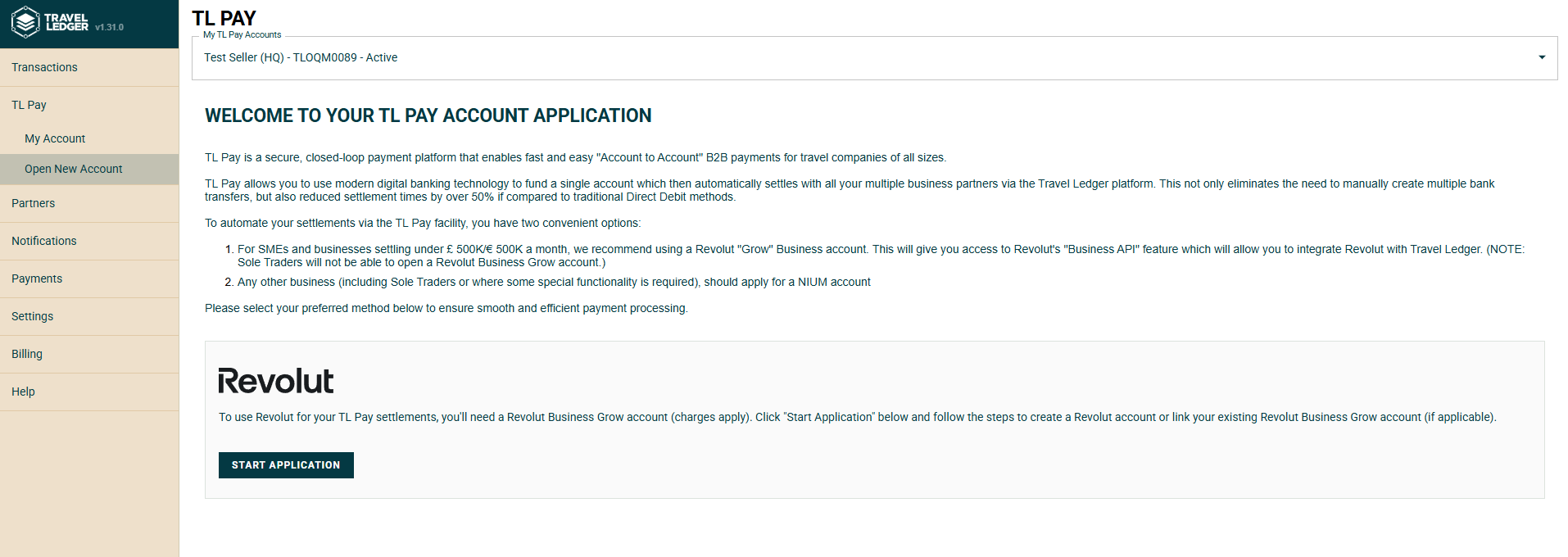
<figure><img src="https://3714949765-files.gitbook.io/~/files/v0/b/gitbook-x-prod.appspot.com/o/spaces%2F-MacUE666EkqnejMK9CH%2Fuploads%2F8Q1af7EG7HWynoo6LRHA%2Fimage.png?alt=media&amp;token=ee27f246-d359-4f0b-afbd-9312f37a633b" alt=""><figcaption></figcaption></figure>

</details>


# Registration Process - Revolut Grow

This guide provides an overview and instructions for setting up a Revolut account within TL Pay. &#x20;

### **Overview**

TL Pay now allows users to integrate their Revolut Business accounts for easy access and management of funds. This feature is available for both new and existing TL Pay users. &#x20;

To link your Revolut account to TL Pay, <mark style="color:purple;">**you'll need a Revolut 'Grow' Business account**</mark>.

This is because the 'Grow' level account offers access to Revolut's Business API, which is necessary for TL Pay to integrate with your Revolut account. This integration allows you to view your Revolut balances and settle within TL Pay.

{% hint style="info" %}
Please note: Revolut charges apply for Grow level accounts
{% endhint %}

### **Setting Up Your Revolut Account**

There are two scenarios for setting up a Revolut account in TL Pay, both options can be accessed by clicking on the Revolut 'Start Application' button.

<figure><img src="https://3714949765-files.gitbook.io/~/files/v0/b/gitbook-x-prod.appspot.com/o/spaces%2F-MacUE666EkqnejMK9CH%2Fuploads%2FYqbkxwvdTQLVsI7HRobQ%2Fimage.png?alt=media&amp;token=3ab1d9ea-ddaf-4782-8f64-6ea7ae9eb0fa" alt=""><figcaption></figcaption></figure>

<details>

<summary><mark style="color:purple;">New Revolut Account Applications</mark></summary>

Users without an existing Revolut account can easily apply for one [here](https://business.revolut.com/signup?promo=referabusiness\&ext=travellejl).&#x20;

1. Click the "Start Application" button in the TL Pay Revolut section. This will redirect you to Revolut's own onboarding process
2. Complete Revolut's Know Your Business (KYB) and Know Your Customer (KYC) process
3. Once your Revolut account is approved, you can link it to TL Pay by following the existing account steps shown below. &#x20;

</details>

<details>

<summary><mark style="color:purple;">Existing Revolut Account Holders</mark></summary>

Users with an existing Revolut account can link it to TL Pay by following our account link process. &#x20;

1. Click the "Start Application" button in the TL Pay Revolut section. &#x20;
2. Follow the step-by-step instructions to link your account. This will involve copying a certificate from TL Pay and pasting it into your Revolut account settings. &#x20;
3. Once your account is linked, you can access your Revolut balances and make transfers within TL Pay. &#x20;

</details>

### Additional Information

* TL Pay will display both your NIUM and Revolut balances, if you have both. &#x20;
* TL Pay uses open banking technology to view and pay your suppliers directly from your Revolut account. This means that TL Pay does not directly control your Revolut funds, and there's no need to manually withdraw or deposit money between your accounts. You manage your Revolut funds directly within the Revolut app or website.


# Registration Process - Nium/Clearbank

To protect your funds and ensure the safety and legitimacy of transactions, we require all users to complete  <mark style="color:purple;">**KYB (Know Your Business)**</mark> and <mark style="color:purple;">**KYC (Know Your Customer)**</mark> verification. These requirements help us uphold rigorous security and compliance standards, which are essential for a financial platform like TL Pay.

<details>

<summary><mark style="color:purple;">What is Know Your Business (KYB) and Know Your Customer (KYC)?</mark></summary>

**KYB (Know Your Business)** verification helps us assess the legitimacy and business background of TL Pay users. By verifying the identity and authenticity of businesses, we reduce the risk of fraud and illegal activity, protecting your financial interests.

**KYC (Know Your Customer)** verification is required for all individual users. It involves providing personal information and documents to comply with regulations and protect the platform from identity theft, money laundering, and other unlawful financial activities.

</details>

KYB/KYC requirements may vary slightly depending on your company's registered region. For your convenience, we have organised the following pages by region:

{% content-ref url="/pages/YoUfI38k7eu0fiSZXJQd" %}
[UK Application (KYB/KYC)](/tl-pay-account/registration-process-nium-clearbank/uk-application-kyb-kyc)
{% endcontent-ref %}

{% content-ref url="/pages/H90bn9wdzWUnnhXAwjek" %}
[EU Application (KYC/KYB)](/tl-pay-account/registration-process-nium-clearbank/eu-application-kyc-kyb)
{% endcontent-ref %}


# UK Application (KYB/KYC)

Welcome to the Travel Ledger UK Customer Onboarding Process Guide

<mark style="color:purple;">**Smooth onboarding starts here.**</mark> This guide includes all the information and documents you need to complete the KYB/KYC form, plus customisable templates to help you get started.

### **All Incorporated Companies**

1. Certificate of Incorporation&#x20;
2. Proof of identity and address for at least two Directors/Officers listed on Companies House
3. Proof of identity and address for any stakeholder with more than 25% ownership
4. Proof of identity and address for the applicant (Admin user submitting the application)
5. Letter of Authorisation or Power of Attorney for Applicant (Only required if the applicant is not a Director or stakeholder listed above)

> <mark style="color:purple;">**NOTE:**</mark> If you have a company stakeholder, we need more information about the company and its ultimate beneficial owners (UBO) or controlling persons.

### Sole Traders

1. Unique Taxpayer Reference (UTR) document
2. Proof of identity and address for the sole trader
3. Proof of identity and address for the applicant. (If the applicant and stakeholder are the same person, both proof of address and proof of identity documents are required. Please note you can use the same POI and POA used for the stakeholder).
4. Letter of Authorisation or Power of Attorney for the applicant (Only required if the applicant is not the sole trader)

<details>

<summary><mark style="color:purple;"><strong>What Proof of Identity (POI) and Proof of Address (POA) documents are accepted?</strong></mark></summary>

**Proof of Identity (POI):**

* Scanned or photographed passport photo page (in colour, not black and white)

**Proof of Address (POA):**

* Scanned or photographed driver's license (both sides)
* Scanned or photographed utility bill, bank statement, or payslip with a date within the last 90 days

</details>

<mark style="color:purple;">**Still unsure?**</mark> Please select your company type below for more information on specific KYB/KYC requirements.

{% file src="/files/1G2UGjp5A9YVpe8inAHF" %}

{% file src="/files/2t5MWgsNFVeeZ3XJz6Zf" %}

{% file src="/files/UFsPOaVo8bw0FW3qWoZt" %}

{% file src="/files/0rx8fRaGUhUY07L3Sj5j" %}

{% file src="/files/vum5eSQ1d04sFzi39CEx" %}

{% file src="/files/njsoH18o6S1vMCWp5sH2" %}

{% file src="/files/INwswKmTBQ7HQGLtPlfY" %}

### Document Templates

<mark style="color:purple;">**Unsure of some of the templates?**</mark> Here are some customisable examples for your use.

{% file src="/files/JFhnQNtQRTY1zJAJDFGP" %}

{% file src="/files/HgoPUfzOyUyrdENKouF9" %}

{% file src="/files/MXJVK4oUjFp3Yg1X6lMa" %}

###


# EU Application (KYC/KYB)

Welcome to the Travel Ledger EU Customer Onboarding Process Guide

<mark style="color:purple;">**We're working hard to get this page ready for you. Please check back soon!**</mark>


# Step-by-Step Guide: KYB/KYC Form Completion

This guide with screenshots shows you what you'll see and experience when completing the form.

### Step by Step Guide

<details>

<summary><mark style="color:purple;">Step One:</mark> TL Pay Start Page</summary>

1. If you don't have an active e-wallet, please log into the Travel Ledger platform and select 'TL Pay Account' from the main menu
2. Click on Start Application

![](https://3714949765-files.gitbook.io/~/files/v0/b/gitbook-x-prod.appspot.com/o/spaces%2F-MacUE666EkqnejMK9CH%2Fuploads%2Fp5mE64EHdcmpE5aPEjYM%2Fimage.png?alt=media\&token=4119103d-cc2f-4e8d-b7f2-93c74bd5fe1b)

</details>

<details>

<summary><mark style="color:purple;">Step Two:</mark> Terms and Conditions</summary>

To proceed with your application you will be presented with two sets of Terms & Conditions:

1. [Addendum to the Travel Ledger T\&Cs](https://www.travelledger.org/media/gfgojigy/tl-pay-amendment_july2023.pdf): Select the checkbox at the bottom of the page to accept and click 'Continue'.
2. [NIUM Terms & Conditions](https://www.travelledger.org/media/gpdbzme2/travel-ledger_nium-uk_corporate-user_v1_jul2023.pdf): NIUM are our partner providing the banking service powering TL Pay. Select the checkbox at the bottom of the page to accept and click 'Continue'.

</details>

<details>

<summary><mark style="color:purple;">Step Three:</mark> Corporate Details</summary>

Please enter your company registration number here (<mark style="color:red;">you must enter the leading '0s' of your company number e.g. 00123456</mark>). This will initiate a search in the Companies House database and populate some of the information needed in the following sections of this form.

* If the displayed Region, Country, and Company values are correct, click 'Continue'&#x20;
* If you cannot provide a company registration number and have selected the "tick this checkbox" option, click 'Continue.' You will then need to manually fill in all the details in the form.
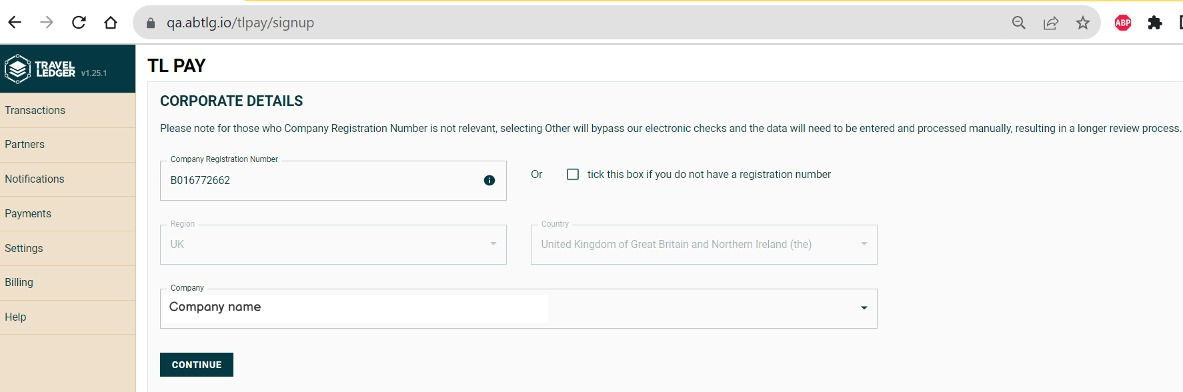
<img src="https://3714949765-files.gitbook.io/~/files/v0/b/gitbook-x-prod.appspot.com/o/spaces%2F-MacUE666EkqnejMK9CH%2Fuploads%2FGV6rDd4NGY4zV9vJk3hd%2Fimage.png?alt=media&amp;token=ebf31add-92fa-43a9-9b4f-496ee5fb9228" alt="" data-size="original">

</details>

<details>

<summary><mark style="color:purple;">Step Four:</mark> Region</summary>

Please note the system will automatically select the region based on the country of registration listed in your company account on Travel Ledger. If the region displayed in the form is incorrect, please verify the country listed under **Settings -> Companies & Users.**

![](https://3714949765-files.gitbook.io/~/files/v0/b/gitbook-x-prod.appspot.com/o/spaces%2F-MacUE666EkqnejMK9CH%2Fuploads%2FnFqgtkSlRbCANfDffbp2%2Fimage.png?alt=media\&token=765d00da-98a4-4b9e-bf5f-a96780feaf12)

</details>

<details>

<summary><mark style="color:purple;">Step Five:</mark>  Business Details</summary>

If your company registration number check is successful, some fields in this section will auto-populate. Please verify their accuracy and provide any missing details.

**Document Details:**

* Document requirements can be found on the previous region-specific application pages, based on your company type.

**Legal Registration Details:**

* Please provide the registration date and country of registration.

**Registered Address:**

* Please provide your registered company address and confirm if it is the same as your business address.

**Stakeholders**

* Please double-check and complete any missing information for both individual and corporate stakeholders.

<mark style="color:purple;">**Note:**</mark> The requirements of this section can become slightly complicated, so please ensure you have referred to the following pages based on your region:

[UK Application (KYB/KYC)](/tl-pay-account/registration-process-nium-clearbank/uk-application-kyb-kyc) or [EU Application (KYC/KYB)](/tl-pay-account/registration-process-nium-clearbank/eu-application-kyc-kyb)

![](https://3714949765-files.gitbook.io/~/files/v0/b/gitbook-x-prod.appspot.com/o/spaces%2F-MacUE666EkqnejMK9CH%2Fuploads%2FVKskO47VnjpYlCHAqCqv%2Fimage.png?alt=media\&token=dfd014d1-24db-4fd2-b560-d95909f1cb90)

</details>

<details>

<summary><mark style="color:purple;">Step Six:</mark>  Applicant Details</summary>

The applicant is the person submitting the form. Please provide the applicant's information in this section and upload the following supporting documents:

**Proof of Identity (POI):**

* Scanned or photographed passport photo page

**Proof of Address (POA):**

* Scanned or photographed driver's license (both sides)
* Scanned or photographed utility bill, bank statement, or payslip with a date within the last 90 days

**Letter of Authorisation or Power of Attorney:**&#x20;

* This is required if the applicant's position is not a Director, UBO, Partner, or Trustee.

![](https://3714949765-files.gitbook.io/~/files/v0/b/gitbook-x-prod.appspot.com/o/spaces%2F-MacUE666EkqnejMK9CH%2Fuploads%2FxNDiORvYgUDK33XzaolU%2Fimage.png?alt=media\&token=d080280a-5d47-444f-9fb0-9ba3b0c6a1d8)

</details>

<details>

<summary><mark style="color:purple;">Step Seven:</mark>  Additional Business Information</summary>

You will need to provide the following information that apply to your business:

![](https://3714949765-files.gitbook.io/~/files/v0/b/gitbook-x-prod.appspot.com/o/spaces%2F-MacUE666EkqnejMK9CH%2Fuploads%2Fc4t4kfMmHmgQCclyumdz%2Fimage.png?alt=media\&token=242a4e3f-f654-41fa-a02b-64d68b0fb9ec)

</details>

<details>

<summary><mark style="color:purple;">Step Eight:</mark> Submission</summary>

After completing all sections, please review the provided information for accuracy. Once confirmed, proceed to submit your application:

1. Click 'Submit Application.'
2. Confirm your submission in the pop-up.

![](https://3714949765-files.gitbook.io/~/files/v0/b/gitbook-x-prod.appspot.com/o/spaces%2F-MacUE666EkqnejMK9CH%2Fuploads%2Ft3YQeG33tToewohU9NpU%2Fimage.png?alt=media\&token=c5ad759b-3a1c-4a3f-bd8b-ffcbf25daeab)

3. Be patient if you see a loading circle; it's connecting to our banking partner.
4. If you aren't redirected to the next page, please look for red section markers, which could suggest missing mandatory details or incorrectly formatted information.

![](https://3714949765-files.gitbook.io/~/files/v0/b/gitbook-x-prod.appspot.com/o/spaces%2F-MacUE666EkqnejMK9CH%2Fuploads%2F25BH7c7CzIHu0Zo28yRw%2Fimage.png?alt=media\&token=2697cbd9-e7f7-4808-aa50-7c553e9860e6)

5. Adjust your information as needed in response to these confirmations and then submit your application again.

</details>

<details>

<summary><mark style="color:purple;">Final Step:</mark> Know your Customer (KYC)</summary>

After you've submitted your application, you'll receive a link to the final step, which involves verifying the applicant's identity.

![](https://3714949765-files.gitbook.io/~/files/v0/b/gitbook-x-prod.appspot.com/o/spaces%2F-MacUE666EkqnejMK9CH%2Fuploads%2FNyAAokGCWD4x2CYa2vTm%2Fimage.png?alt=media\&token=97af3b17-9a03-4bbf-95a1-dbb1afbd407c)

1. The link will direct you to our service provider's page, Onfido. There, you'll upload photos of your proof of identity document and take a live selfie using your mobile device.&#x20;

![](https://3714949765-files.gitbook.io/~/files/v0/b/gitbook-x-prod.appspot.com/o/spaces%2F-MacUE666EkqnejMK9CH%2Fuploads%2FeKzdLmYbSzPGQ8OCLEZ9%2Fimage.png?alt=media\&token=48112d10-bd80-44f7-890e-3a337d1231b8)

2. After you've finished all the steps on your mobile device, you'll receive a notification on your computer, allowing you to submit the verification.

![](https://3714949765-files.gitbook.io/~/files/v0/b/gitbook-x-prod.appspot.com/o/spaces%2F-MacUE666EkqnejMK9CH%2Fuploads%2FIXIkL7DQa7c4qAE91kR8%2Fimage.png?alt=media\&token=75c7980b-974c-4fe7-a02b-7a88f8f5c471)

3. When you click 'Submit Verification,' you will be directed to Travel Ledger's website, where you will see the following page

![](https://3714949765-files.gitbook.io/~/files/v0/b/gitbook-x-prod.appspot.com/o/spaces%2F-MacUE666EkqnejMK9CH%2Fuploads%2FHqUYcJXe7HhZxMIABL1m%2Fimage.png?alt=media\&token=f8d72f69-c343-4ffe-a9f9-3e5d9f5abcd0)

</details>

<details>

<summary><mark style="color:purple;">RFI (Request-For-Information)</mark> </summary>

After submitting your form and completing KYC verification, NIUM (wallet provider) conducts internal verification. This can lead to approval or requests for more information.

Requests for additional information are either automated and appear on the TL Pay Account page on Travel Ledger, or they're sent to your email (feature in progress).

To complete automated RFIs:

1. Find the requests on the TL Pay Account page.
2. You'll receive in-platform and email notifications (feature in progress).
3. Upload required files and select document type from the dropdown.
4. Click 'Submit' for a success message.

![](https://3714949765-files.gitbook.io/~/files/v0/b/gitbook-x-prod.appspot.com/o/spaces%2F-MacUE666EkqnejMK9CH%2Fuploads%2F5kgQfJZILGXZccidVCZv%2Fimage.png?alt=media\&token=7d26bc31-b2fa-4306-ae9d-ae0b1ed792dc)

</details>


# Suppliers not cutover to TL PAY

Suppliers not cutover to TL PAY

The following suppliers will continue to be paid via the ABTA direct debit scheme. We are working with each supplier to cut them over asap.

| Azamara                                                                   |
| ------------------------------------------------------------------------- |
| Travelworld Vacations Ltd / Olympic Holidays                              |
| \***All Advantage/ CAPS suppliers remain on Direct Debit indefinitely**\* |


# TL Pay Virtual Cards (VCCs)

An overview of virtual cards (VCCs) in Travel Ledger

### Overview

**Who this is for:** Buyers who want to pay suppliers by card from their TL Pay account.

TL Pay Virtual Cards (VCCs) are virtual cards issued instantly from your TL Pay account, powered by Adyen and built specifically for <mark style="color:purple;">**B2B travel businesses**</mark>.&#x20;

They extend TL Pay beyond the Travel Ledger settlement network: use them to pay **suppliers outside Travel Ledger** - hotels, bedbanks, any supplier that accepts card payments, plus selected integrated suppliers such as Expedia TAAP, while maintaining full visibility, reconciliation and control within Travel Ledger.

<details>

<summary><mark style="color:purple;"><strong>What are TL Pay Virtual Cards?</strong></mark></summary>

TL Pay Virtual Cards enable you to:

* Issue virtual cards directly in Travel Ledger
* Pay suppliers that are <mark style="color:purple;">**not on the Travel Ledger network**</mark>
* Automatically reconcile card payments where supplier data is available
* Improve cashflow by funding payments only when charges are due to occur

</details>

<details>

<summary><mark style="color:purple;"><strong>What TL Pay Virtual cards are for (and aren't!)</strong></mark></summary>

#### Virtual cards are used for:

* Off-platform suppliers
* Integrated card only suppliers (e.g. Expedia TAAP)

#### Virtual cards are not used for:

* Travel Ledger → Travel Ledger supplier payments\
  (These continue via TL Pay bank settlement)

{% hint style="info" %}
**Payments to suppliers already on Travel Ledger continue via standard TL Pay bank settlement and are not affected by virtual cards.**
{% endhint %}

</details>

<details>

<summary><mark style="color:purple;"><strong>Key Benefits - why use virtual cards?</strong></mark></summary>

* **Improved cashflow - no pre-funding - cards are funded just in time.** Creating a card does not use funds from your account. Funds are needed only when the supplier actually charges the card. Your cash remains available in the meantime; your job is simply to have the balance available by the charge date. → [Managing your exposure](/tl-pay-virtual-cards-vccs/funding-and-exposure)
* **Everything reconciles in one place.** For integrated suppliers (such as Expedia TAAP), booking and payment data flows into Travel Ledger automatically and is matched for you. For all other suppliers, the card carries the booking references you enter at creation, so every charge lands with its context attached. → [Reconciling card spend](/tl-pay-virtual-cards-vccs/reconciling-virtual-cards)
* **Cashback on card spend.** You earn cashback at 50% of the card’s interchange rate (1% at the default 2% interchange), paid monthly. → [Cashback programme](/tl-pay-virtual-cards-vccs/incentive)
* **Two card types for different jobs.** Single-use cards for a specific booking with a fixed amount; multi-use cards for recurring payments, lodge cards or a homeworker’s bookings. → [Creating virtual cards](/tl-pay-virtual-cards-vccs/creating-tl-pay-virtual-cards)

</details>

#### Accounts and cards: two dashboards

TL Pay separates account management from card management across two dashboards. This section covers the Virtual Cards side:

<table><thead><tr><th width="174">Screen</th><th width="185">What it manages</th><th>Typical tasks</th></tr></thead><tbody><tr><td><a href="/tl-pay-account/tl-pay-dashboard">TL Pay Dashboard</a></td><td>Your accounts and your funds</td><td>Check balances, fund an account, withdraw, move funds between accounts, create sub-accounts, rename accounts</td></tr><tr><td>TL Pay Virtual Cards</td><td>The cards issued from each account</td><td>Create cards, track charges, edit or block cards, view logs, raise disputes, export card statements, monitor exposure</td></tr></tbody></table>

### Getting set up <a href="#getting-set-up" id="getting-set-up"></a>

1. [Open a TL Pay account](/tl-pay-virtual-cards-vccs/applying-for-an-adyen-account) (Adyen) if you do not yet have one.
2. Enable Virtual Cards: on the TL Pay Accounts Dashboard, select **+ Add new payment method**, choose **Virtual Cards** as the account purpose and complete the activation steps.

<figure><img src="https://3714949765-files.gitbook.io/~/files/v0/b/gitbook-x-prod.appspot.com/o/spaces%2F-MacUE666EkqnejMK9CH%2Fuploads%2FZDuAgtBR6Zb98PX1q8Vq%2Fimage.png?alt=media&amp;token=31bae066-8901-46f2-a3fa-14d62513d191" alt=""><figcaption><p>The TL Pay Accounts Dashboard - Add new payment method</p></figcaption></figure>

<figure><img src="https://3714949765-files.gitbook.io/~/files/v0/b/gitbook-x-prod.appspot.com/o/spaces%2F-MacUE666EkqnejMK9CH%2Fuploads%2FZp9cyVHDGwiZErmnkeuq%2Fimage.png?alt=media&amp;token=1739466f-f444-49ee-b67d-8d99bfb8bc59" alt="" width="310"><figcaption><p>Choose Virtual Card as the account purpose</p></figcaption></figure>

3. [Create your first card](/tl-pay-virtual-cards-vccs/creating-tl-pay-virtual-cards)

#### More Information and Virtual Cards in Practice

For more information on virtual cards and for activating and using cards, please see the pages below:

{% content-ref url="/pages/ONqO5ImiCaf5I1TQ620v" %}
[Applying for an Adyen Account](/tl-pay-virtual-cards-vccs/applying-for-an-adyen-account)
{% endcontent-ref %}

{% content-ref url="/pages/dwWoHncb66976ROfub1b" %}
[Creating TL Pay Virtual Cards](/tl-pay-virtual-cards-vccs/creating-tl-pay-virtual-cards)
{% endcontent-ref %}

{% content-ref url="/pages/BstLnjS32gbJpwb0wYaT" %}
[Editing and managing Virtual Cards](/tl-pay-virtual-cards-vccs/editing-and-managing-virtual-cards)
{% endcontent-ref %}

{% content-ref url="/pages/dafKQLuk6F5iZUh9cWsJ" %}
[Funding and Exposure](/tl-pay-virtual-cards-vccs/funding-and-exposure)
{% endcontent-ref %}

{% content-ref url="/pages/kx8uGgbRUujPE4Ikrhsd" %}
[Reconciling Virtual Cards](/tl-pay-virtual-cards-vccs/reconciling-virtual-cards)
{% endcontent-ref %}

{% content-ref url="/pages/yxVUNfyPkFategg2wlXx" %}
[Incentive](/tl-pay-virtual-cards-vccs/incentive)
{% endcontent-ref %}


# Applying for an Adyen Account

### TL Pay – Adyen Account Application

Before you can use TL Pay and virtual cards with Adyen, you need to open and submit an Adyen  account application from within Travel Ledger.

We recommend completing this <mark style="color:purple;">**as soon as possible**</mark> so your account is ready for your migration date.

***

#### Overview

Travel Ledger is transitioning its primary banking infrastructure from Nium to Adyen. This move strengthens our payments infrastructure and supports the next phase of innovation across our network.

Adyen is a global financial technology leader list on the Dutch stock exchange and used by major enterprises such as Microsoft, Uber, and eBay. They also hold a banking licence in the UK

Adyen is the payment provider that powers TL Pay and virtual cards.

Once your Adyen account is approved:

* You can send and receive TL Pay settlements
* Funds can be paid out to your bank account
* You can create and use Virtual Cards

***

#### Applying

<details>

<summary><mark style="color:purple;"><strong>Who can complete this?</strong></mark></summary>

Only users with <mark style="color:purple;">**TL Pay/Admin permissions**</mark> can:

* Open a new payment account
* Submit the Adyen application

</details>

<details>

<summary><mark style="color:purple;"><strong>Before you start</strong></mark></summary>

Make sure you have the following information ready:

* Company legal name and registration number
* Registered and trading address
* Director / Ultimate Beneficial Owner (UBO) details
* Business activity description
* Settlement bank account details

The application itself takes <mark style="color:purple;">**a few minutes to complete**</mark>.

</details>

<details>

<summary><mark style="color:purple;"><strong>How to apply</strong></mark></summary>

#### 1. Open TL Pay

In Travel Ledger go to <mark style="color:purple;">**TL Pay → Open New Account**</mark>

Choose **Adyen** as the payment provider and 'Start Application'.
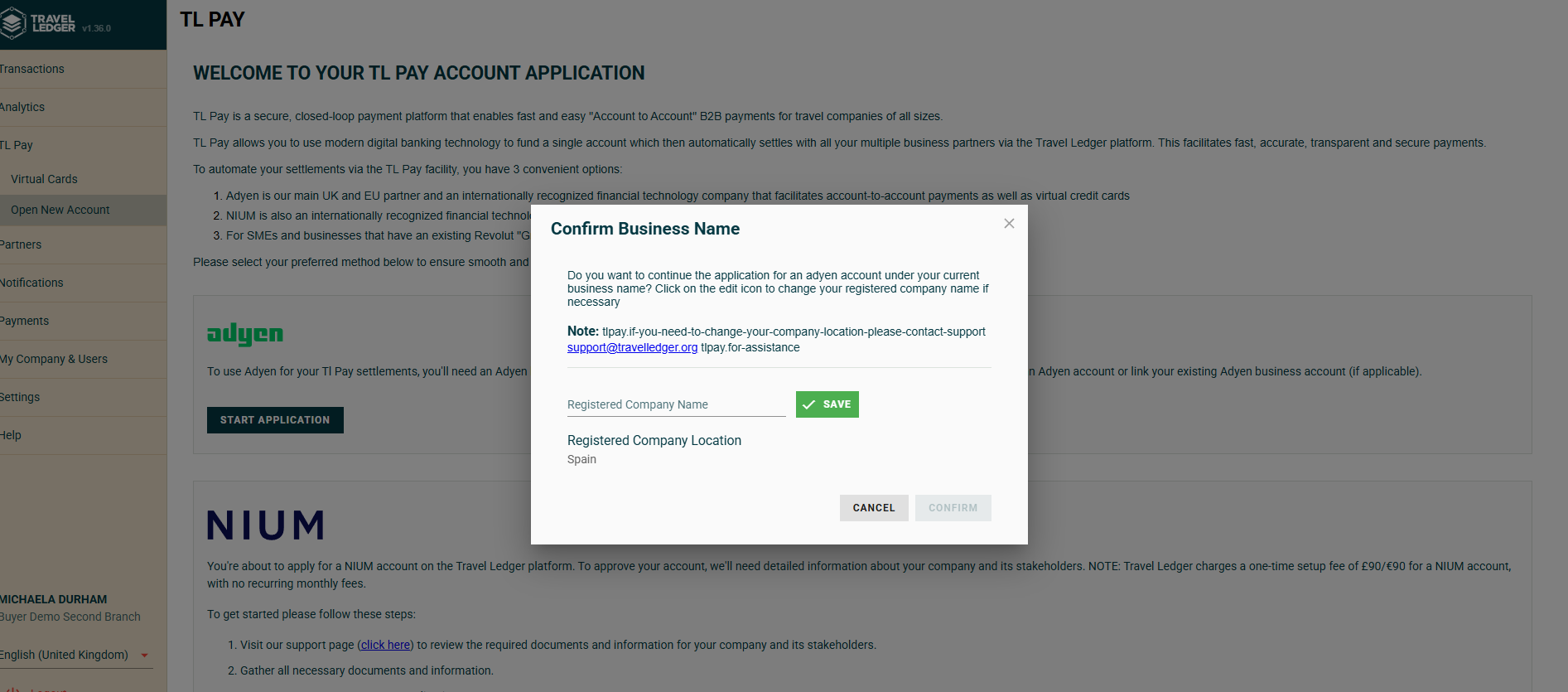
<figure><img src="https://3714949765-files.gitbook.io/~/files/v0/b/gitbook-x-prod.appspot.com/o/spaces%2F-MacUE666EkqnejMK9CH%2Fuploads%2FBkJ435c1559pV5mfcWsN%2Fopen-account-00-welcome.png?alt=media&amp;token=e3c5cb76-0b94-4540-aa0f-361a3e4ec4b2" alt=""><figcaption></figcaption></figure>

***

#### 2. Complete the application

You will be asked to provide the following:

**Company details**

* Legal entity name
* Company registration number
* Registered address
* Trading address (if different)
* Business activity

<figure><img src="https://3714949765-files.gitbook.io/~/files/v0/b/gitbook-x-prod.appspot.com/o/spaces%2F-MacUE666EkqnejMK9CH%2Fuploads%2F7sc6XhX1rm6wJolSlmrK%2Fimage.png?alt=media&amp;token=78962e77-6ae7-4592-b54c-8dcf73c646fc" alt=""><figcaption></figcaption></figure>

<figure><img src="https://3714949765-files.gitbook.io/~/files/v0/b/gitbook-x-prod.appspot.com/o/spaces%2F-MacUE666EkqnejMK9CH%2Fuploads%2FncOZrWesX4c4Lk4JmuOc%2Fimage.png?alt=media&amp;token=d87631fe-4036-4d3c-a79f-1410e8d2a736" alt=""><figcaption></figcaption></figure>

<figure><img src="https://3714949765-files.gitbook.io/~/files/v0/b/gitbook-x-prod.appspot.com/o/spaces%2F-MacUE666EkqnejMK9CH%2Fuploads%2F9VFEN4qqAp0omLlZo6ew%2Fimage.png?alt=media&amp;token=a0b7fd81-a26b-402b-a4e0-63f77bdac22d" alt=""><figcaption></figcaption></figure>

***

**Directors & Ultimate Beneficial Owners (UBOs)**

For each required individual:

* Full legal name
* Date of birth
* Home address
* Email address
* Ownership percentage (if applicable)

***

**Settlement bank account**

This is the bank account where you will fund your Adyen account from.

You’ll need:

* Account name
* Sort code
* Account number
* IBAN (if applicable)

***

#### 3. Submit the application

Once submitted:

* The application is sent to Adyen for verification
* You can leave the page safely
* Your status will update automatically once reviewed

***

### Application status

You can check progress at any time in:

<mark style="color:purple;">**TL Pay → Your payment account**</mark>

#### Status meanings

| Status                    | What it means                                      |
| ------------------------- | -------------------------------------------------- |
| Pending                   | Application submitted and under review             |
| More information required | Additional documents or details are needed         |
| Active                    | Account approved and ready for your migration date |

***

### If more information is required

Adyen may request:

* Proof of identity
* Proof of address
* Company verification documents
* Bank account confirmation

If this happens:

1. Open your payment account in TL Pay
2. Upload the requested documents
3. Resubmit

</details>

<details>

<summary><mark style="color:purple;"><strong>FAQs</strong></mark></summary>

<mark style="color:purple;">**How do I provide the KYC identification verification for a director or UBO who is not completing the form?**</mark>

The verification can be sent to the relevant stakeholder through a link as outlined below.

1. Select the decision maker section by clicking on 'add' and then 'Get Started':

   <figure><img src="https://3714949765-files.gitbook.io/~/files/v0/b/gitbook-x-prod.appspot.com/o/spaces%2F-MacUE666EkqnejMK9CH%2Fuploads%2FZSfWa9KF0o9y6P7rXGRT%2Fimage.png?alt=media&amp;token=4c364c8d-1eda-4511-b851-e23e8f40f013" alt=""><figcaption></figcaption></figure>

<figure><img src="https://3714949765-files.gitbook.io/~/files/v0/b/gitbook-x-prod.appspot.com/o/spaces%2F-MacUE666EkqnejMK9CH%2Fuploads%2FgCafmfGdSMD4s2LyITXr%2Fimage.png?alt=media&amp;token=d24c47dd-c87d-47ee-9636-64425c408478" alt=""><figcaption></figcaption></figure>

2. Fill out the information pertaining to the stakeholder:

<figure><img src="https://3714949765-files.gitbook.io/~/files/v0/b/gitbook-x-prod.appspot.com/o/spaces%2F-MacUE666EkqnejMK9CH%2Fuploads%2FtMmVKm8PpiD72TCetyAS%2Fimage.png?alt=media&amp;token=867cb50e-fbfd-4fc1-b9e5-f773542a3288" alt=""><figcaption></figcaption></figure>

<figure><img src="https://3714949765-files.gitbook.io/~/files/v0/b/gitbook-x-prod.appspot.com/o/spaces%2F-MacUE666EkqnejMK9CH%2Fuploads%2FHzqPxElbeyTo1gbAfQdP%2Fimage.png?alt=media&amp;token=9456ca09-122c-439c-992b-68f313563846" alt=""><figcaption></figcaption></figure>

<figure><img src="https://3714949765-files.gitbook.io/~/files/v0/b/gitbook-x-prod.appspot.com/o/spaces%2F-MacUE666EkqnejMK9CH%2Fuploads%2Fk7Dp74jxF6S96JJueP2a%2Fimage.png?alt=media&amp;token=4001e539-b867-466d-a12d-6f9224836a67" alt=""><figcaption></figcaption></figure>

3. Choose the 'Invite Decision maker' option:

<figure><img src="https://3714949765-files.gitbook.io/~/files/v0/b/gitbook-x-prod.appspot.com/o/spaces%2F-MacUE666EkqnejMK9CH%2Fuploads%2Fq68UmqZWVjqyMRoVSeUC%2Fimage.png?alt=media&amp;token=e0eb9233-6abf-492d-aa02-8809ff487a17" alt=""><figcaption></figcaption></figure>

4. Complete their details and any personal message you wish to add:

<figure><img src="https://3714949765-files.gitbook.io/~/files/v0/b/gitbook-x-prod.appspot.com/o/spaces%2F-MacUE666EkqnejMK9CH%2Fuploads%2FvK5pOzPXzsO5ueaybaXY%2Fimage.png?alt=media&amp;token=9311bc5b-2a0e-49be-9987-1a2dbd5450fa" alt=""><figcaption></figcaption></figure>

5. Have a final check of the details you have provided:

<figure><img src="https://3714949765-files.gitbook.io/~/files/v0/b/gitbook-x-prod.appspot.com/o/spaces%2F-MacUE666EkqnejMK9CH%2Fuploads%2Fh3wEfPorKKF20fpma8dq%2Fimage.png?alt=media&amp;token=87045384-e348-4f57-9757-39748515412b" alt=""><figcaption></figcaption></figure>

6. The invitation is now sent to the stakeholder, allowing them to complete the KYC form directly. Please advise them to have their passport or driving lincense available.

<figure><img src="https://3714949765-files.gitbook.io/~/files/v0/b/gitbook-x-prod.appspot.com/o/spaces%2F-MacUE666EkqnejMK9CH%2Fuploads%2FISGS8Xvrozlulfga7mKr%2Fimage.png?alt=media&amp;token=dd51921e-ac7c-4850-a909-b24c50c519a1" alt=""><figcaption></figcaption></figure>

<mark style="color:purple;">**If I input the wrong type of business (sole trader/private limited company etc) how do I amend this?**</mark>

You can click on the pencil at the top of the application page to change.\
Note: The form only gives sole proprietor and company options, if you are a partnership, please choose sole proprietor.

<figure><img src="https://3714949765-files.gitbook.io/~/files/v0/b/gitbook-x-prod.appspot.com/o/spaces%2F-MacUE666EkqnejMK9CH%2Fuploads%2F7XEMafFZG3i4RWUK3klO%2Fimage.png?alt=media&amp;token=f7005257-7f4f-41a0-8fc3-92fc86a79ffc" alt=""><figcaption></figcaption></figure>

<figure><img src="https://3714949765-files.gitbook.io/~/files/v0/b/gitbook-x-prod.appspot.com/o/spaces%2F-MacUE666EkqnejMK9CH%2Fuploads%2FKVxUnPot0sH0LCAkqoV1%2Fimage.png?alt=media&amp;token=98f9f13a-6a16-415c-bd21-3d642c528f52" alt=""><figcaption></figcaption></figure>

<mark style="color:purple;">**How do I complete the form as a Sole Trader/Proprietor/Partnership?**</mark>

1. Select business type 'Sole Proprietor'.

<figure><img src="https://3714949765-files.gitbook.io/~/files/v0/b/gitbook-x-prod.appspot.com/o/spaces%2F-MacUE666EkqnejMK9CH%2Fuploads%2FPS5XxMhgg26qCVBFi874%2Fimage.png?alt=media&amp;token=c9997516-1ea3-40b0-8f03-3a3e60b11f6f" alt=""><figcaption></figcaption></figure>

2. In the Sole Proprietorship details screen,  add your personal name in the Business legal name box. For a partnership, add the name of one of the partners.

<figure><img src="https://3714949765-files.gitbook.io/~/files/v0/b/gitbook-x-prod.appspot.com/o/spaces%2F-MacUE666EkqnejMK9CH%2Fuploads%2FBBfcU1WHxd2Aab7h86KQ%2Fimage.png?alt=media&amp;token=fa411ff8-184a-4494-a580-5b13436658bc" alt=""><figcaption></figcaption></figure>

3. On the next page, tick the 'Yes' radio button to enable 'Doing Business As' name entry. Please enter the known business name here.

<figure><img src="https://3714949765-files.gitbook.io/~/files/v0/b/gitbook-x-prod.appspot.com/o/spaces%2F-MacUE666EkqnejMK9CH%2Fuploads%2FTauqL4FcUSbdP6UyaJiO%2Fimage.png?alt=media&amp;token=acc23ff0-e092-4cf8-8ebf-37dd363d800a" alt=""><figcaption></figcaption></figure>

</details>

### Need help?

If you have any questions, contact:

<mark style="color:purple;">**<support@travelledger.org>**</mark>


# Creating TL Pay Virtual Cards

Using and setting up Virtual Cards

**Who can do this:** Users with card permissions - Admin, Normal + Cards or Cards Only roles. \
Multi-use cards require Admin rights.

***

Cards are created under **TL Pay → Virtual Cards → Create VCC**. If you run more than one Virtual Cards sub-account (say, one for hotels and one for airlines), use the **Create VCC** button on the sub-account the card should draw from. You’ll then choose the card type:

<figure><img src="https://3714949765-files.gitbook.io/~/files/v0/b/gitbook-x-prod.appspot.com/o/spaces%2F-MacUE666EkqnejMK9CH%2Fuploads%2FoaU0ql2R6VV9C9knGiKI%2Fimage.png?alt=media&amp;token=dc245cb7-18ec-46a2-ad82-3de3fd0a568b" alt=""><figcaption><p>Accessing the Create VCC function</p></figcaption></figure>

### Choosing the card type

TL Pay Virtual Cards allow you to pay suppliers by card while maintaining full visibility and reconciliation inside Travel Ledger. There are two types of cards you can issue: **Single-use** and **Multi-use**

<table><thead><tr><th width="165">How to use?</th><th valign="middle">Single-use</th><th>Multi-use</th></tr></thead><tbody><tr><td><strong>Best for</strong> </td><td valign="middle">Issued for individual bookings at a fixed value - <mark style="color:purple;"><strong>ideal for one off payments</strong></mark></td><td>Recurring payments - <mark style="color:purple;"><strong>ideal for lodging for payments to the same supplier or for a single user such as a homeworker</strong></mark></td></tr><tr><td><strong>Amount</strong></td><td valign="middle">Fixed amount + optional buffer</td><td>Flexible spending limit</td></tr><tr><td><strong>Charges allowed</strong></td><td valign="middle">Up to 3</td><td>Multiple, ongoing</td></tr><tr><td><strong>Expiry</strong></td><td valign="middle">Date you set</td><td>Date you set</td></tr><tr><td><strong>Who can create</strong></td><td valign="middle">Any card-enabled role</td><td>Admin only</td></tr></tbody></table>

<figure><img src="https://3714949765-files.gitbook.io/~/files/v0/b/gitbook-x-prod.appspot.com/o/spaces%2F-MacUE666EkqnejMK9CH%2Fuploads%2FoPZitsJ963QBQd2Uudqj%2FVCC%20creation.png?alt=media&amp;token=74bb0838-ab18-4083-88de-a3982c8c8c0f" alt="Choosing the card type"><figcaption><p>Choosing the card type</p></figcaption></figure>

You will need to select if you wish to issue a Single or Multi Use card.

{% hint style="info" %}
🔐 **Admin Only.** Only users with the correct permissions can create and manage TL Pay Virtual Cards.
{% endhint %}

<details>

<summary><mark style="color:purple;"><strong>Create a Single-Use Virtual Card</strong></mark></summary>

### Single-Use Virtual Cards

A <mark style="color:purple;">**single-use card**</mark> is issued for <mark style="color:purple;">**transactions with 1 to 3 charges only**</mark>. Ideal for one-off bookings or specific supplier payments. To issue a single use card:

1. **Log in to Travel Ledger -** Access Travel Ledger with your usual credentials.
2. Navigate to **TL Pay → Virtual Cards** and select **Create VCC** in the sub-account you wish to use, then **Create** **Single-Use Card**.
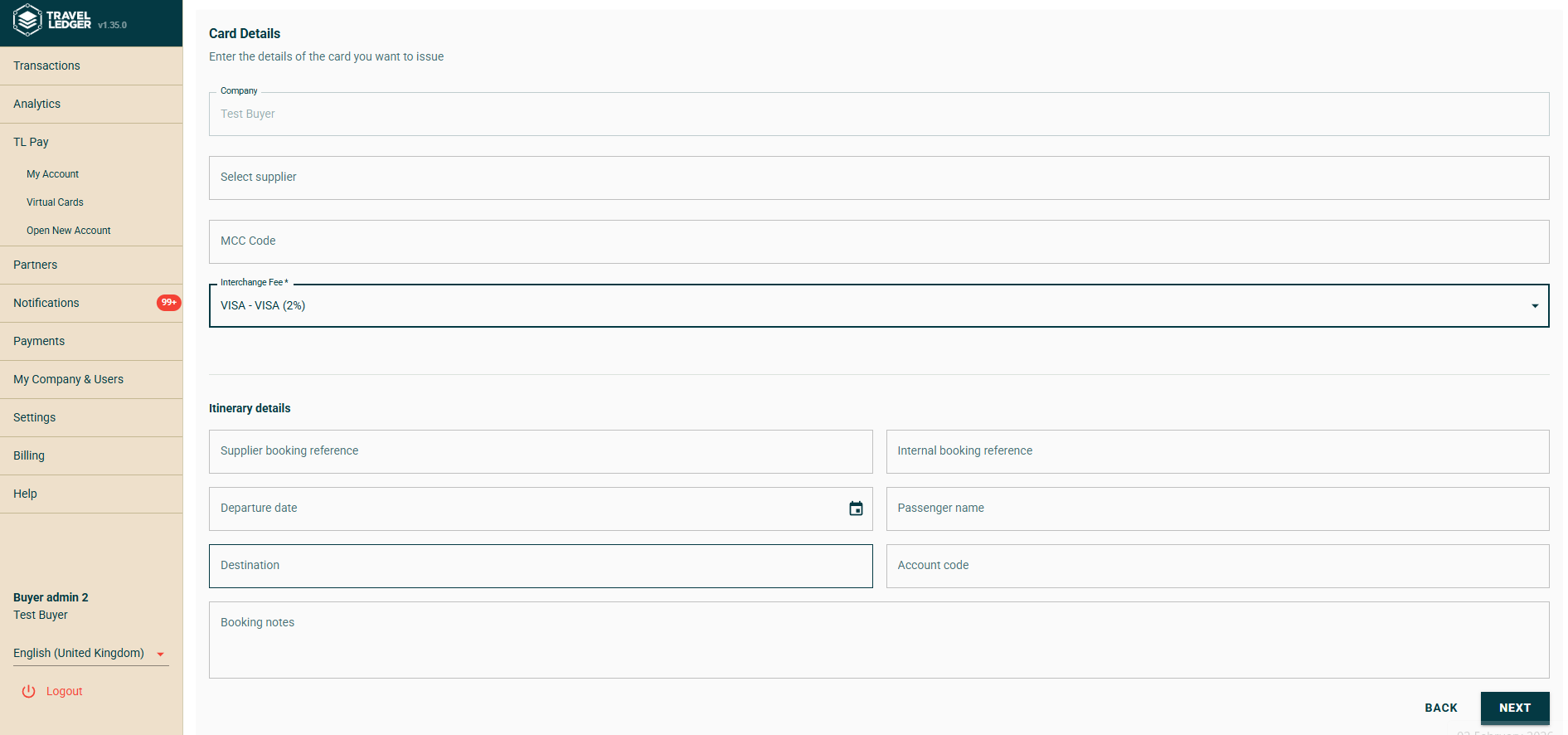
<figure><img src="https://3714949765-files.gitbook.io/~/files/v0/b/gitbook-x-prod.appspot.com/o/spaces%2F-MacUE666EkqnejMK9CH%2Fuploads%2FUP1keFj2bWSOhP20VZ03%2Fimage.png?alt=media&amp;token=30468c56-3b3d-4a1c-a161-27583f957dc0" alt=""><figcaption><p>Single-use card - card and itinerary details</p></figcaption></figure>

3. **Card details**

* Supplier Name (optional)
* MCC Code (optional)
* Interchange Fee - defaulted to 2%, can be reduced from the pick list for suppliers who do not accept this rate. Please note that reducing the interchange will reduce your cashback, cashback is issued at 50% of the interchange rate.&#x20;

4. **Itinerary details** (all optional, all **valuable for reconciliation**)

* Supplier Booking Reference (optional)
* Internal Booking Reference (optional)
* Departure Date (optional)
* Passenger Name (optional)
* Destination (optional)
* Account code (optional)
* Booking Notes (optional)

5. **Click 'Next',** then set **Limits & Expiry**

<figure><img src="https://3714949765-files.gitbook.io/~/files/v0/b/gitbook-x-prod.appspot.com/o/spaces%2F-MacUE666EkqnejMK9CH%2Fuploads%2FcyvLvtXMfjCpxf9SlpCF%2Fimage.png?alt=media&amp;token=aeaa2298-40fe-43cd-9044-f0f57e85ddec" alt=""><figcaption><p>Limits &#x26; Expiry - amount, estimated charge date, expiry, buffer, allowed charges</p></figcaption></figure>

* **Amount** (mandatory) - the card’s value. You can update it before the card is used.
* **Estimated Charge Date** (mandatory) - your best estimate of when the supplier will charge. This drives your dashboard’s 48h/7d/Total Exposure figures, so keep it realistic; you can edit it later if the supplier’s timing changes.
* **Card Expiry Date** (mandatory)&#x20;
* **Additional Percentage** (optional: 5% or 10%) - a buffer above the amount, useful where hotel taxes or small extras may be added at charge time.
* **Allowed Charges** (mandatory: 1, 2 or 3) - how many separate charges the card accepts. Suppliers sometimes split a payment (e.g. deposit then balance), so match this to how your supplier charges.

6. Select **Next.** The card number, CVV and expiry are displayed - <mark style="color:purple;">**use these to pay the supplier.**</mark>
7. **Reconciliation** The card then appears on the **Single Use Cards** tab of the dashboard, in the grid of the sub-account, showing whether it has been charged and all the details you entered.

<figure><img src="https://3714949765-files.gitbook.io/~/files/v0/b/gitbook-x-prod.appspot.com/o/spaces%2F-MacUE666EkqnejMK9CH%2Fuploads%2FWCvemPDvhF128aRmOcmA%2Fimage.png?alt=media&amp;token=4c6736a5-1929-47b3-918a-f339d33ee453" alt=""><figcaption><p>The Single-use Cards tab</p></figcaption></figure>

</details>

<details>

<summary><mark style="color:purple;"><strong>Create a Multi-Use Virtual Card</strong></mark></summary>

### Multi-Use Virtual Cards

A **multi-use card** can be used for **multiple transactions or bookings**. Ideal for recurring payments or a group of suppliers. To issue a multi-use card:

1. **Log in to Travel Ledger (**&#x41;ccess Travel Ledger with your usual with your credentials.)
2. Navigate to **TL Pay → Virtual Cards** and select **Create VCC** in the sub-account you wish to use, then **Create** **Multi-Use Card**.
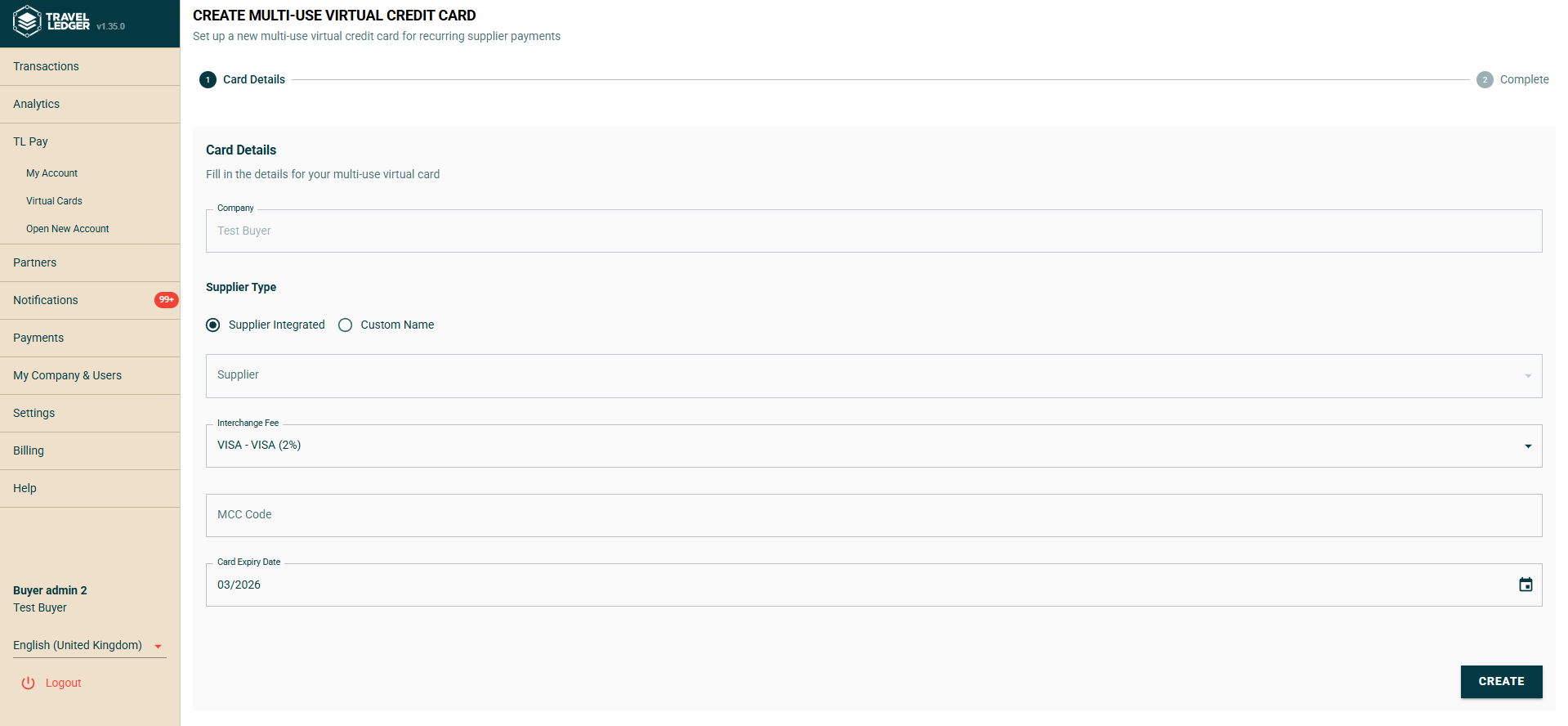
<figure><img src="https://3714949765-files.gitbook.io/~/files/v0/b/gitbook-x-prod.appspot.com/o/spaces%2F-MacUE666EkqnejMK9CH%2Fuploads%2FHjr6BtsiGNQt3zrdebDH%2Fimage.png?alt=media&amp;token=8a90dd38-4816-47d4-b020-e2b2fb8a5490" alt=""><figcaption><p>Multi-use card creation</p></figcaption></figure>

3. **Card Configuration**

* **Supplier Type** - the options are 'Supplier Integrated' or 'Custom Name'.&#x20;
  * If you are using the card to lodge with an integrated supplier such as Expedia TAAP, choose 'Supplier Integrated'. For guidance on how to set up the Expedia TAAP integration, [click here](/tl-pay-virtual-cards-vccs/expedia-taap-integration).
  * If you are creating a card to use with a supplier not integrated into the platform choose 'Custom Name' and manually input the Supplier Name below (optional).
* **Interchange Fee** - defaulted to 2%, can be reduced from the pick list for suppliers who do not accept this rate. Please note that reducing the interchange will reduce your cashback, cashback is issued at 50% of the interchange rate.
* **MCC Code** (optional)
* **Valid to date** (mandatory)

6. Click **'Create'**
7. **Make Payment** Use the displayed card details to pay the supplier. You can use this as a lodge card with a single supplier or use it across multiple suppliers, assigning a multi-use card to an individual homeworker is a good example.&#x20;
8. **Reconciliation** The card will display under the multi-use card dashboard, allowing you visibility to whether all charges made on the card, and displaying the details inputted at time of creation (supplier, reference etc), supporting simple reconciliation.

<figure><img src="https://3714949765-files.gitbook.io/~/files/v0/b/gitbook-x-prod.appspot.com/o/spaces%2F-MacUE666EkqnejMK9CH%2Fuploads%2FgkXBHootI2egpsk4CCTG%2Fmulti%20use%20balance.png?alt=media&amp;token=16582055-8ee1-49ff-bc5e-b37f7e55a97b" alt=""><figcaption><p>Reviewing a multi-use card</p></figcaption></figure>

</details>

### [Using a Virtual Card](/tl-pay-virtual-cards-vccs/paying-suppliers-outside-travel-ledger)

Once created, the card can be used externally with the supplier via:

* Supplier portals
* Online booking engines
* Call centres
* Over-the-phone payment

{% hint style="info" %}
**Bookings do not need to be created in Travel Ledger to use TL Pay Virtual Cards. They are specifically designed for bookings outside of the Travel Ledger platform.**
{% endhint %}


# Paying suppliers outside Travel Ledger

**Who this is for:** Buyers paying hotels, bedbanks or any supplier that isn’t on Travel Ledger and accepts card payments.

This is the core virtual card use case: on-platform partners settle through TL Pay settlement schedules, while off-platform suppliers are paid by card from the same account - a single balance, a single dashboard and a single reconciliation trail.

### How it works

1. **Create a card for the payment** - usually a single-use card with the booking’s amount, the supplier’s name and your booking references. If taxes or extras may be added at charge time, set an Additional Percentage buffer (5%/10%). Set Allowed Charges to match how the supplier collects (deposit + balance = 2).
2. **Provide the card details through the supplier’s usual payment channel** - booking portal, telephone or extranet. Set the **Estimated Charge Date** to the supplier’s stated charging point;&#x20;
3. **No funds move at issuance**. The card can remain unfunded until charged - the requirement is to keep the account balance ahead of your exposure figures. Configure the Total Exposure alert to be notified if issued cards exceed available funds. → [Funding and exposure](/tl-pay-virtual-cards-vccs/funding-and-exposure)
4. **The supplier charges the card.** Funds are drawn from your respective sub-account TL Pay balance at that moment and the charge appears against the card with the booking details attached at creation.
5. **Reconcile with full context:** the charge already carries your internal and supplier references. → [Reconciling card spend](/tl-pay-virtual-cards-vccs/reconciling-virtual-cards)

### Card payment or platform settlement

For suppliers you transact with occasionally, a virtual card is the most efficient route. For high-frequency trading relationships, consider inviting the supplier to Travel Ledger for full platform settlement - cards and settlement can operate side by side.


# Funding and Exposure

How to fund and manage your Adyen Account Virtual Cards

**Who this is for:** Users keeping the virtual credit card accounts funded.

Funds are only required <mark style="color:purple;">**when the supplier charges the card, not when the card is issued.**</mark> This reduces pre-funding and improves cashflow control.&#x20;

TL Pay separates account management from card management across two dashboards. Both **funding** and **exposure** are monitored on the Virtual cards dashboard.&#x20;

<figure><img src="https://3714949765-files.gitbook.io/~/files/v0/b/gitbook-x-prod.appspot.com/o/spaces%2F-MacUE666EkqnejMK9CH%2Fuploads%2Fg3Dy1d4YmfsqwN0q3T1F%2Fimage.png?alt=media&amp;token=2a3007be-a437-43d5-b320-faa66181bd95" alt=""><figcaption></figcaption></figure>

### Funding Virtual Cards account

Funding is managed directly from the Virtual Cards Dashboard - each sub-account header carries its own bank icon:

1. On the Virtual Cards Dashboard, select the bank icon on the sub-account you want to fund.
2. Copy the account number and sort code shown (each has a copy button).
3. Transfer the funds from your whitelisted bank account - the account named during your Adyen application, or an additional funding account added since. The account holder name on the transfer should be your registered business name; funding from a previously verified account processes faster.

Any required funds must be provided in your account prior to any charges<mark style="color:purple;">**, specifically your Adyen Virtual Card account, not your standard TL Pay**</mark><mark style="color:purple;">.</mark>&#x20;

<figure><img src="https://3714949765-files.gitbook.io/~/files/v0/b/gitbook-x-prod.appspot.com/o/spaces%2F-MacUE666EkqnejMK9CH%2Fuploads%2F5ByYIKPX37bSA8XjR8ot%2Fimage.png?alt=media&amp;token=0efeb17f-825d-4370-93c6-b60131a658fe" alt="" width="563"><figcaption><p>Funding a sub-account in three steps</p></figcaption></figure>

**For immediate funding:** where funds are held in another of your TL Pay Adyen accounts, use **Move Funds** (the two-arrow icon on the account tile) - transfers between your own accounts are immediate. See the [TL Pay Dashboard page](/tl-pay-account/tl-pay-dashboard) for details.

* **Single-use cards:** fund the exact amount (plus optional tolerance).
* **Multi-use cards:** fund up to the total card limit.

It is also possible to keep a 'float' balance in the account to cater for fast turnaround of card payments, for example paying low cost carriers.

{% hint style="warning" %}
**It is mandatory to fund your card from the bank account you used during your application, no other account can be used.**
{% endhint %}

### Sub-accounts for cards

Many buyers operate several Virtual Cards sub-accounts, for example, one for hotels and another for airlines, giving each supplier category ring-fenced funds, its own exposure figures and its own alerts. Each sub-account tile carries its own Create VCC button: issue cards from the sub-account they should draw on. Creating and managing sub-accounts happens on the [TL Pay Dashboard](/tl-pay-account/tl-pay-dashboard).

### Monitoring your exposure

Each sub-account tile on the Virtual Cards Dashboard shows its **Account Balance** and **Available Funds** alongside three live exposure figures, calculated from its active cards’ amounts and **Estimated Charge Dates**. A red alert indicator appears on any sub-account whose exposure exceeds its available funds.

<figure><img src="https://3714949765-files.gitbook.io/~/files/v0/b/gitbook-x-prod.appspot.com/o/spaces%2F-MacUE666EkqnejMK9CH%2Fuploads%2FkGoz5ezxWoE1jYYeOrB2%2Fimage.png?alt=media&amp;token=0411ac0a-887d-44f0-ad3e-115f632b4f1c" alt=""><figcaption><p>Sub-account tiles with balances and exposure figures - note the alert indicator where exposure exceeds available funds</p></figcaption></figure>

<table data-header-hidden><thead><tr><th valign="bottom">Field</th><th valign="bottom">Shows</th></tr></thead><tbody><tr><td valign="bottom">48h Exposure</td><td valign="bottom">Charges expected within 48 hours</td></tr><tr><td valign="bottom">7d Exposure</td><td valign="bottom">Charges expected within 7 days</td></tr><tr><td valign="bottom">Total Exposure</td><td valign="bottom">All expected charges on active cards</td></tr></tbody></table>

**Operating guidelines:** maintain Available Balance above 48h Exposure at all times; review 7d Exposure when planning top-ups or fund moves; and keep Estimated Charge Dates realistic - they remain editable after issuance, so update them when a supplier’s timing changes.

### Configuring funding alerts

Two configurable notifications monitor funding on your behalf. Both are set per sub-account (or for all accounts), can be delivered **by email, in-platform or both**, and can copy additional recipients (separate multiple addresses with a semicolon - useful for shared finance inboxes; or select to notify company Travel Ledger platform admin users).

Configure both alerts under **Notifications → Notifications Settings** - expand **Total Exposure** or **Low Available balance** to set thresholds, sub-accounts and delivery (in-platform, email, or both).

<figure><img src="https://3714949765-files.gitbook.io/~/files/v0/b/gitbook-x-prod.appspot.com/o/spaces%2F-MacUE666EkqnejMK9CH%2Fuploads%2FkC2IvJE5w3OS0g8nRGr4%2Fimage.png?alt=media&amp;token=0301e577-984f-4978-a259-de812fd54762" alt=""><figcaption></figcaption></figure>

**Total exposure alert** - monitors total *unused card* exposure across your sub-accounts and fires when total exposure exceeds available funds. Your early warning that issued cards outstrip the balance backing them.

<figure><img src="https://3714949765-files.gitbook.io/~/files/v0/b/gitbook-x-prod.appspot.com/o/spaces%2F-MacUE666EkqnejMK9CH%2Fuploads%2FKlFcOfJcIfUi7jYG99jM%2Fimage.png?alt=media&amp;token=a12f0ffb-8c12-45b1-9740-9aae055edbef" alt=""><figcaption><p>Total Exposure alert settings</p></figcaption></figure>

**Low available balance alert** - set a threshold per sub-account (e.g. GBP 1,000) and get alerted when a card charge takes available funds below it. This is your top-up trigger before the *next* charge fails.

<figure><img src="https://3714949765-files.gitbook.io/~/files/v0/b/gitbook-x-prod.appspot.com/o/spaces%2F-MacUE666EkqnejMK9CH%2Fuploads%2FO5FcgRUkKYXEPHsyPTVf%2Fimage.png?alt=media&amp;token=6ad250d5-c554-4070-a416-e1601c31f78b" alt=""><figcaption><p>Low available balance alert settings</p></figcaption></figure>


# Editing and managing Virtual Cards

You can edit certain details on a virtual card after it has been created.\
This allows you to update the card to reflect changes to the booking or payment requirements.

**Who can do this:** users with card permissions (Admin, Normal + Cards, Cards Only). Everything on this page happens on the **Virtual Cards Dashboard** - each card’s action menu (⋮) is the entry point.

<figure><img src="https://3714949765-files.gitbook.io/~/files/v0/b/gitbook-x-prod.appspot.com/o/spaces%2F-MacUE666EkqnejMK9CH%2Fuploads%2Fw0Tq9ydm6vFssHdBgL9s%2Fimage.png?alt=media&amp;token=851d9011-6924-42bd-9e56-e09ed78dcbdd" alt=""><figcaption></figcaption></figure>

***

### Editing a card <a href="#editing-a-card" id="editing-a-card"></a>

You can edit certain details on a virtual card after creation - useful when a booking changes or a supplier’s timing slips.

**When to edit:** the booking value has increased (raise the limit); the supplier needs more time (extend the expiry and update the Estimated Charge Date so your exposure figures stay accurate); or you want better reference details for reconciliation.

**What can be edited:** card name/reference, spend limit (increase or decrease), expiry date, Estimated Charge Date, description. On a single-use card, the amount can be updated any time before the card is used.

:warning: **The rules:**

* Once charges have been taken, some fields become restricted.&#x20;
* You cannot reduce the limit below the amount already authorised or captured.&#x20;
* Increasing the spend limit allows additional payments on the same card - treat increases with the same care as issuing a new card.&#x20;
* An expired card cannot be edited - issue a new one if the supplier still needs to charge.

<figure><img src="https://3714949765-files.gitbook.io/~/files/v0/b/gitbook-x-prod.appspot.com/o/spaces%2F-MacUE666EkqnejMK9CH%2Fuploads%2FNhZZ5NNv1WwW3siXx238%2Fimage.png?alt=media&amp;token=b7dbedd9-499a-4964-bb34-cf2e01008fc3" alt=""><figcaption><p>Accessing VCC editing</p></figcaption></figure>

<figure><img src="https://3714949765-files.gitbook.io/~/files/v0/b/gitbook-x-prod.appspot.com/o/spaces%2F-MacUE666EkqnejMK9CH%2Fuploads%2FSm3t2jkXfaomQ5o19dfi%2Fimage.png?alt=media&amp;token=58cebdfa-9943-4edb-bedf-3d9f55c66e0d" alt="" width="540"><figcaption><p>Editing a VCC</p></figcaption></figure>

### Blocking an unused card <a href="#blocking-an-unused-card" id="blocking-an-unused-card"></a>

If a card is no longer required - for example the booking has been cancelled, or the card details may have been exposed - an unused card can be **blocked**: open the card’s action menu (⋮) and select **Block Card**.

<figure><img src="https://3714949765-files.gitbook.io/~/files/v0/b/gitbook-x-prod.appspot.com/o/spaces%2F-MacUE666EkqnejMK9CH%2Fuploads%2FaWZAE3fbdA0b9JlkRtkL%2Fimage.png?alt=media&amp;token=eb141f26-9f34-48e5-952e-7c1ef5addac6" alt=""><figcaption></figcaption></figure>

**Blocking is permanent.** The confirmation warns you: the action cannot be undone, the card is permanently blocked, and no further charges will be possible. Where uncertain, reduce the limit or allow the card to expire instead.

### Monitoring a card: Logs <a href="#monitoring-a-card-logs" id="monitoring-a-card-logs"></a>

Every card keeps a log of its authorisation attempts. Open it from the card’s arrow (>) **→ Charge Details(⋮) → Logs**. Consult the log first when verifying whether a supplier has attempted a charge, or when investigating a problem.

<figure><img src="https://3714949765-files.gitbook.io/~/files/v0/b/gitbook-x-prod.appspot.com/o/spaces%2F-MacUE666EkqnejMK9CH%2Fuploads%2Fao8JSMn05NElf9woEnUh%2Fimage.png?alt=media&amp;token=9196f22f-f0d5-462f-a3ff-3a6739940e0d" alt=""><figcaption></figcaption></figure>

### Raising a dispute <a href="#raising-a-dispute" id="raising-a-dispute"></a>

From the card’s Charge Details (>), select **Raise Dispute**. This opens a pre-addressed email in your mail app creating a ticket with Travel Ledger support - include the charge details and what you believe is wrong.

### Card statuses <a href="#card-statuses" id="card-statuses"></a>

<table><thead><tr><th width="152">Status</th><th>Meaning</th></tr></thead><tbody><tr><td><strong>Unused</strong></td><td>Issued, no charges taken yet</td></tr><tr><td><strong>Used</strong></td><td>Charged, still within its allowed charges</td></tr><tr><td><strong>Closed</strong></td><td>Its charging life is over - charges used up or validity ended</td></tr><tr><td><strong>Deleted</strong></td><td>Removed from use</td></tr></tbody></table>

The **Valid From / Valid To** columns show each card’s active window.


# Reconciling Virtual Cards

Advice on reconciling virtual card spends

Reconciling virtual card spend is dependent on the card type and also whether the supplier is integrated with Travel Ledger or not.

### Integrated vs Non-Integrated Suppliers

**Integrated (e.g., Expedia TAAP):**

* Booking and payment data flows from the supplier into Travel Ledger automatically and is matched for you.&#x20;
* On the **Multi Use Cards** tab, selecting your card shows every charge together with the booking data the supplier provides - detailed product information and, for deferred-payment bookings, the anticipated charge dates.
* Reconciliation is same-day and automated (marked as paid or unpaid depending on whether the booking is instant or deferred payment).

**Non-Integrated Suppliers:**

* Reconciliation relies on the booking information you entered when creating the card: supplier and internal booking references, passenger, destination, account code, notes.&#x20;
* The card’s dashboard entry shows whether it has been charged and displays those details alongside, supporting simple matching back to your systems. Completing the optional itinerary fields at card creation is therefore recommended as standard practice.
* Payment is recorded when the charge posts.
* Some manual reconciliation may be needed.

{% hint style="info" %}
**Tip: Use single-use cards for non-integrated suppliers and multi-use cards for integrated suppliers to simplify reconciliation.**
{% endhint %}

### Reading the cards grid: Single Use vs Multi-Use Cards

The **Virtual Cards Dashboard** is your working view - every card issued on the account, with everything your finance team needs in the columns.

#### Single Use

All created cards will display under the single use card dashboard, allowing you visibility to whether the card has been charged or not, and displaying the details entered at time of creation (supplier, reference etc), supporting simple reconciliation.&#x20;

<figure><img src="https://3714949765-files.gitbook.io/~/files/v0/b/gitbook-x-prod.appspot.com/o/spaces%2F-MacUE666EkqnejMK9CH%2Fuploads%2FoAmjFXxpFV6pNCqXBmtY%2Fimage.png?alt=media&amp;token=1f64fad3-8a83-494b-835d-ef9ac14111af" alt=""><figcaption><p>Single-use cards grid</p></figcaption></figure>

<figure><img src="https://3714949765-files.gitbook.io/~/files/v0/b/gitbook-x-prod.appspot.com/o/spaces%2F-MacUE666EkqnejMK9CH%2Fuploads%2Fpifg6zKQavuwyLkVLIGR%2Fimage.png?alt=media&amp;token=cd6b83ee-37e6-499c-985a-bfcafc943961" alt=""><figcaption><p>Charge Details - multiple captured charges with a running total</p></figcaption></figure>

#### Multi-Use

All cards will display under the multi-use card dashboard, you will need to choose the card you wish to review from the pick list. Selecting a card allows you visibility to whether all charges made on the card, and displaying the details inputted at time of creation (supplier, reference etc), supporting simple reconciliation.

For integrated supplieres, such as Expedia TAAP, you will have visibility to the booking data provided by them, including detailed product information and anticipated charge dates on deferred payment bookings.

<figure><img src="https://3714949765-files.gitbook.io/~/files/v0/b/gitbook-x-prod.appspot.com/o/spaces%2F-MacUE666EkqnejMK9CH%2Fuploads%2FA69DO2DrdBewLSVI1cTM%2Fimage.png?alt=media&amp;token=31980302-108c-4afe-b2ff-e98400fdb346" alt=""><figcaption></figcaption></figure>

### Exporting Data

The displayed data can be exported from Travel Ledger. This can be accessed by clicking on the 'Export' button to the top right of the grid display:

<figure><img src="https://3714949765-files.gitbook.io/~/files/v0/b/gitbook-x-prod.appspot.com/o/spaces%2F-MacUE666EkqnejMK9CH%2Fuploads%2F11w99jYmytdk69JijfqS%2Fimage.png?alt=media&amp;token=46fd569e-a341-45c9-812d-63017e583246" alt=""><figcaption></figcaption></figure>


# Expedia TAAP Integration

The <mark style="color:purple;">**Expedia TAAP integration**</mark> allows you to combine:

* Competitive hotel rates from Expedia via the Travel Agent Affiliate Program (TAAP)
* Seamless payment using <mark style="color:purple;">**TL Pay Virtual Cards**</mark>
* Automated reconciliation data inside Travel Ledger
* 1.2% cashback (until end of August 2026, followed by ongoing 1% rate)

This integration removes the need to manually reconcile Expedia bookings, while ensuring secure, controlled card payments.

See the document below for an overview:

{% file src="/files/SxPjqBfw0oDMDQMosHtz" %}

#### Steps To Set Up Your Expedia TAAP Integration

<details>

<summary><mark style="color:purple;"><strong>Before you start</strong></mark></summary>

Please ensure:

* You have an active <mark style="color:purple;">**Expedia TAAP account**</mark>
* Your Adyen account is approved and live
* You are set up with <mark style="color:purple;">**TL Pay Virtual Cards**</mark>
* You have card access permissions enabled in Travel Ledger

If you are not yet registered for TAAP, you can apply directly via the [Expedia TAAP website](https://www.expediataap.co.uk/).

</details>

<details>

<summary><mark style="color:purple;"><strong>Step-by-Step Integration Guide</strong></mark></summary>

1. **Request your credentials from your Expedia TAAP account manager**, these are your Tracking Code, Client ID, and Client Secret. Your account manager will send these to you in a secure file.
2. Once you have your credentials, these need to be added in Travel Ledger. **To enter the Tracking Code**, navigate to **Settings>My Company & Users>My Company**. You then need to add your Tracking Code as an additional ID under Expedia TAAP. Note: TAAP tracking codes are entered individually at branch level, like IATA and ABTA codes.

   <figure><img src="https://3714949765-files.gitbook.io/~/files/v0/b/gitbook-x-prod.appspot.com/o/spaces%2F-MacUE666EkqnejMK9CH%2Fuploads%2FqI9eYbKfPLEp2k4lnCPC%2Fimage.png?alt=media&amp;token=fc885f83-19b6-4e77-8914-385d82d1ee96" alt=""><figcaption><p>Adding the tracking code as a Company ID</p></figcaption></figure>
3. You will also need to **add the Client ID and Client Secret** in Travel Ledger. This will need to be added under **Partners>Supplier Integrations**:

<figure><img src="https://3714949765-files.gitbook.io/~/files/v0/b/gitbook-x-prod.appspot.com/o/spaces%2F-MacUE666EkqnejMK9CH%2Fuploads%2FydUGNXFjftABYqhgBthY%2Fimage.png?alt=media&amp;token=8bfeba04-d780-4f96-b699-1d80927e06a0" alt=""><figcaption><p>Partners -> Supplier Integrations</p></figcaption></figure>

<figure><img src="https://3714949765-files.gitbook.io/~/files/v0/b/gitbook-x-prod.appspot.com/o/spaces%2F-MacUE666EkqnejMK9CH%2Fuploads%2FfFwGZMzks06HardwT3mg%2Fimage.png?alt=media&amp;token=b15b0c07-e6db-46fb-b1b1-5980c51cce96" alt=""><figcaption><p>Entering the Client ID and Secret</p></figcaption></figure>

</details>

<details>

<summary><mark style="color:purple;"><strong>Creating and lodging a card with Expedia TAAP</strong></mark></summary>

1. Create a **multi-use** card **(TL Pay → Virtual Cards → Create VCC → Multi-Use)**: Supplier Type **Supplier Integrated** → **Expedia TAAP**;&#x20;

* **Supplier Type** - choose 'Supplier Integrated' and Expedia TAAP, choose 'Supplier Integrated'.&#x20;
* **Interchange Fee** - defaulted to 2%, leave as this.
* **MCC Code** (optional) - leave blank
* **Card Expiry Date** (mandatory) chose 2 years from now&#x20;
* **Click 'Create'**

2. **Lodge it in Expedia TAAP:** log into your TAAP account, open payment settings, add the card as your **default payment** **method**, and name it clearly - e.g. “Travel Ledger VCC”.
3. **Check out with the lodged card** on future TAAP bookings. It works for both booking types:

* **Pay-now bookings** require pre-funding ([see here for how-to fund](/tl-pay-virtual-cards-vccs/funding-and-exposure)) before you make the booking
* **Deferred-payment bookings** only need funding by the charge date Expedia provides - which Travel Ledger displays against the booking.

<figure><img src="https://3714949765-files.gitbook.io/~/files/v0/b/gitbook-x-prod.appspot.com/o/spaces%2F-MacUE666EkqnejMK9CH%2Fuploads%2FfauH2jBsMMITAeTGL8QI%2Fimage.png?alt=media&amp;token=7365534a-f9b2-4c87-9499-671e33d51012" alt=""><figcaption><p>Multi-use card with Expedia TAAP as integrated supplier</p></figcaption></figure>

</details>

<details>

<summary><mark style="color:purple;"><strong>Reconciling Expedia TAAP Bookings in Travel Ledger</strong></mark></summary>

See the dedicated [<mark style="color:purple;">**Reconciling Virtual Cards**</mark> ](/tl-pay-virtual-cards-vccs/reconciling-virtual-cards)page for guidance.

</details>


# Incentive

Information on the cashback incentive offered with the virtual card programme.

Card spend earns cashback with no minimum volume commitment. Cashback is a revenue share of the card’s interchange fee.

See the document below for details on the incetive available:

{% file src="/files/L1T2r5Mb4CTeCcV2nK35" %}

{% hint style="info" %} <mark style="color:purple;">**For spends of £1.2M per month, please get in touch with us for customised incentives.**</mark>
{% endhint %}


# Billing

An overview of Travel Ledger Billing

The billing area of the platform is where you can view invoices, manage your  billing details and Travel Ledger subscription. This can be found in the main menu of the platform:

![](https://3714949765-files.gitbook.io/~/files/v0/b/gitbook-x-prod.appspot.com/o/spaces%2F-MacUE666EkqnejMK9CH%2Fuploads%2FMZjOgLAbeAjOXcmBEJDe%2Fimage.png?alt=media\&token=0a2331cb-01ae-4097-aa82-edbe2b840203)

### Accepting your Bills

Your bills will be presented to you in the **'Transactions>Bookings'** page. You are required to accept these as with any other transactions from your partners.

{% hint style="info" %}
**Sellers, this process may be new to you. We will send notification of your bill being ready to review. For advice on how to accept transactions, see** [Broken mention](broken://pages/-Mai6FGexYsh9BELG0Pw)
{% endhint %}

{% hint style="warning" %}
**Where Billing transactions are not accepted within the review window, they will be continuously reloaded until acknowledged by the Buyer/Seller.**
{% endhint %}

### Subscription

In the subscriptions page, you can view the status of your subscription and use the 'cancel' option to disable your Travel Ledger subscription:

![](https://3714949765-files.gitbook.io/~/files/v0/b/gitbook-x-prod.appspot.com/o/spaces%2F-MacUE666EkqnejMK9CH%2Fuploads%2F92MUTJqIE25g5xTzNWQx%2Fimage.png?alt=media\&token=d9d2aa34-8d25-4cbc-96c9-b611dbdb7ee2)

{% hint style="warning" %}
**Please note, by cancelling your subscription to Travel Ledger, you are forfeiting the ability to upload transactions to/accept transactions from your partners. An active subscription is required to actively use the Travel Ledger platform. It is important to note that a cancelled subscription can be re-activated at a later date.**
{% endhint %}

### Invoices

In the invoices page you can find full invoices for any bills from Travel Ledger.

![](https://3714949765-files.gitbook.io/~/files/v0/b/gitbook-x-prod.appspot.com/o/spaces%2F-MacUE666EkqnejMK9CH%2Fuploads%2Fn5JJfCEzjCLT9CkntsSm%2Fimage.png?alt=media\&token=d5e22ee9-cafd-46e7-8f67-a00f967874bc)

In the main page you have an overview of the date submitted, invoice number and amount. You can use the 'Export' button to download this data.

Under the 'Actions' column you have two option:

![](https://3714949765-files.gitbook.io/~/files/v0/b/gitbook-x-prod.appspot.com/o/spaces%2F-MacUE666EkqnejMK9CH%2Fuploads%2FAOWDLyvdOPDyVZVR39u4%2Fimage.png?alt=media\&token=a6c084df-3e2c-4590-a66f-39b271be3bb9) = View the invoice details in the Travel ledger platform

![](https://3714949765-files.gitbook.io/~/files/v0/b/gitbook-x-prod.appspot.com/o/spaces%2F-MacUE666EkqnejMK9CH%2Fuploads%2F0a92gsLutXw8WAtsPZcj%2Fimage.png?alt=media\&token=87e06b02-ca25-4356-baa7-a7525743d908)= Download a PDF copy of the invoice to your computer

You can open your individual invoices through either the in platform or download option, the information displayed will be the same:

![](https://3714949765-files.gitbook.io/~/files/v0/b/gitbook-x-prod.appspot.com/o/spaces%2F-MacUE666EkqnejMK9CH%2Fuploads%2FxHij9mOL3ragc6GJ6FOo%2FBilling%20Invoice.jpg?alt=media\&token=c891251a-9394-4eeb-8100-7f2e07e92887)

The individual invoices will breakdown any applicable transaction and subscription charges, including VAT. If you act as Head Office with branches, your branch billing will sit under the Head Office bill.

### Billing Details

In the 'Billing Details' page you can update the details applied to your bills, including your address and tax identity number:

![](https://3714949765-files.gitbook.io/~/files/v0/b/gitbook-x-prod.appspot.com/o/spaces%2F-MacUE666EkqnejMK9CH%2Fuploads%2F0EmSCUJfBKBdPAtnRmvS%2Fimage.png?alt=media\&token=17a059a7-b5d1-4c47-84ba-e42754cdbb03)

{% hint style="warning" %}
**Please note, if you leave your Billing details blank they will automatically inherit from your company profile.**
{% endhint %}

### Notifications

Notifications will be provided when your bill is ready. This will be sent both in-platform and via email.


# Managing your Companies and Users

In this area of the platform, you can manage companies (Head Office and Associate Companies) that you are responsible for, including the management of their users.

<figure><img src="https://3714949765-files.gitbook.io/~/files/v0/b/gitbook-x-prod.appspot.com/o/spaces%2F-MacUE666EkqnejMK9CH%2Fuploads%2Ffnjg5vHKu5JfyLAdAsdp%2Fimage.png?alt=media&amp;token=311cc6f2-0099-490a-a495-0a0e8edb58e6" alt=""><figcaption></figcaption></figure>

Guidance on each of the available admin capacities in this area are available in the following pages:

{% content-ref url="/pages/-Mbq\_lHUsxnAY2pjMrKM" %}
[Managing your Companies](/companies-and-users/managing-your-companies)
{% endcontent-ref %}

{% content-ref url="/pages/1Dfgx1tYsBcK6CDBAwuR" %}
[Suspending and Archiving Head Office and Branches](/companies-and-users/suspending-and-archiving-head-office-and-branches)
{% endcontent-ref %}

{% content-ref url="/pages/-Mae-djak6cNfqQ2BMZo" %}
[User Creation](/companies-and-users/user-creation)
{% endcontent-ref %}

{% content-ref url="/pages/-Mae-iIk8S6AkB71Qha4" %}
[User Management](/companies-and-users/user-management)
{% endcontent-ref %}


# Managing your Companies

How to view and configure your company and associated company details.

In this page we will look at how to review your **Company** and **Associated Company** information.

You can view 'Companies and User&#x73;**'** under **Settings > My Company and Users:**

<figure><img src="https://3714949765-files.gitbook.io/~/files/v0/b/gitbook-x-prod.appspot.com/o/spaces%2F-MacUE666EkqnejMK9CH%2Fuploads%2F191ukvHvADgy3HhnGk7T%2Fimage.png?alt=media&amp;token=ace9bbb8-da40-4af3-9a08-523d0a6cf353" alt=""><figcaption></figcaption></figure>

### My Company

You will see in the screenshot that at the top of the page there is a **My Company** tab - this details of the company your account is associated with. These details include whether your company is a Head office (HQ) or Branch (BR), the name, ID, number of users, address etc. In this section you have the ability to select the 'Edit' icon to edit these details (update the company name, add or amend company IDs, suspend the company).&#x20;

<figure><img src="https://3714949765-files.gitbook.io/~/files/v0/b/gitbook-x-prod.appspot.com/o/spaces%2F-MacUE666EkqnejMK9CH%2Fuploads%2FogtemnWGOU2JEeDjiCnr%2Fimage.png?alt=media&amp;token=4cf18be1-1321-4100-b95f-86360f12bf29" alt=""><figcaption></figcaption></figure>

### Associated Companies

In the second tab at the top of the page you will see **'Associated Companies'  -** this is where you have visibility to any other companies associated with yours, for example, branches.&#x20;

In the **Associated Companies** view, you can see the company name and IDs, whether a company inherits commercial links from its head office or has it's own (yes and no respectively), whether a branch is centrally managed by its head office or is self managed (yes and no respectively) and the number of users associated with the branch.

<figure><img src="https://3714949765-files.gitbook.io/~/files/v0/b/gitbook-x-prod.appspot.com/o/spaces%2F-MacUE666EkqnejMK9CH%2Fuploads%2FvJ4N028MSGAu1DxVP32y%2Fimage.png?alt=media&amp;token=e9249525-592c-4103-b7bf-771941aacb9d" alt=""><figcaption></figcaption></figure>

Next to each associated company, you will find the '3 dots' icon, by clicking into this you can edit the details of the company such as the name, ID, management and commercial link settings. You can also suspend and archive branches here.

{% hint style="info" %}
**You can also use the 'edit' icon to suspend a Head Office or branches, for guidance on this you can visit** [Suspending and Archiving Head Office and Branches](/companies-and-users/suspending-and-archiving-head-office-and-branches) **page**
{% endhint %}


# Suspending and Archiving Head Office and Branches

There are instances where companies need to be ‘Suspended’ or ‘Archived’ in Travel Ledger, for example if they wish to discontinue using TL, cease to trade or have a change of owner. This development has been enabled at branch level, allowing companies to either suspend their head Office (and therefore all of the associated branches too) or to suspend a specific branch while the wider company (head Office and other associated branches) remains active.

Below is a definition of what is meant by both Suspending and Archiving:

**Suspended** = The ‘pausing’ or ‘freezing’ of the activity of a branch which can be reactivated, this includes Commercial Links (CLs), users associated solely with the branch, and billing&#x20;

**Archived** = the permanent closure/removal of a branch with only limited information available to view on a read only basis for reference purposes&#x20;

{% hint style="warning" %}
**Any companies wishing to Archive their Head Office or any of their branches will need to raise a request through** [**Travel Ledger support**](/help-and-support-1/still-need-help) **who will take action on their behalf. Please note that archiving is not reversible and all user access will be revoked. Therefore, once done, any reinstatement requests will mean recreating the Head Office or branch from scratch.**&#x20;
{% endhint %}

Suspending a Head Office or branches is a reversible measure which can be completed by a company admin. Suspending a branch temporarily limits access (to admin users only, normal user types are suspended) for the duration of the suspended period. The admin users of a company can   set their Head Office or branches back to live. This is completed under the Settings>Companies and Users page and selecting the edit icon against the Head Office or relevant branch and then choosing to 'Suspend Branch':

![Suspending a Head Office or Branch](https://3714949765-files.gitbook.io/~/files/v0/b/gitbook-x-prod.appspot.com/o/spaces%2F-MacUE666EkqnejMK9CH%2Fuploads%2FgPflR80ehR12jkcKvoFs%2Fimage.png?alt=media\&token=1f6225d0-7f1f-4006-93c3-4ece951d51ab)

Once the Head Office/branch is suspended, you will  see the status update as below:

![Suspended branch status](https://3714949765-files.gitbook.io/~/files/v0/b/gitbook-x-prod.appspot.com/o/spaces%2F-MacUE666EkqnejMK9CH%2Fuploads%2FXgp8NLFWOZU1uyboSb8m%2Fimage.png?alt=media\&token=3b76046e-fac1-4d20-9b5c-54470d85abfb)

To set a suspended Head Office/branch back to live, you will use the same Settings>Companies and Users page and edit icon for the intended branch, however this time you will select 'Reactivate Branch' as below:

![Reactivating a branch](https://3714949765-files.gitbook.io/~/files/v0/b/gitbook-x-prod.appspot.com/o/spaces%2F-MacUE666EkqnejMK9CH%2Fuploads%2FI0UM6DfnvrtLxgXEykuM%2Fimage.png?alt=media\&token=541c0cdc-2cc2-4e9c-ac29-a77e518b3167)

Once a branch has been reactivated, you will see the status as 'Live':

![](https://3714949765-files.gitbook.io/~/files/v0/b/gitbook-x-prod.appspot.com/o/spaces%2F-MacUE666EkqnejMK9CH%2Fuploads%2Fh474qBEtkSXAJ4t2Wgvy%2Fimage.png?alt=media\&token=129d9ecc-cc04-4ebb-bf75-5f949613f537)


# User Creation

Once you have access to Travel Ledger you can invite other people from your company to join you.

This is done by going to **Settings > My Companies and Users > Manage Users, navigating to the second tab 'Manage Users'** and selecting the '+ Create User' icon.

Within the 'Create User' page, enter the name of the user, the email address that the invite should go to and what role they should have (normal or admin), once done click save.

{% hint style="info" %}
**Admin users have access to all areas with no restrictions.**

**Normal users are unable to invite users, access the Users section of Travel Ledger, change Payment Profiles, Business Rules or Payment Schedules.  They can still create Commercial Links.**
{% endhint %}

<figure><img src="https://3714949765-files.gitbook.io/~/files/v0/b/gitbook-x-prod.appspot.com/o/spaces%2F-MacUE666EkqnejMK9CH%2Fuploads%2FvQ6xM2AeYsCJsZrSrRXH%2Fimage.png?alt=media&amp;token=462dc957-f11c-454e-a2d1-927cd39b4e6c" alt=""><figcaption></figcaption></figure>

Once saved an invite is sent out to the user, they must register via the link in the email before they are able to access Travel Ledger.

![](https://3714949765-files.gitbook.io/~/files/v0/b/gitbook-legacy-files/o/assets%2F-MacUE666EkqnejMK9CH%2F-MaeLvyiTfScEqoBl01m%2F-MaePiW_6jdXaJHkoOW_%2FUC%203.png?alt=media\&token=c8044783-0650-4b9f-9ab3-cbcda48699d0)

Once they have clicked on the link and registered, they will be required to complete [2 Factor Authentication (2FA)](/registering-on-the-platform/2-factor-authentication-2fa).

**To invite people from other companies see the section on inviting partners.**

{% content-ref url="/pages/-Mae-phjiUBb3SljaOIR" %}
[Sending Individual Partner Invites](/managing-your-partners/sending-company-invites/sending-individual-invites)
{% endcontent-ref %}

{% content-ref url="/pages/-Mae0-6nlqeAurYBZAwr" %}
[Sending Bulk Partner Invites](/managing-your-partners/sending-company-invites/sending-bulk-company-invites)
{% endcontent-ref %}


# User Management

Administrators can view all users within their company by going to **Settings > My Companies and Users>Manage Users**.

The Manage Users section of the page shows all registered users for your company.

<figure><img src="https://3714949765-files.gitbook.io/~/files/v0/b/gitbook-x-prod.appspot.com/o/spaces%2F-MacUE666EkqnejMK9CH%2Fuploads%2FAV2epz6PpxxwqIl0rqrX%2Fimage.png?alt=media&amp;token=f1c811e7-a0be-45f9-932f-f31b7cb768b1" alt=""><figcaption></figcaption></figure>

From this part of the page you can deactivate a user, edit user details and request that they go through 2 factor authentication again (particularly useful when a user loses their authentication method and requests a reset).

You can see a '3 dot' icon to the left of each users details, they function as below:

![](https://3714949765-files.gitbook.io/~/files/v0/b/gitbook-x-prod.appspot.com/o/spaces%2F-MacUE666EkqnejMK9CH%2Fuploads%2F1rOPWrWVV8aYcOyOtvEx%2Fimage.png?alt=media\&token=c77c535d-c4f5-4d1d-b58b-9adbdea6294d) = edit the users details, including name, email address and role

![](https://3714949765-files.gitbook.io/~/files/v0/b/gitbook-x-prod.appspot.com/o/spaces%2F-MacUE666EkqnejMK9CH%2Fuploads%2FN8blTbJQhZtLhrLFBOY4%2Fimage.png?alt=media\&token=887a32cf-5b0b-4825-852f-280e394afb92) =  disable a user. Note, It is not possible to completely delete a user, you can only disable and enable users in the Manage Users area of this page

![](https://3714949765-files.gitbook.io/~/files/v0/b/gitbook-x-prod.appspot.com/o/spaces%2F-MacUE666EkqnejMK9CH%2Fuploads%2FhqAD9O7unuKlADhA4s9H%2Fimage.png?alt=media\&token=cf1c24b5-9d09-4f71-a266-e94df08c07ed) = reset a users 2 factor authentication. If one of your team has lost access to their 2 factor authentication code, this reset functionality will allow them to re-scan the QR code/retrieve the long code to start again with a fresh 2FA set up the next time they log in. For guidance on setting up 2FA for your users, see [Two-Factor Authentication (2FA) Setup Guide](/registering-on-the-platform/2-factor-authentication-2fa)


# Processing Entity Schemes

## What is a Processing Entity (PE)?

A **Processing Entity (PE)** is an organisation such as a trade body, that provides settlement and other services for transaction undertaken between its buyer and seller members. &#x20;

Travel Ledger currently operates two PE Schemes, ABTA and Advantage. To view the public holiday schedules for each scheme, please click the following link:

{% content-ref url="/pages/nWibC5SUCVx8qRx1MS5M" %}
[Public Holiday Schedules](/help-and-support-1/public-holiday-schedules)
{% endcontent-ref %}

For information on refunds under the ABTA scheme, please click the following link:

{% content-ref url="/pages/p3YbjVc2pWEVeuxDlZah" %}
[Refunds on the ABTA Scheme](/untitled-1/refunds-on-the-abta-scheme)
{% endcontent-ref %}

### What does a PE do?

On a day-to-day basis a Processing Entity will mainly be responsible for governing members access as well as monitoring and resolving key issues related to the settlement of transactions.&#x20;

**A Process Entity's tasks in Travel Ledger are as follows:**

* **Ensuring that Commercial Links exist between Sellers and Buyers**
* &#x20;[Managing Commercial Links](/managing-your-partners/managing-commercial-links)
* **Ensuring there is a Payment Scheme**
* **Ensure that there are business terms and settlement schedules in place**

For example, when the system is first set up, or new members are onboarded, the PE will create an invite to the platform, assign the appropriate commercial links and associated configuration to enable transactions to take place between the partners.&#x20;

{% hint style="info" %}
**Click through to** [**Payments Overview**](/managing-your-partners/commercial-link-creation/payments-overview) **for support and guidance on configuring Commercial Links and the supporting elements.**
{% endhint %}

{% hint style="info" %}
**Click through to** [**Sending Company Invites**](/managing-your-partners/sending-company-invites) **for support and guidance on inviting new partners to the platform.**
{% endhint %}


# Refunds on the ABTA Scheme

An overview of refunds specific to the ABTA scheme.

{% embed url="<https://www.youtube.com/watch?v=kAJzTxbgYDU>" %}

There are two distinct phases in the Travel Ledger platform as part of the ABTA scheme:

**1). Collection from any debtors**

**2). Disbursement to creditors**

### **Process Timing Overview**

![](https://3714949765-files.gitbook.io/~/files/v0/b/gitbook-x-prod.appspot.com/o/spaces%2F-MacUE666EkqnejMK9CH%2Fuploads%2FVX3zQA4LO14R6OcH4Axs%2Fimage.png?alt=media\&token=fddd3ef0-5bac-445e-8917-e540fb9f6c99)

Sellers are able to load bookings into the platform at any time between Thursday and Monday at 9.59am, sellers can load outside of these terms, however it is worth noting that those bookings will enter a later collection date to allow buyers sufficient time to review them.&#x20;

Buyers are able to review the bookings from 10am on Monday until 3.59 pm on Wednesday. Again, buyers can review bookings at any other time if a seller has loaded early for example, &#x20;

however these are the times that work with the collection dates as settlement starts at the collection data which is Wednesday at 4pm.&#x20;

From there, the direct debit collection is executed on Friday,  funds are cleared and disbursed the following Wednesday,  before being received by the creditors on the Friday.

### Example Scenarios

#### 1). No Refunds

Seller A has committed 3 bookings to Buyer 1, if Buyer 1 accepts all three of these bookings, none of which are refunds, they will then owe Seller one Limited £300 on collection day.&#x20;

![](https://3714949765-files.gitbook.io/~/files/v0/b/gitbook-x-prod.appspot.com/o/spaces%2F-MacUE666EkqnejMK9CH%2Fuploads%2FltqYjVSbS0AYM5FkWpRV%2Fimage.png?alt=media\&token=37ae7812-4182-49e3-8e66-d2717627163f)

#### &#x20;2). Refunds - Nett Positive

Seller B committed 3 bookings to Buyer 2, two positive amounts and one refund. These bookings total £140 leaving our buyer as a debtor still, owing Seller Two limited £140 on collection day.

![](https://3714949765-files.gitbook.io/~/files/v0/b/gitbook-x-prod.appspot.com/o/spaces%2F-MacUE666EkqnejMK9CH%2Fuploads%2FqGOlmqeInt75IPKDXFH9%2Fimage.png?alt=media\&token=0dcc14ee-0228-402e-90f6-b1fd8374791b)

#### 3). Refund - Nett Negative

Seller C committed 3 bookings to Buyer 3, one positive amount and two refunds. These bookings total minus £100. This leaves our buyer as a creditor. Seller C therefore owes Buyer 3 £100 which will be collected on the Wednesday collection day and disbursed back to the buyer the following Friday.  &#x20;

![](https://3714949765-files.gitbook.io/~/files/v0/b/gitbook-x-prod.appspot.com/o/spaces%2F-MacUE666EkqnejMK9CH%2Fuploads%2FaG9HHIJgicrjdqEkAlb8%2Fimage.png?alt=media\&token=173c1875-5bd3-4559-be8e-c9aab325dff1)

### Summary

In summary, the refund process has changed to make sure funds for refunds are always available and “clear”​.&#x20;

​If a Buyer is in overall Debit​, the amounts are deducted and only the difference is collected​ from the Buyer.&#x20;

​If a Buyer is in overall Credit​, the difference is first collected from the Seller and the Buyer is refunded when all disbursements take place. &#x20;

#### &#x20;


# Help and Support

Help and Support with using the Travel Ledger platform.

**In this section you can find some links to additional supporting documents:**

{% content-ref url="/pages/-MaeC0xi7e0qBm4J1mdS" %}
[FAQs](/help-and-support-1/faqs)
{% endcontent-ref %}

{% content-ref url="/pages/-MaeSn-zqDO7oxxsBsze" %}
[Glossary of Terms](/help-and-support-1/glossary-of-terms)
{% endcontent-ref %}

{% content-ref url="/pages/-MeaVbqcHIOlCSV9Uao6" %}
[Glossary of Notifications](/help-and-support-1/glossary-of-notifications)
{% endcontent-ref %}

{% content-ref url="/pages/K2CswdcoYkLIcraW8l7J" %}
[Testing with Travel Ledger](/help-and-support-1/testing-with-travel-ledger)
{% endcontent-ref %}

{% content-ref url="/pages/-Mfbi1LwrSacRpwyYmob" %}
[Release Notes](/help-and-support-1/release-notes)
{% endcontent-ref %}

{% content-ref url="/pages/-MbqKVwJsiQKfFKPssuK" %}
[Still Need Help?](/help-and-support-1/still-need-help)
{% endcontent-ref %}


# Public Holiday Schedules

Details of any schedule amendments relevant to your scheme.

### TRAVEL LEDGER CHRISTMAS 2025 HOLIDAY  SCHEDULE :

**TL PAY Scheme:**

<table data-header-hidden><thead><tr><th width="89"></th><th width="124"></th><th width="124"></th><th width="124"></th><th width="125"></th><th width="162"></th></tr></thead><tbody><tr><td><strong>Week</strong></td><td><strong>Supplier submission</strong></td><td><strong>Agent viewing till</strong></td><td><strong>Money collected</strong></td><td><strong>Money Paid</strong></td><td><strong>Note</strong></td></tr><tr><td>52</td><td>19/12/2025</td><td>24/12/2025</td><td>26/12/2025</td><td>26/12/2025</td><td>No Change</td></tr><tr><td>53</td><td>26/12/2025</td><td>31/12/2025</td><td>02/01/2026</td><td>02/01/2026</td><td>No change</td></tr></tbody></table>

***

**Advantage/CAPS Scheme:**

<table data-header-hidden><thead><tr><th width="89"></th><th width="124"></th><th width="121"></th><th width="120"></th><th width="124"></th><th></th></tr></thead><tbody><tr><td><strong>Week</strong></td><td><strong>Supplier submission</strong></td><td><strong>Agent viewing till</strong></td><td><strong>Money collected</strong></td><td><strong>Money Pai</strong>d</td><td><strong>Note</strong></td></tr><tr><td>52</td><td>19/12/2025</td><td>24/12/2025</td><td>05/01/2026</td><td>Adv specific</td><td>Collection deferred from 02/01/2026</td></tr><tr><td>53</td><td>26/12/2025</td><td>31/12/2025</td><td>05/01/2026</td><td>Adv specific</td><td>Collection deferred from 02/01/2026</td></tr></tbody></table>


# FAQs

Our FAQs are grouped by topic so you can browse areas and find specific answers easily:

{% content-ref url="/pages/-MfcJAvsFENXxj\_ayQzM" %}
[FAQs - General Platform Queries](/help-and-support-1/faqs/faqs-general-platform-queries)
{% endcontent-ref %}

{% content-ref url="/pages/-MedtdiIacplnaeq1gU-" %}
[FAQs - Registration and Initial Set Up](/help-and-support-1/faqs/faqs-registration-and-initial-set-up)
{% endcontent-ref %}

{% content-ref url="/pages/-MfcFt5HPud7ICaxhYcZ" %}
[FAQs - Transactions Area](/help-and-support-1/faqs/faqs-transactions-area)
{% endcontent-ref %}

{% content-ref url="/pages/-MfcJNGvuTQLUgcvdqgj" %}
[FAQs - Uploading Files](/help-and-support-1/faqs/faqs-uploading-files)
{% endcontent-ref %}

{% content-ref url="/pages/-MfcFEb1yvV5AEJ4sJz8" %}
[FAQs - Payments and Commercial Links](/help-and-support-1/faqs/faqs-payments-and-commercial-links)
{% endcontent-ref %}


# FAQs - General Platform Queries

### What happens if I need to use the platform as both a Buyer and a Seller?

You can use the same credentials in the platform to act as both a buyer and a seller. Just remember to toggle between the different Buyer and Seller 'Quick Views' in the Transactions>Bookings page, depending on which user type you want to check transactions for.&#x20;

![](https://3714949765-files.gitbook.io/~/files/v0/b/gitbook-x-prod.appspot.com/o/spaces%2F-MacUE666EkqnejMK9CH%2Fuploads%2FPdd5WsTcgdDoayFjVNh8%2Fimage.png?alt=media\&token=637c8f15-e61d-4805-8428-f4080781704a)

### **How long do I have while logged in before the platform times out?**

4 hours.

### I can't log in to the platform

You may need to check you are using the right email address which you can check with your administrator. if you are the only company admin please contact Travel Ledger Support Desk.

If you have the correct email address but have forgotten your password, you can use the 'forgotten password' link on the login page to generate a new password email. the email will be sent to your registered email address, allowing you to create a new password.

If the problem is with two factor authentication, please contact your company admin who can reset this for you. If you are the only company admin, please contact Travel ledger Support Desk.

###


# FAQs - Registration and Initial Set Up

### I haven't received my registration email, what should I do?

Make sure you have checked your junk/spam email. If you still haven't received the registration email you will need to contact the company who has generated the invitation and ask them to resend it. If the invite was sent directly from Travel Ledger, you can email us at <support@travelledger.org> .

### I have received a registration link for my company but I am not the right person to complete the process and accept the terms and conditions. What should I do?

You can forward your registration to the person responsible for this. They will be able to use the link, however it is really important that they update their name and email address in the registration form to ensure all future communications and access are assigned to them.

### I have lost my 2 factor authentication code, what do I do?

If you saved your recovery code, you can use this to reset your on 2FA by clicking on the link on the 2FA sign in page. If you have not stored your recovery code, please contact your company's administrator who can reset this for you. Once you or they have reset your 2FA, you will be able to rescan the QR code and set it up again.&#x20;

If you are the only or only available admin and you need a 2FA reset, you will need to contact Travel Ledger Support.

### I am an admin and one of my team is asking me to reset their 2 factor authentication, how do I do this?

This is managed under the Companies and Users' page, see [User Management](/companies-and-users/user-management) for guidance on exactly where to find this. Here is a screenshot of where to find this in the Settings>Companies and Users page:

![](https://3714949765-files.gitbook.io/~/files/v0/b/gitbook-x-prod.appspot.com/o/spaces%2F-MacUE666EkqnejMK9CH%2Fuploads%2FIqMq6Sobl92SDfzhRm9G%2Fimage.png?alt=media\&token=36aee246-5be7-4d9c-8d66-0eeb8356cfb5)


# FAQs - Transactions Area

### **How do I adjust my screen to view everything I need without scrolling?**

To maximise what is displayed to you, try and ensure your zoom is set to 100%.&#x20;

We have made efforts through the 'Quick views' to ensure columns displayed are relevant to the user and view. However, you may find that, depending on your role, there will be certain columns that aren’t always relevant to you. &#x20;

To remove columns, you select the columns button and untick those that you wish to remove.

The order of the columns in the platform is done by default, however you are free to change things around based on your preferences. You can drag and drop columns into your preferred order.  Your sorting and columns removal will apply to any exports you make from the view. &#x20;

You can also resize the columns to fit more into your immediate view, limiting the need to scroll. &#x20;

Please note, these changes are saved to your computer. This means that every time you log in on the same machine they display will remain as you have previously configured it. If you log in on a different computer you will find the settings are returned to the default. &#x20;

### &#x20;**Why can’t I see my transactions in the booking review screen?**

Check that you have selected the Quick View that applies to your company type (Buyer or Seller) and the time frame you need:

![](https://3714949765-files.gitbook.io/~/files/v0/b/gitbook-x-prod.appspot.com/o/spaces%2F-MacUE666EkqnejMK9CH%2Fuploads%2FLfhPigDEZ8YrAyWrEZnc%2Fimage.png?alt=media\&token=5c732078-5ac9-40c6-a3d4-1f45092d174a)

Once you have selected the relevant quick view, check the date based columns for filters, for example 'Review End' or 'Payment' columns to see if the date range filter applied suits your needs as this can be amended to search a different range of transactions.

### How do I know what has been collected from me and what has or is due to be paid?

There are a couple of ways of doing this depending on the information you prefer to see.

Using the [remittance](/managing-transactions/reviewing-remittances) tab, you can search by collection submission, collection, payment submission or payment dates to review remittance advice. once you have populated the remittance advice date filter for the remittance you wish to review, you can see the individual remittance by partner. these individual remittances can be expanded with the downward arrow on their left, displaying to you the list of transactions associated to the remittance. This is the best method to use from a bank credit and debit perspective.

If you prefer to see an overview on a transaction by transaction basis, you can use the [bookings ](broken://pages/XAILZahaymEpsBKwuqmx)tab. By navigating the relevant 'past' quick view and selecting the relevant 'review end' or 'payment' date filter, you can review the full list of transactions related to a specific collection/payment date.

Data is exportable from both of these options, you can also set up regular data exports in the [task scheduler](/exporting-data/scheduling-reports) for transactions and remittance which will deliver this data to you automatically with the frequency set by you within this function.

### **Why is my transaction greyed out and I can’t amend it?**

If a transaction is greyed out it means it is not a part of the 'next cycle' or a 'future cycle' and as such the window for the buyer to accept/amend/reject it has passed. The buyer would need to speak directly to the seller to arrange for the transaction to be re-committed to the platform.

![](https://3714949765-files.gitbook.io/~/files/v0/b/gitbook-legacy-files/o/assets%2F-MacUE666EkqnejMK9CH%2F-MfcFn7Q1EnW-_NyQcz9%2F-MfcIXgksKpzFwbRJPxN%2Fimage.png?alt=media\&token=c6c159d4-f278-4e04-902b-21a9de663053)

### I want to reject or amend bookings in bulk, how can I do this?

Through in platform management, you can only accept bookings in bulk (using the select all or multi tick box options). Amendments and rejections need to be done on an item by item basis.

We do have a [Updating Booking (Accept/Reject) through Buyer Download & Upload File](/managing-transactions/updating-bookings-accept-reject/updating-booking-accept-reject-through-buyer-download-and-upload-file) which can be managed offline to accept, amend and reject by uploading a file into the platform.

### I have reset the filters in one of the grid displays and I still can't see all of the columns that should be available?

Filter reset only applies to filters, not to column display. The display more or less columns you need to amend those enabled by selecting them in the column button.

### I want to view all transactions linked to a remittance advice but I can only see ten, how can I access these?

If you expand a remittance item, the full list of transactions included in a remittance can be downloaded using the Export button in the sub-grid. make sure you scroll to the far right as you will find the export button in the top right hand corner of the sub grid.

### I need to print data from Travel ledger, how can I do this?&#x20;

To print data from Travel Ledger, the best solution is to take your data put of the platform by [Exporting Data & Reconciliation](/exporting-data) or [Scheduling Reports in Task Scheduler](/exporting-data/scheduling-reports)and then printing the data exports these two options provide you with.


# FAQs - Uploading Files

### **What format do I need to use for my file uploads?**

Please visit the [File Format for Upload](broken://pages/-MahhQRGUNM0QMfNeu5y) page for full details.

### **Do my uploads need to be formatted as TXT or CSV files?**

Currently, all uploads need to be formatted as TXT files. Files can be converted to TXT format by right clicking on the files, selecting ‘rename’ and adding ‘.TXT’ to the end of the file name. As an example, a file named ‘upload one’ would be renamed to ‘upload one.TXT’.

### Does it matter if my file is in capitals or lowercase?

Yes, all file uploads need to be in capitals. This applies to all data.&#x20;

### If I am using data delivery methods to send my file to the platform, does the format change?

No. The format of the file is exactly the same as the manual method. Take a look at the [Upload by Data Delivery Methods](/managing-transactions/uploading-transactions/transaction-upload-data-delivery) page for a full overview of the process.

### I sent a file by email delivery method and it hasn't been uploaded onto the platform. What do I do?

Th first thing to check is the data delivery area to see if your file was rejected for any reason. Guidance on this can be found in the [Reviewing Data Delivery](/managing-transactions/uploading-transactions/reviewing-data-delivery) page. It is important to remember that only email addresses linked to a company admin or those that have been added as additional emails in the data delivery area will be able to commit data to the platform through this method.

![](https://3714949765-files.gitbook.io/~/files/v0/b/gitbook-legacy-files/o/assets%2F-MacUE666EkqnejMK9CH%2F-MfgPUGrhLWkkRD5J2HT%2F-MfgRFxTgJukUkuffOPh%2Fimage.png?alt=media\&token=daf00276-b2ba-44e9-8816-0750f4bcdabe)


# FAQs - Payments and Commercial Links

### **How can I check who my company has banking relationships (commercial links) set up with?**

The  'Company List' page sits under the 'Partners' area of the platform. It offers users to ability to search all companies on the Travel Ledger platform and to check their set up, including:

* Company name
* ID (ABTA, TIDs & IATA)
* Country
* Head Office (is the company a head office or does it belong to one?)
* Seller (do they act as one?)
* Buyer (do they act as one?)
* Seller Commercial Link (indicates the presence of a CL (acting as a Seller) with the company who is searching)
* Buyer Commercial Link (indicates the presence of a CL (acting as a Buyer) with the company who is searching)
* Subscription Status (does the company have an active Travel ledger subscription)

When a user accesses the 'Company List' page, the grid will display as blank, this is to avoid a vast amount of results displaying. The user will need to either search for a Company by typing into one of the filters, or they can alternatively search by selecting a filter in the Buyer, Seller or Commercial Link type fields. Once a search or filter criteria has been applied, the user will be presented with the matching results.&#x20;

![](https://3714949765-files.gitbook.io/~/files/v0/b/gitbook-x-prod.appspot.com/o/spaces%2F-MacUE666EkqnejMK9CH%2Fuploads%2Fajy6nKTi2H3RiYlTCNDT%2FScreenshot%202022-04-27%20090830.png?alt=media\&token=97556315-3c22-44c5-ac31-8014aa8285fa)

### **Will I be provided with notifications when CL’s is stopped or amended?**

Yes, please see the [Glossary of Notifications](/help-and-support-1/glossary-of-notifications) for a full list of all notifications.

### **How do buyers and seller request new commercial links?**

Only processing entities will be able to create Commercial Links during the initial project phase. In the medium-term CLs need to be requested through ABTA. We will enable sellers to invite buyers soon thereafter, at which point further training/documentation will be provided.<br>


# FAQs - Admin

### Why can't I invite a new user to the platform?

To invite new users to the platform you need to have an admin role. If you have a 'normal' role you will need to ask someone at your company who is an administrator to send the invite for you.

### I need to delete a user from the platform but I don't seem to have this option?

There isn't currently an option to delete users from the platform, instead you can disable a user. You will need to find them in the Manage Users area and select the eye icon to disable. If you want to enable a previously disabled user you can click on the same icon again to reactivate them.

### One of the users at my company has lost their 2 Factor Authentication code, how do I reset it for them?

To reset someone's 2FA, yo will need to find them in the Manage Users area and select the reset icon. Once you have done this, the user will then be able to re-scan the QR code at next login and set up their code again. Screenshot below highlights the icon you need to click next to the username to reset their 2FA for them:

![](https://3714949765-files.gitbook.io/~/files/v0/b/gitbook-x-prod.appspot.com/o/spaces%2F-MacUE666EkqnejMK9CH%2Fuploads%2F0hiec4lUUtFX0e7nXQdQ%2Fimage.png?alt=media\&token=c9eade5e-4d51-4044-a026-b86d59404915)


# Glossary of Terms

| Term                 | Definition                                                                                                                                                                                                                                                                                                               |
| -------------------- | ------------------------------------------------------------------------------------------------------------------------------------------------------------------------------------------------------------------------------------------------------------------------------------------------------------------------ |
| Travel Ledger        | The platform. Usually abbreviated/referred to ‘TL’                                                                                                                                                                                                                                                                       |
| Travel Ledger Entity | An Actor on the TL platform – A company (Buyer and/or Seller) or a Processing Entity (usually abbreviated/referred to/as ‘PE’)                                                                                                                                                                                           |
| Accept Transaction   | The action (most often undertaken by a Buyer after they have reviewed their transactions) that indicates that the Buyer agrees with the transaction value. Accepted transactions are eligible for settlement once the Buyer Acceptance Window closes                                                                     |
| Admin User           | The user that has control of a Travel Ledger entity and can create other Travel Ledger “Users”                                                                                                                                                                                                                           |
| Amend Transaction    | The action (most often undertaken by a Buyer after they have reviewed their transactions) that indicates that the Buyer does not agree with the transaction value and wishes to modify it, as well as specifying a reason code. Amended transactions are eligible for settlement once the Buyer Acceptance Window closes |
| Bank/Public Holiday  | Bank/Public Holiday                                                                                                                                                                                                                                                                                                      |
| Banking Hours        | <p>Usually abbreviated/referred to/as ‘BHrs’.                                                                                                                                                                                                                                                                            |

</p><p></p><p>The working hours on a working day associated with a payment type.</p><p></p>                                                                                                                                                                                                                                                                                                                                                                                                                               |
| Buyer                                            | <p>The TL entity Buying product/services associated with a transaction. </p><p></p><p>NOTE:- An entity can be a Buyer only, a Seller only, or both</p><p></p>                                                                                                                                                                                                                                                                                                                                                                                                          |
| Buyer Acceptance Window                          | The minimum number of hours that a Buyer must have to review their transactions in a Settlement cycle.                                                                                                                                                                                                                                                                                                                                                                                                                                                                    |
| Buyer Collection day/time                        | <p>Often referred to simply as ‘Collection day</p><p></p><p>The Date/time on which Buyer Collections are initiated (and seller refund collection in a ‘Smart float’ configuration) </p>                                                                                                                                                                                                                                                                                                                                                                                |
| Collection                                       | Collecting of funds using a specified payment method                                                                                                                                                                                                                                                                                                                                                                                                                                                                                                                      |
| Commit                                           | The action (most often undertaken by a Seller after they have reviewed transactions they have loaded on to TL ) that causes a transaction to be ‘active’ on the TL system and, if eligible, to be assigned to a Settlement cycle.                                                                                                                                                                                                                                                                                                                                         |
| Commercial Link                                  | <p>Usually abbreviated/referred to/as ‘CL’.</p><p></p><p>This is the collection of rules – including Business Terms, Payment Type(s) and (optionally) Settlement schedules - that regulate a relationship between 2 (or 3 if a PE is involved) entities. </p><p></p>                                                                                                                                                                                                                                                                                                   |
| Disbursement                                     | See Payment                                                                                                                                                                                                                                                                                                                                                                                                                                                                                                                                                               |
| Financial Float                                  | <p>In a PE environment, a monetary amount or ‘float’ in the PE’s Bank account that allows the netted collections to take place.</p><p></p><p>TL supports two options at launch – ‘None’ and ‘Smart’ </p><p></p>                                                                                                                                                                                                                                                                                                                                                        |
| Financial Float – ‘None’                         | <p>This setting represents the standard collection logic used by the Virgin Media platform</p><p></p><p>The PE provides the float, but also takes on the financial risk should collections fail.</p><p></p>                                                                                                                                                                                                                                                                                                                                                            |
| Financial Float – ‘Smart’                        | <p>Also referred to as ‘Smart Float’</p><p></p><p>This setting represents alternative (configurable) collection logic supported by the TL platform</p><p></p><p>The float is provided by collecting funds from Buyers whose sales > refunds ( i.e. they have a nett positive position) and from Sellers for any of their buyers whose refunds >sales (i.e. they have a nett negative position).</p><p></p><p>This arrangement helps reduce the financial risk to the PE should collections fail</p><p></p>                                                         |
| Funds clearing period                            | <p>Payment type specific. The total number of hours between submitting a payment request and the cleared funds being available in the recipient’s account.</p><p></p><p>This period includes BACS pre-processing, BACS processing, BACS collection, and actual clearing days</p><p></p>                                                                                                                                                                                                                                                                                |
| Indirect Commercial Link                         | A special type of Commercial Link between more than 2 Entities. Only “Processing Entities” can create Indirect Commercial Links                                                                                                                                                                                                                                                                                                                                                                                                                                           |
| Direct Debit                                     | <p>Usually abbreviated/referred to/as ‘DD’</p><p></p><p>An instruction sent to the DD platform to perform a collection</p><p></p>                                                                                                                                                                                                                                                                                                                                                                                                                                      |
| Direct Credit                                    | <p>Usually abbreviated/referred to/as ‘DC’</p><p></p><p>An instruction sent to the DD platform to perform a payment </p><p></p>                                                                                                                                                                                                                                                                                                                                                                                                                                        |
| DD managed platform                              | The PTx platform from Bottom Line Technologies interacting with the BACS Banking platform to perform operations                                                                                                                                                                                                                                                                                                                                                                                                                                                           |
| DD Mandate                                       | The agreement (with a unique ID) between two parties to collect funds or make a payment using the BACS platform                                                                                                                                                                                                                                                                                                                                                                                                                                                           |
| DD Profile                                       | This is the profile for each TL Entity, “in” the DD managed platform, to which a DD mandate is associated                                                                                                                                                                                                                                                                                                                                                                                                                                                                 |
| Due date                                         | If supplied – the date that cleared funds should be available in a Seller’s account.                                                                                                                                                                                                                                                                                                                                                                                                                                                                                      |
| KYC                                              | Know your clients                                                                                                                                                                                                                                                                                                                                                                                                                                                                                                                                                         |
| Manually added/forced Collection                 | <p>An extra collection day/time that the PE Admin chooses to add – for instance to compensate for a previously skipped collection or to deal with exceptional circumstances.</p><p></p><p>See Also skipped Collection &#x26; Skipped days</p><p></p>                                                                                                                                                                                                                                                                                                                   |
| Matched                                          | The status of a transaction after seller loading where the information in the transaction – Buyer/Seller/Commercial link/etc – has been fully matched with corresponding records in TL                                                                                                                                                                                                                                                                                                                                                                                    |
| Non-Banking Day                                  | <p>Usually abbreviated/referred to/as ‘NBD</p><p></p><p>A public/Bank holiday or a weekend day</p><p>OR/ (optionally) any other day that has been manually designated (by skipping in the settlement schedule) as such by the PE Admin’.</p><p></p><p>NOTE:- Depending on the Payment method/country, weekends and public holidays may be auto-defined.it </p><p></p>                                                                                                                                                                                               |
| Payment                                          | The paying/disbursing of funds (mostly from a previous collection) using a specified payment method                                                                                                                                                                                                                                                                                                                                                                                                                                                                       |
| Payment Gateway                                  | The collection of rules and API calls that interact with a specific payment method or supplier (i.e.. “DD payment gateway” will be the module interacting with the DD managed platform)                                                                                                                                                                                                                                                                                                                                                                                   |
| Payment Types                                    | <p>The methods for collecting funds or making payments. </p><p></p><p>NOTE:- An Automated Payment types requires a settlement schedule.</p><p></p>                                                                                                                                                                                                                                                                                                                                                                                                                     |
| Processing Entity                                | <p>Usually abbreviated/referred to/as ‘PE’</p><p></p><p>A third party – for instance ABTA - managing the CL under which specified Sellers and Buyers trade with each other on the TL platform</p><p></p>                                                                                                                                                                                                                                                                                                                                                               |
| Reject Transaction                               | <p>The action (most often undertaken by a Buyer after they have reviewed their transactions) that indicates that the Buyer wishes to exclude it from further processing, as well as specifying a reason code.</p><p></p><p>Rejected transactions are not eligible for settlement once the Buyer Acceptance Window closes</p><p></p>                                                                                                                                                                                                                                    |
| Remittance                                       | <p>The record (with a status) associated with a transaction indicating that payment for it has/or will take place. Remittances are automatically created used as the basis to collect or disburse fund for an Automated Payment type</p><p>If permitted, offline Remittances (fulfilled/paid offline) can be manually created </p><p>A remittance can be positive or negative.</p><p></p>                                                                                                                                                                              |
| Seller                                           | <p>A TL entity Selling product/services associated with a transaction.</p><p></p><p>NOTE:- An entity can be a Buyer only, a Seller only, or both </p><p></p>                                                                                                                                                                                                                                                                                                                                                                                                           |
| Settlement Cycle                                 | <p>Collectively, all the events and dates associated with a specific collection date/time, either before or after which, together, make up the entire load/review/collection/payment cycle.</p><p></p><p>Settlement cycles will overlap for different CL/Payment type combinations. They will also commonly overlap within a CL/Payment type combination where the payment takes time to process and/or clear.</p><p></p><p>Settlement cycles can be displayed from within the dashboard.</p><p></p><p>NOTE:- Only applies to an automated Payment type</p><p></p> |
| Settlement Routine                               | An automated routine running multiple times a day that will use configuration in the prevailing CL to assign transactions to a settlement cycle and – if relevant - initiate any collections/payments that are due to be processed                                                                                                                                                                                                                                                                                                                                        |
| Settlement Schedule                              | <p>The Collection dates/times calculated by the TL platform based on the configuration of the CL. </p><p></p><p>Collection dates are displayed in a calendar format from within a Settlement Schedule record.</p><p></p><p>NOTE:- Only applies to an automated Payment type</p><p></p>                                                                                                                                                                                                                                                                               |
| Skipped Collection                               | A calculated Collection date/time that the PE Admin chooses to ‘skip’ – for instance if it falls too close to a public holiday, etc. See Also manually added/forced Collections                                                                                                                                                                                                                                                                                                                                                                                           |
| Skipped day                                      | Any other date that the PE Admin chooses to ‘skip’                                                                                                                                                                                                                                                                                                                                                                                                                                                                                                                        |
| Submission                                       | Sending data to BACS via the DD managed platform to initiate a direct debit or direct credit.                                                                                                                                                                                                                                                                                                                                                                                                                                                                             |
| SUN                                              | Service User Number – It is the number used by BACS to identify and validate the company that is submitting Direct Debit transactions for processing                                                                                                                                                                                                                                                                                                                                                                                                                      |
| TL Administrator                                 | TL customer service member responsible for activating new Entities after KYC and accreditation                                                                                                                                                                                                                                                                                                                                                                                                                                                                            |
| Trade organisation or Indirect Processing Entity | <p>This is a special type of “Entity” in TL that can create Commercial Links where more than two parties are involved (primarily to process payments).</p><p>This Entity controls the “Indirect Commercial Link” and performs the role of clearing house</p><p></p>                                                                                                                                                                                                                                                                                                     |
| Transaction                                      | Synonymous with an invoice or credit note. A transaction can be positive or negative.                                                                                                                                                                                                                                                                                                                                                                                                                                                                                     |
| Un-accepted Transaction                          | <p>The status of a transaction that the TL platform will automatically assign if, at the end of a Buyer Acceptance Window, the transaction is not Accepted, Amended, or rejected.</p><p></p><p>Un-accepted transactions are not eligible for settlement once the Buyer Acceptance Window closes and they will have to be re-submitted into a future settlement cycle to be collected.</p><p></p>                                                                                                                                                                       |
| User                                             | A user of the Travel Ledger platform                                                                                                                                                                                                                                                                                                                                                                                                                                                                                                                                      |
| ‘X’ Hours                                        | <p>The configurable time delay between collecting funds from Buyers and disbursing them to Sellers. </p><p></p><p>Referred to as Forward funds to Seller after (hours)”.</p><p></p>                                                                                                                                                                                                                                                                                                                                                                                    |
| ‘Y’ Hours                                        | <p>In a ‘Smart float’ configuration, the configurable time delay between collecting refunds from Sellers and disbursing them to Buyers. </p><p></p><p>Referred to as Forward funds to Buyer after (hours)”.</p>                                                                                                                                                                                                                                                                                                                                                         |


# Glossary of Notifications

Below is an overview of the notifications issued in the Travel Ledger platform.&#x20;

### Set Up Related Notifications

| Process          | Triggering Event                                 | Notification Type | Delivered as                 | Notification Description                                                                                | Notification Subject                   | Sent to        |
| ---------------- | ------------------------------------------------ | ----------------- | ---------------------------- | ------------------------------------------------------------------------------------------------------- | -------------------------------------- | -------------- |
| Company creation | Company import or manual company invite creation | Invitation        | Email only                   | An invite informing the recipient that they have been invited to the TL platform (by another company)   | Travel Ledger – Partner invite         | Invitee        |
| Company creation | Company import                                   | Error summary     | Email + notifications centre | Error summary of unsuccessful company profile creation via the company import tool.                     | Travel Ledger – Company Import summary | PE – all users |
| User creation    | On-platform user invite                          | Invitation        | Email only                   | An invite informing the recipient that they have been invited to the TL platform (by a registered user) | Travel Ledger – User activation        | Invitee        |

### Settlement Cycle Related Notifications

| Process                                  | Triggering Event                                                           | Notification Type                               | Delivered as                  | Notification Description                                                                                                                                                                                                                    | Notification Subject                                                                                     | Sent to                                                                                                                             |
| ---------------------------------------- | -------------------------------------------------------------------------- | ----------------------------------------------- | ----------------------------- | ------------------------------------------------------------------------------------------------------------------------------------------------------------------------------------------------------------------------------------------- | -------------------------------------------------------------------------------------------------------- | ----------------------------------------------------------------------------------------------------------------------------------- |
| Transactions loaded by Sellers           | Transaction file loading attempt via email or SFTP with auto-commit on     | Status update                                   | Email + platform notification | A notification informing the users that a file has been received at HH:MM and an upload has been carried out, importing xx records successfully and xx records rejected or needing attention                                                | Upload type (FTP, email, manual) + Tx file upload for  \[Company name] + upload attempt time stamp HH:MM | <p>Seller </p><p>- Email: Admin(s) + </p><p>User carrying out the upload </p><p>- Platform notification: visible to all users </p>  |
| Transactions loaded by Sellers           | Transactions committed to the platform manually with auto-commit off or on | Status update                                   | Email + platform notification | A notification informing the users that the transaction upload has been carried out and its status                                                                                                                                          | Transactions commit+ “Commercial Link name” + commit date time                                           | <p>Seller company </p><p>Email: Admin,  </p><p>User carrying out the commit </p><p>Platform notification: visible to all users </p> |
| Settlement cycle start                   | Settlement day/time (Cycle start) + 30 Minutes                             | SPS Reconciliation file (via Scheduler service) | Email + platform notification | <p>If a task has been scheduled by the seller companies – an SPS reconciliation file is created with a breakdown of all transactions they submitted and that were part of the cycle that was just calculated. <br>(See specification)  </p> | Keep existing format                                                                                     | Sellers                                                                                                                             |
| Collection – PTX failures                | Failed mandate validation / PTX up                                         | Warning                                         | Email + platform notification | Information about failed/non-matching PTX mandate should be send to the PE.                                                                                                                                                                 | Travel Ledger: PTX mandate validation failure                                                            | Send to CL owner                                                                                                                    |
| Collection – PTX failures                | PTX Failure at collection or payment submission time /PTX up               | Warning                                         | Email + platform notification | A warning message containing the details of the submission error                                                                                                                                                                            | Travel Ledger: Failed Mandate validation at submission time                                              | Send to each company part of the Commercial link related to the failed mandate (PE, Buyer and Seller or just Buyer/Seller)          |
| Collection – PTX failures                | PTX failures after submission during funds clearing period / PTX up        | Warning                                         | Email + platform notification | A warning message containing the details of the submission error                                                                                                                                                                            | Travel Ledger: Failed payment /collection via Direct Debit                                               | Send to each company part of the Commercial link related to the failed mandate (PE, Buyer and Seller or just Buyer/Seller)          |
| Collection – PTX failures                | Mandate validation – PTX down                                              | Warning                                         | Email + platform notification | Information about failed/non-matching PTX mandate should be send to the PE alongside information about the retries that will be attempted – frequency and number                                                                            | Travel Ledger: PTX mandate validation failure – PTX system down                                          | If under a PE CL – send to PE; without a PE – send to CL owner                                                                      |
| Collection – PTX failures                | Collection/payment submission failure – PTX down                           | Warning                                         | Email + platform notification | Information about submission/collection failure.                                                                                                                                                                                            | Travel Ledger: PTX payment/collection submission failure – PTX system down                               | If under a PE CL – send to PE; without a PE – send to CL owner                                                                      |
| Collection – PTX failures                | Mandate validation failure at auto retry – PTX down                        | Warning                                         | Email + platform notification | Information about failed/non-matching PTX mandate should be send to the PE alongside information about the retries that will be attempted – frequency and number                                                                            | Travel Ledger: PTX mandate validation failure – PTX system down                                          | If under a PE CL – send to PE; without a PE – send to CL owner                                                                      |
| Collection – PTX failures                | Collection / payment submission failure at auto retry – PTX down           | Warning                                         | Email + platform notification | Information about submission/collection failure.                                                                                                                                                                                            | Travel Ledger: PTX payment/collection submission failure – PTX system down                               | If under a PE CL – send to PE; without a PE – send to CL owner                                                                      |
| Collection – PTX failures                | Mandate validation failure on final auto retry – PTX down                  | Warning                                         | Email + platform notification | Information about failed/non-matching PTX mandate should be send to the PE alongside information about the retries that will be attempted – frequency and number                                                                            | Travel Ledger: PTX mandate validation failure – PTX system down                                          | If under a PE CL – send to PE; without a PE – send to CL owner                                                                      |
| Collection – PTX failures                | Payment / collection submission failure on final auto retry – PTX down     | Warning                                         | Email + platform notification | Information about submission/collection failure.                                                                                                                                                                                            | Travel Ledger: PTX payment/collection submission failure – PTX system down                               | If under a PE CL – send to PE; without a PE – send to CL owner                                                                      |
| Funds cleared into PE’s account          | Successful Collection Completed                                            | Summary of collected payments                   | Email + platform notification | Information about successful collection                                                                                                                                                                                                     | Travel Ledger: collection completed                                                                      | PE                                                                                                                                  |
| Funds failed clearance into PE’s account | Failed Collection                                                          | Summary of failed collections                   | Email + Platform notification | Information about failed collections + error messages if any                                                                                                                                                                                | Travel Ledger: failed collection                                                                         | PE                                                                                                                                  |
| Disbursement                             | Disbursement payment initiation                                            | Expected payments                               | Email + platform notification | Information about expected payment into the recipient bank account                                                                                                                                                                          | Travel Ledger: disbursement information                                                                  | Recipient party +CC the PE                                                                                                          |
| Disbursement Failure                     | Failed disbursement                                                        | Failed disbursement notification                | Email + platform notification | Information about failed disbursement payment                                                                                                                                                                                               | Travel Ledger: disbursement failure                                                                      | PE                                                                                                                                  |


# Testing with Travel Ledger

Testing your files with Travel Ledger in our Sandbox Environment

For new Sellers registering with Travel Ledger, we offer the opportunity to test your file upload format in our Sandbox environment. This is a great way to check your file format is is viable and familiarise yourself with the platform, prior to going live.

Below are the steps required to setup and test in Sandbox:

#### Registering in Sandbox

If you would like to trial your Seller file in Sandbox, please contact your Travel Ledger account manager or email the support desk (<support@travelledger.org>) and request a registration link for Sandbox. the following basic information is required:

1. Company name
2. Main ID (ABTA, IATA, TIDS or other internal ID)
3. Company address
4. Name and email of the registering user

Once we have this information, one of the Travel Ledger team will generate an email invite to the sandbox platform which will be sent to the registering use provided. You will need to follow the registration steps to set up your login.

#### Creating Commercial Links with Test Partners

Commercial links are the trading relationship, in Travel ledger, between your company and your partnering companies. In the live environment you will have access to a wide range of commercial partners, however in Sandbox we limit the testing to 4-5 test partners who we have set up in this environment.

If you have any partners you would like to test with we can check to see if they are available in Sandbox, please advise your account manager/support contact. Where available we can configure these Commercial Links for you. If unavailable we will provide 4-5 Commercial Links and the IDs of these test Buyers with you.

#### Formatting your File for Sandbox

We recommend that all Companies test with our Extended File Format and also utilise this in live. The extended file format allows you to share much more data with your Buyers, reducing the number of queried transactions and providing enhanced data for your back office. We have full details on the benefits of the file and how to format it in the [Extended File Format (Full Version)](/managing-transactions/file-formats-for-upload/extended-file-format-full-version) page.

If you have any queries about the formatting or would like any advice/quality checking, please contact account manager/support contact who will be happy to provide further guidance.

#### Uploading your file in Sandbox

Once you are happy with your file, you can upload it into Sandbox, we have three different means of submitting your file, two automated (sFTP and email) and one manual. Guidance on the methods can be found below:

{% content-ref url="/pages/-Mahi0iSotEnotK7cOue" %}
[Upload Manually](/managing-transactions/uploading-transactions/manual-upload)
{% endcontent-ref %}

{% content-ref url="/pages/-Mai5v\_2Izw\_\_AFMCunn" %}
[Upload by Data Delivery Methods](/managing-transactions/uploading-transactions/transaction-upload-data-delivery)
{% endcontent-ref %}

The links above should provide the detail needed to upload your test files into Sandbox. I fyou have any further questions, please contact account manager/support contact who will be happy to provide further guidance.

#### Reviewing your File Submission in Sandbox

Once you have uploaded your file, you can navigate to Transactions>Bookings to review the data you have submitted. For supporting information on managing the Bookings page, please see:

{% content-ref url="/pages/-Mai6FGexYsh9BELG0Pw" %}
[Broken mention](broken://pages/-Mai6FGexYsh9BELG0Pw)
{% endcontent-ref %}

{% content-ref url="/pages/-Mc8nfCd98oyM1-j7mL1" %}
[Broken mention](broken://pages/-Mc8nfCd98oyM1-j7mL1)
{% endcontent-ref %}

#### What's next?

Once you have successfully trialled a file and reviewed the output, you can request to be set up in the live platform. For this, please contact your account manager/support contact who can arrange the next steps and for the registration invite to be sent out to you.


# Release Notes

Home of all Travel ledger platform releases.

All documentation regarding new functionality and bug fixes can be found in the subsequent pages, organised by release name and date.

{% content-ref url="/pages/Pm9LIUvcUbErTj2AEWXd" %}
[Release 1.25.0 (31/08/2023)](/help-and-support-1/release-notes/release-1.25.0-31-08-2023)
{% endcontent-ref %}

{% content-ref url="/pages/LS9nYneEbMUjZypeU4R9" %}
[Release 1.24.0 (27/07/2023)](/help-and-support-1/release-notes/release-1.24.0-27-07-2023)
{% endcontent-ref %}

{% content-ref url="/pages/8JPtI9QW6jxKMOyfurax" %}
[Release 1.23.0 (06/07/2023)](/help-and-support-1/release-notes/release-1.23.0-06-07-2023)
{% endcontent-ref %}

{% content-ref url="/pages/saHcKG8Dhkwgfwh9vpn2" %}
[Release 1.22.0 (28/06/2023)](/help-and-support-1/release-notes/release-1.22.0-28-06-2023)
{% endcontent-ref %}

{% content-ref url="/pages/fW4nJ5f8w9GlsUImQysc" %}
[Release 1.21.0 (08/06/2023)](/help-and-support-1/release-notes/release-1.21.0-08-06-2023)
{% endcontent-ref %}

{% content-ref url="/pages/coJCrDJoamY13nSiklIJ" %}
[Release 1.20.0 (25/05/2023)](/help-and-support-1/release-notes/release-1.20.0-25-05-2023)
{% endcontent-ref %}

{% content-ref url="/pages/OiQtx60lZDTJjMABveXB" %}
[Release 1.19.0 (11/05/2023)](/help-and-support-1/release-notes/release-1.19.0-11-05-2023)
{% endcontent-ref %}

{% content-ref url="/pages/jQ1MY2mEcXYSh8LrFze3" %}
[Release 1.18.0 (13/04/2023)](/help-and-support-1/release-notes/release-1.18.0-13-04-2023)
{% endcontent-ref %}

{% content-ref url="/pages/jIGy9cbIBDVhx0oBkHID" %}
[Release 1.17.0 (23/03/2023)](/help-and-support-1/release-notes/release-1.17.0-23-03-2023)
{% endcontent-ref %}

{% content-ref url="/pages/pFCe0csQEUvMFdc6zSfO" %}
[Release 1.16.0 (09/03/2023)](/help-and-support-1/release-notes/release-1.16.0-09-03-2023)
{% endcontent-ref %}

{% content-ref url="/pages/2cGLDaDnrMKqvxeTdg5f" %}
[Release 1.15.0 (23/02/2023)](/help-and-support-1/release-notes/release-1.15.0-23-02-2023)
{% endcontent-ref %}

{% content-ref url="/pages/dUZI5u5co3snBWcn1GEg" %}
[Release 1.14.0 (09/02/2023)](/help-and-support-1/release-notes/release-1.14.0-09-02-2023)
{% endcontent-ref %}

{% content-ref url="/pages/1AEbN8S4dYCK17Mn3PDv" %}
[Release 1.13.0 (16/11/2022)](/help-and-support-1/release-notes/release-1.13.0-16-11-2022)
{% endcontent-ref %}

{% content-ref url="/pages/UDBEpwsDf3wjH4VN92qH" %}
[Release 1.12.0 (07/09/2022)](/help-and-support-1/release-notes/release-1.12.0-07-09-2022)
{% endcontent-ref %}

{% content-ref url="/pages/W0uTn3RmW6neP97kwTVN" %}
[Release 1.11.0 (25/07/2022)](/help-and-support-1/release-notes/release-1.11.0-25-07-2022)
{% endcontent-ref %}

{% content-ref url="/pages/qRdfJ8hHnpmKtcQGz57S" %}
[Release 1.10.0 (02/05/2022)](/help-and-support-1/release-notes/release-1.10.0-02-05-2022)
{% endcontent-ref %}

{% content-ref url="/pages/lfHIP8ANqzq2mIEEJc54" %}
[Release 1.9.0 (17/03/2022)](/help-and-support-1/release-notes/release-1.9.0-17-03-2022)
{% endcontent-ref %}

{% content-ref url="/pages/JCZtU2sjzJcChL8FntjY" %}
[Release 1.8.0 (02/03/2022)](/help-and-support-1/release-notes/release-1.8.0-02-03-2022)
{% endcontent-ref %}

{% content-ref url="/pages/42CwWp8NkBUPXj5XaV4T" %}
[Release 1.7.0 (27/01/2022)](/help-and-support-1/release-notes/release-1.7.0-27-01-2022)
{% endcontent-ref %}

{% content-ref url="/pages/Fz6HoQSl7bKmHWTtSrMJ" %}
[Release 1.6.0 (09/12/2021)](/help-and-support-1/release-notes/release-1.6.0-09-12-2021)
{% endcontent-ref %}

{% content-ref url="/pages/Yzy9saggAShR8SOjxyjz" %}
[Release 1.5.0 (29/10/2021)](/help-and-support-1/release-notes/release-1.5.0-29-10-2021)
{% endcontent-ref %}

{% content-ref url="/pages/-Mkn5MnMt8TDgRPEvM1x" %}
[Release 1.4.0 (07/10/2021)](/help-and-support-1/release-notes/release-1.4.0-29-09-2021)
{% endcontent-ref %}

{% content-ref url="/pages/-Mfbi5lmWeFJxwsL9b\_M" %}
[Release 1.3.0 (04/10/2021)](/help-and-support-1/release-notes/release-1.0.0-15-07-2021)
{% endcontent-ref %}

{% hint style="info" %}
**To view all** [**known issues**](/help-and-support-1/release-notes/known-issues) **please click here.**
{% endhint %}


# Release 1.34.0 (18/08/2025)

Guidance on release notes for version 1.34.0

### Improvements

#### Change to display 'My Companies and Users'

The 'Settings>Manage Companies and Users' has been updated to 'Settings>My Companies and Users' with separate 'My Companies' and 'My Users' sub pages to simplify the display and make these configurations easier to manage.

<figure><img src="https://3714949765-files.gitbook.io/~/files/v0/b/gitbook-x-prod.appspot.com/o/spaces%2F-MacUE666EkqnejMK9CH%2Fuploads%2FOAnVKmduZHq41NJQqfPE%2Fimage.png?alt=media&amp;token=873d7f8b-78eb-4f04-ad42-fe0730e9be32" alt=""><figcaption></figcaption></figure>

As the above image, you have two tabs within the 'Manage Company' page, 'My Company' and 'Associated Companies'. The 'My Company Page' is used to display and manage your overriding "head office" company, whereas under 'Associated companies' you can view and manage any sub companies/branches that sit underneath your "head office".

<figure><img src="https://3714949765-files.gitbook.io/~/files/v0/b/gitbook-x-prod.appspot.com/o/spaces%2F-MacUE666EkqnejMK9CH%2Fuploads%2FOhbDPlShWaOf5PXyw0Kc%2Fimage.png?alt=media&amp;token=6dde8dc0-8bc0-4eef-b680-88ab5babd941" alt=""><figcaption></figcaption></figure>

The 'Manage Users' page also has two tabs, one to manage your own 'user profile' details such as name and password, and one, for those who are admin users only, to 'Manage Users' from their company, including 2FA resets and activating/deactivating users.

<figure><img src="https://3714949765-files.gitbook.io/~/files/v0/b/gitbook-x-prod.appspot.com/o/spaces%2F-MacUE666EkqnejMK9CH%2Fuploads%2FGpn8cLymNwSlcA3JtXjJ%2Fimage.png?alt=media&amp;token=dbb24ea3-c82b-44e5-9332-2b5f16a0bdac" alt=""><figcaption></figcaption></figure>

<figure><img src="https://3714949765-files.gitbook.io/~/files/v0/b/gitbook-x-prod.appspot.com/o/spaces%2F-MacUE666EkqnejMK9CH%2Fuploads%2Fi1luMmQzsF53T77pT5cZ%2Fimage.png?alt=media&amp;token=23860af5-079f-4399-a429-3de970a1b257" alt=""><figcaption></figcaption></figure>

#### Change to Display 'Task Scheduler'

The 'Settings>Task Scheduler' page has been updated to simplify the configuration and management of scheduled tasks in the platform.&#x20;

<figure><img src="https://3714949765-files.gitbook.io/~/files/v0/b/gitbook-x-prod.appspot.com/o/spaces%2F-MacUE666EkqnejMK9CH%2Fuploads%2FVLaBfsS1EBIu4ed16PG8%2Fimage.png?alt=media&amp;token=a7ec4bf8-09ef-427d-b992-3fc7b7855c5e" alt=""><figcaption></figcaption></figure>

You are able to view a list of existing reports, before then accessing 'create task' to set up a new report, or 'edit task' to amend an existing report:<br>

<figure><img src="https://3714949765-files.gitbook.io/~/files/v0/b/gitbook-x-prod.appspot.com/o/spaces%2F-MacUE666EkqnejMK9CH%2Fuploads%2FPB0G6isuJlaHbhAaP7dW%2Fimage.png?alt=media&amp;token=56d56823-3a2e-4c52-919e-8cb24cd8dd78" alt=""><figcaption></figcaption></figure>


# Release 1.26.0 (12/10/2023)

Guidance notes on release 1.26.0

No customer facing updates in this release.


# Release 1.26.1 (19/10/2023)

Guidance notes on release 1.26.1

No customer facing updates in this release.


# Release 1.26.2 (26/10/2023)

Guidance notes on release 1.26.2

No customer facing updates in this release.


# Release 1.26.3 (03/11/2023)

Guidance notes on release 1.26.2

No customer facing updates in this release.


# Release 1.26.4(18/11/2023)

Guidance notes on release 1.26.4

No customer facing updates in this release.


# Release 1.25.0 (31/08/2023)

Guidance notes on release 1.25.0

No customer facing updates in this release.


# Release 1.24.0 (27/07/2023)

Guidance notes on release 1.24.0

No customer facing updates in this release.


# Release 1.23.0 (06/07/2023)

Guidance notes on release 1.23.0

No customer facing updates in this release.


# Release 1.22.0 (28/06/2023)

Guidance notes on release 1.22.0

### Improvements

#### Duplicate Booking Management

Duplicate booking management has been restored with additional improvements for both Buyers and Sellers in the Transactions>Bookings grid.&#x20;

Buyers will be warned of potential duplicate transactions in the Transactions>Bookings grid, prompting you to check if transactions are valid for payment.&#x20;

Transactions will be flagged and highlighted in orange for partial matches and red where it looks to be a full match for a previously loaded transaction. Details as below:

* When more than one transactions exists anywhere on the platform for the same combination of Booking Ref, Buyer, Seller, Trans type, currency code and Original Amount, TL will underline the transaction in Red
* When more than one transactions exists anywhere on the platform for the same combination of Booking Ref, Buyer, Seller, Trans type and currency code, but with a different Original Amount, TL will underline the transaction in Orange

To validate the highlighted items, hover over text on red/orange underlined items will read:&#x20;

Red = 'Duplicate(s) invoices with same Booking Ref/Amount exist(s)

Orange = 'Duplicate(s) invoices with same Booking Ref but different Amount exist(s)'

#### Duplicate Booking Management - Handling Previously Rejected and Void Transactions

If a transaction has been previously rejected or ignored (voided) by a Buyer, it will not be flagged as a duplicate when reloaded by the Seller as no previous payment has been lodged against the previous iteration of the booking. However, if a booking is loaded in duplicate in the same cycle (review window) and the Buyer has rejected it, the duplicate versions will still be flagged to ensure the Buyer is aware of the potential conflict.

See the [duplication logic page](/managing-transactions/duplication-checks) for more details.


# Release 1.21.0 (08/06/2023)

Guidance notes on the release 1.21.0

No customer facing updates in this release.


# Release 1.20.0 (25/05/2023)

Guidance Notes on the release 1.20.0

No customer facing updates in this release.


# Release 1.19.0 (11/05/2023)

Guidance notes on the release 1.19.0

### Improvements

#### Change to Due Date Definition

Due dates and how they are used to calculate where transactions slot into settlement cycles have been amended to better meet the requirements of our users.&#x20;

Historically, the concept of ‘Due date’ has always been the date on which cleared funds are available in the Sellers bank account. However, for sellers using the extended Seller TRA file format and future due dates, their definition of Due date tends to be the date on which the funds are collected from the Buyers bank account - which is 'Collection Date'.\
\
To accommodate this amended approach, **The 'Collection Date' will always be on or after the invoice due date specified, never before** (instead of the current logic where the cleared funds date of the disbursement will always be on or after the invoice Due date specified.&#x20;

For example, If a settlement cycle has a weekly 'collection date' throughout June of every Friday which therefore includes 2nd, 9th, 16th, 23rd and 30th June 2023 and I upload a file at the end of May with a 'due date' of 19th June 2023, then the collection date caluclated and applied will be 23rd June 2023.  This is because the 23rd is the closest date that takes place after the specified 'Due Date' of 19th June 2023.&#x20;


# Release 1.18.0 (13/04/2023)

Guidance notes on the release 1.18.0

No customer facing updates in this release.


# Release 1.17.0 (23/03/2023)

Guidance notes on the release 1.17.0

### Improvements

#### Exponential Back-Off Applied to Password and 2 Factor Authentication

To enhance the security of the Travel Ledger platform, we have implemented an additional layer of password and 2 factor authentication security. This places a limit on the number of incorrect password/2FA attempts you can make before being locked out for increasing amounts of time. This protects the platform against brute force hacking attempts, maintaining the security of your access.&#x20;

In order to accommodate genuine errors (typos, cap locks on etc), we allow users two “free attempts” where there will be no consequence for inputting the incorrect credentials . After allowing two un-restricted initial log in attempts, the third attempt will lock for 30 sec, fourth attempt 5 minutes and fifth attempt 30 minutes.

The fifth attempt will also trigger an email notification to your inbox, advising that numerous attempts have been made to access your account.

This change applies to both password and 2FA code input.


# Release 1.16.0 (09/03/2023)

Guidance notes on the release 1.15.0

### Improvements

#### Extended Seller Upload - new UK/EU date formats

The Extended Seller Upload has now supports additional date formats as below:

* DDMMMYYYY
* DD-MM-YYYY
* DD/MM/YYYY

Details on the full formatting of this document can be found in the [Extended Seller File Format ](/managing-transactions/file-formats-for-upload/extended-file-format-full-version)page.

#### Transactions with Future Due Dates - Improvement

This release resolves future due dates applied in the extended seller upload not being honoured in the platform. Where future due dates were previously used, the platform would revert the 'review end' date to the next available. With this fix, future due dates will be honoured with the 'review end' date that is closest after the future due date applying.&#x20;


# Release 1.15.0 (23/02/2023)

Guidance notes on the release 1.15.0

### Improvements

#### Totals Added Back into the Bookings Grid

Totals are now back in place for the 'Current Amount' and 'Original Amount' columns in the Transactions>Bookings page. These will now apply as default when a single currency is displayed (either by nature or by filtering on the 'Currency' column):

<figure><img src="https://3714949765-files.gitbook.io/~/files/v0/b/gitbook-x-prod.appspot.com/o/spaces%2F-MacUE666EkqnejMK9CH%2Fuploads%2FFGwiipcWgQYU36x1OzU4%2Fimage.png?alt=media&amp;token=b2acbe65-43bb-43db-a30a-e1c567c219dc" alt=""><figcaption></figcaption></figure>

#### Seller Invoice No & Buyer Booking Ref Added into Fully Extended Seller TRA CSV Format

The seller extended file CSV submission has now been updated to accept them Seller Invoice Number and Buyer Booking reference, both of which are optional fields. For more directions on their use, see [Extended File Format (Full Version)](/managing-transactions/file-formats-for-upload/extended-file-format-full-version)

&#x20; &#x20;


# Release 1.14.0 (09/02/2023)

Guidance notes on the release 1.14.0

### Improvements

#### Upload Process Change

Where Sellers are uploading large files to the platform, we have improved the user experience to better support this.&#x20;

Now, when you select 'upload' you will receive an on screen notification that your file upload is in progress. For smaller files, you may find that once you close the notification box that your transactions are ready to review. For larger files, you can immediately view the progress of your file submission in Settings>Data Delivery. An email notification summarising the upload is sent upon completion of the load.

<figure><img src="https://3714949765-files.gitbook.io/~/files/v0/b/gitbook-x-prod.appspot.com/o/spaces%2F-MacUE666EkqnejMK9CH%2Fuploads%2FeQftnWmu7kCtMag0Rqfg%2Fimage.png?alt=media&amp;token=57402954-25ba-402c-acec-785e23b01cfc" alt=""><figcaption></figcaption></figure>

If Auto commit uploaded invoices has not been selected, once the transactions upload is complete they are displayed in the grid on the upload page. If auto commit is selected then the transactions from the file will automatically be submitted to Buyers for review, without any furthur input from the Seller.


# Release 1.13.0 (16/11/2022)

Guidance notes on the release 1.13.0

### Improvements

#### Implementation of Multi Currency

To support the onboarding of new markets outside of the UK, we have implemented the ability to upload and pay for invoices in a variety of currencies.

It is important to note that multi currency requires the use of the [Extended File Format (Full Version)](/managing-transactions/file-formats-for-upload/extended-file-format-full-version) and having a TL Pay Wallet in place, the latter will be rolled out  in the coming months. The initial additional currency available, outside of GBP, with be EUR.

#### Enhanced Duplication Checks

Buyers will be warned of potential duplicate transactions in the Transactions>Bookings grid, prompting you to check if transactions are valid for payment.&#x20;

Transactions will be flagged and highlighted in orange for partial matches and red where it looks to be a full match for a previously loaded transaction. Details as below:

* When more than one transactions exists anywhere on the platform for the same combination of Booking Ref, Buyer, Seller, Trans type, currency code and Original Amount, TL will underline the transaction in Red
* When more than one transactions exists anywhere on the platform for the same combination of Booking Ref, Buyer, Seller, Trans type and currency code, but with a different Original Amount, TL will underline the transaction in Orange

To validate the highlighted items, hover over text on red/orange underlined items will read:&#x20;

Red = 'Duplicate(s) invoices with same Booking Ref/Amount exist(s)

Orange = 'Duplicate(s) invoices with same Booking Ref but different Amount exist(s)'

If there is any concern that the underline is in fact a duplicate, users should undertake further investigation.

#### Buyer Reconciliation Download & Upload File

The Buyer reconciliation file is designed to offer Buyers the ability to download any unactioned transactions, manage them offline and upload accepted/rejected/amended transactions back into the platform. The download can be generated manually by a user, or automatically by TL at regular intervals and delivered either via email or via FTP.

The Buyer reconciliation file contains a record of all transactions that sellers have presented for payment or refund in a specified period, that have yet to be reconciled. The file can be loaded onto the Buyer Back-office system (pending your own internal configuration), essentially as a reconciliation file, to allow the Buyer to match against their own records and accept/amend/reject the transactions as required. After reconciliation has taken place in the Buyer Back-office system, TL will accept a Buyer Reconciliation *upload* file (either via email, via FTP or manually in Transactions>Import File tab) to remove the need for any manual acceptance/amendment/rejection on the platform.

More information on this feature can be found in [Updating Booking (Accept/Reject) through Buyer Download & Upload File](/managing-transactions/updating-bookings-accept-reject/updating-booking-accept-reject-through-buyer-download-and-upload-file).

#### Payment Statement Tab

The Payment Statement Tab is designed to simplify the view of funds flowing through Travel Ledger, both credits and debits, and as such easing any reconciliation challenges.&#x20;

Previously customers have had trouble tracking their debits and credits on the platform, with the Payment Statement tab we are providing a new grid in the Transactions area showing any overall credit or debit amounts.&#x20;

The credits and debits are sortable by either review end or bank payment date, allowing users to review by settlement and banking dates. Additionally, under these overriding credit and debit amounts, users are able to drill down and export by either the associated remittances or the transactions.

<figure><img src="https://3714949765-files.gitbook.io/~/files/v0/b/gitbook-x-prod.appspot.com/o/spaces%2F-MacUE666EkqnejMK9CH%2Fuploads%2FqZmvpZQKohFF7Hh6ZV5w%2FScreenshot%202022-11-16%20141249.png?alt=media&amp;token=3a2c380f-51c5-409f-9404-1f34745f053d" alt=""><figcaption><p> </p></figcaption></figure>

Full details of this feature can be found in [Payment History Page](/managing-transactions/payment-history-page).

#### Option for Sellers to Create Direct Commercial Links

As part of the development of the TL Pay Wallet and subsequent implementation, we will start to allow the creation of direct Commercial links (without a PE scheme). These Commercial Links can be set-up and managed by Sellers.

This feature will only apply to TL Pay Wallet as a payment method, direct debit payments are only available through a Processing Entity. Please await further news of this development as we launch the TL Pay Wallet.

An overview of Commercial Link set up can be found in [Commercial Link Creation](/managing-your-partners/commercial-link-creation), it is important to note that this area is under review with a simplified process for creation in development.

####


---

[Next Page](https://help.travelledger.org/llms-full.txt/1)